12 characteristics of successful IT professionals

My daughter just graduated college with a degree in Computer Science and landed a job with an insurance company in their IT department. What makes an IT person successful?

I was at a networking meeting the other evening and was asked the typical question “What do you do?” I answered with my normal turn of phrase “I teach leadership and soft skills to IT people. How about you, what do you do?” The returned reply was not what I expected. Instead of the person launching off on a description of his chosen profession, he replied by saying “Wow, my daughter just graduated college with a degree in Computer Science and landed a job with an insurance company in their IT department. What makes an IT person successful?” I answered with the expected list of characteristics such as having a deep understanding of the technology, business acumen, being a team player, etc.

Upon returning home two hours and a glass of wine later, his question still resonated with me. Upon deeper thought, I settled on these twelve attributes.

1. Loves technology When a person is doing something that he/she truly enjoys, it’s infectious. People can feel it and want to be involved and get swept up in the experience. From an IT perspective, this can be your boss, peers, clients, or staff. Equally, if not more important, is that when you do something you love, you do it better. This shows in the quality of your work, your commitment to the task, and your willingness to take on challenging assignments.

2. Understands data Data is the life blood of an IT organization and the business it serves. Having a deep understanding of a company’s data provides insights into how all the major software applications are connected. Additionally, from a business perspective, if you understand a company’s data flow, you will understand its internal processes and business model.

3. Understands the business A major trend in IT is its closer and closer alignment with the business it serves. Even at the CIO level, you can’t just be the head techie, you must be a strong business professional who happens to know quite a bit about IT. This business understanding allows you to better serve the business community and be more innovative on their behalf.

4. Can speak both techie and non-techie Do you want to watch a non-technical person’s eyes glaze over? Talk to them using technical acronyms and/or start describing a technology’s features instead of its business benefits. The problem with this scenario is that the business users are the people you are trying to support and, as a result, may have input into your next performance report.

5. Is a mile deep in primary expertise If your primary expertise is business analysis, then you should be the best Business Analyst you can possibly be. If you specialize in data communications, you should know everything there is to know about Cisco routers and other data communications hardware and software in your data center. If you are a Project Manager or IT Manager, know how to lead projects and lead people. It doesn’t matter what expertise you choose, IT professionals respect competence. Unless there are mitigating circumstances, such as organizational fit, your ability to perform will be noticed.

6. Has a working knowledge of related technical areas The complexity of today’s business processes multiplied by the complexity of today’s technology doesn’t allow you to be a one trick pony. While, of course, being proficient at your primary technology, you must also be knowledgeable in the technologies that touch it. For example, if you are a Java programmer, you should also have an understanding of database design and database stored procedures. On the less technical side, if you are a Project Manager, you should have a general knowledge of software development, software testing, and the other professional disciplines needed to make your project a success.

7. Shares technical knowledge with others Part of being a team player is a willingness to share your knowledge with others. Helping others helps your manager grow his/her staff, enhances your professional reputation, builds loyalty toward you in those you help, and positions you for higher levels within the company. Also, teaching others actually enhances your understanding of the topic because it makes you look at things from other people’s perspective.

8. Loves to learn One thing about technology is that it keeps changing. Hardware and software vendors continually upgrade their products. New IT megatrends miraculously appear, become the primary industry workhorse, and eventually fade away as an out-of-date legacy. You must love to learn because the tools of your profession are continually changing.

9. Is a team player There is an old African proverb that to go fast, travel alone to travel far, journey with others. A profession spans many years and is a marathon, not a sprint. Being a team player and an ethical employee, in the long term, far outweighs the short term advances gained by unsportsmanlike conduct. It eventually catches up with you. As the expression goes, friends in your life come and go, enemies accumulate.

10. Thinks outside-the-box Creative thinking facilitates innovative ways to solve problems, reuse old technologies in new ways, create new processes, and define new approaches. These types of activities can enhance your professional brand as both a thought leader and indispensable company resource.

11. Sees problems as learning opportunities It is a wonderful feeling when technology and business processes run smoothly. While everyone, of course, does their utmost to reach this state, there is great value in viewing issues as opportunities to learn more about technology and how to use it effectively. Over time, your willingness and ability to fix production problems combined with the deep insights they bring can truly make you a “techie’s techie” and go-to person when issues arise.

12. Loves a technical challenge The willingness and ability to define and architect solutions to seemingly undoable technical challenges can broaden your technical knowledge, increase your understanding of specific technologies, deepen your problem solving ability and gain you the notice and praise of your peers, business users, and management. A love for technical challenge causes you to theorize potential solutions while standing in the shower at home, walking the dog down the street, and sitting in front of the TV with pencil and paper in hand. This may sound extreme, but for anyone who has done it, you understand that your most creative thoughts and innovations most often come when you are relaxed and doing other things. It’s the love of the challenge that keeps it in mind.

If you have any questions about your career in IT, please email me at [email protected] or find me on Twitter at @EricPBloom and @MgrMechanics or at www.ManagerMechanics.com.

Until next time, work hard, work smart, and continue to build your professional brand.

Read more of Eric Bloom’s Your IT Career blog and follow the latest IT news at ITworld. Follow Eric on Twitter at @EricPBloom. For the latest IT news, analysis and how-tos, follow ITworld on Twitter and Facebook.

Source

8 Best IT Support Help Desk Course Certification 2020 UPDATED

1. Google IT Support Professional Certificate (Coursera)

2. Google IT Automation with Python Professional Certificate

3. Free IT Help Desk Training and Tutorials (LinkedIn Learning – Lynda)

4. Technical Support Fundamental (Coursera)

5. IT Help Desk Course for Professionals (Udemy)

6. IT Helpdesk Course : Start and Run a Successful IT Support Company (Udemy)

7. Free IT Support Course: Fundamentals by Microsoft (edX)

8. Help Desk Certificate: Networking Essentials by Microsoft (edX)

IT Support Courses Certifications Training

30+ Global experts have compiled a list of the best courses, training programs and certifications for IT Support and Helpdesk to help you launch a career in this fast growing industry. These are updated monthly for 2020 and are suitable for beginners, intermediate learners as well as experts.  The list includes both free and paid learning resources.


1. Google IT Support Professional Certificate (Coursera)

Available exclusively on Coursera, this Google certification will help students learn fundamental concepts of IT support like networking, operating systems, system administration, troubleshooting and customer service, IT automation and network security. This 64 hour long video lecture series is spread across multiple weeks and is open to everyone, regardless of your previous experience (technical or otherwise).


Courses that comprise the Program –

1) Technical Support Fundamentals Course

– Learn how the binary system works.

– Learn to assemble a computer

– Learn to install an OS on a computer.


2) The Bits and Bytes of Computer Networking Course

– Demystify computer networks

– Learn all about TCP/IP communications.

– Understand troubleshooting tools and techniques.


3) Operating Systems and You: Becoming a Power User Course

– Learn to navigate Linux and Windows

– configure disk partitions and filesystems.

– understand how system processes work and how to manage them.


4) System Administration and IT Infrastructure Services Course

– Learn best practices for choosing hardware and vendors.

– manage computers and users using the directory services

– Learn to backup your organization’s data


5) IT Automation Course

– Learn the fundamentals of programming

– Use automation to perform system administration tasks.


6) IT Security Course

– Learn encryption techniques

– Find out about various authentication systems and types.


Google IT Support Professional Certificate Cost

The Google IT Support Professional Certificate Cost will be $49/month and the course usually goes on for about eight to 12 months for the certification. You can also take up individual programs that are part of the course as mentioned above.


Participant Review – I can truly say that all the class that I have taken here is worth and I learned a lot. In the past, it was a matter of just going through the motions, but the way this course was run and the way the video presentation and materials were provided above and beyond just reading the book, made things clearer and easier for me to understand. I feel like I “know” something with IT support. Thank you again.

Google IT Support Professional Certificate

Rating : 4.8 out of 5

You can  Sign up Here


2. Google IT Automation with Python Professional Certificate

Google IT Automation with Python is a 6-course certification program offered by Google on Coursera. You can complete the course in six months to master your Python coding skills, along with polishing your version control and problem-solving skills through the best practices illustrated in the course. It is a beginner-level course with flexible assignment deadlines that eases the task of learning. Once you complete the course, you can apply for a job in the top-most IT companies as an IT specialist or System Administrator. Anyone who wants to develop a career in the lucrative IT field can register and learn to develop the necessary skills and apply it in the IT industry.


Key USPs –

– Learn and write Python scripts that can automate repetitive programming tasks

– Understand the usage of Git and GitHub to manage version controlling of your codes

– Take hold of the IT resources in physical as well as virtual systems in the organization

– Learn configuration management to monitor clusters in companies seamlessly

– Understand troubleshooting and debugging in programming to deliver optimized codes


Duration: 2 Months

Rating: 4.6 out of 5

You can Sign up Here


3. Free IT Help Desk Training and Tutorials (LinkedIn Learning – Lynda)

Learn to address help-desk requests and run an IT help desk from. This IT help desk course will help you perform IT support, and solve problems promptly. Some of the courses included there are –

– Help Desk Handbook for End Users: PC Basics, Hardware, Operating Systems, and Applications Preview by Scott Jernigan (2h 18m)

– IT Service Desk: Management Fundamentals Preview Course by Fancy Mills (2h 38m)

– macOS Sierra for IT Administrators Preview Course by Sean Colins (3h 18m)

– CompTIA A+ (220-901) Cert Prep: 5 Networking Preview Course by Mike M
eyers (5h 9m)

– Windows 10: Administration Preview Course by Martin Guidry (1h 58m)

– G Suite Administration Preview Course by Julio Appling (1h 44m)


Duration : Variable 

Rating : 4.6 out of 5

You can Sign up Here


4. Technical Support Fundamental (Coursera)

In this program, you will prepare for the role of an entry-level IT Support Specialist. Get introduced to the world of information technology and learn about the various components such as computer hardware, the Internet, computer software, troubleshooting, and customer service. Understand what a technical interview might look like and get tips on how to prepare for one.


Key USPs-

– No prior experience is required to enroll in the certification.

– Assemble a computer from scratch and understand how a binary system and internet works and its impact in the modern world.

– Choose and install an operating system on a computer.

– Gain best practices and advice from the instructor.

– Learn how applications are created and how they work under the hood of a computer.

– Utilize common problem-solving methodologies and soft skills in an Information Technology setting.

– The flexible deadline allows you to learn as per your convenience.


Duration: 19 hours, 8 to 10 hours per week

Rating: 4.8 out of 5

You can Sign up Here  


5. IT Help Desk Course for Professionals (Udemy)

This course has been created by Paul Hill and Omar Dabbas. Paul has over 9 years of experience in the IT industry, and actively works with the Federal Agencies in the United States for their network requirements. Omar has a bachelor degree in Computer Science, and several certificates from Cisco (CCNA, CCNA-Voice, CCNA-Wireless, CCNP) & Microsoft (MCSA & MCP). Together this course will empower you to become an IT Help Desk professional.


Details of the IT Helpdesk course –

– Learn how a computer works from both a hardware and software standpoint

– Learn about networking, DNS & DHCP

– Get extra tips and hints all through the course

– Ideal for fresh graduates who want to pursue a career in IT

– Learn about useful tools to help you in the job

– The cost so low, it is practically a free IT help desk training course


Duration : 2 hours

Rating : 4.4 out of 5

You can Sign up Here


Review : Have been applying for many IT Help Desk jobs, and this course perfectly explains some of the essential daily tasks perfectly. This course gives me the confidence I need to go into a job interview and know what I’m talking about! – Edmund Wright


6. IT Helpdesk Course : Start and Run a Successful IT Support Company (Udemy)

Jonathan Edwards has worked in IT and technology since he was 17 years old! He started his career for a large UK bank and has worked for multiple technical departments globally ever since. He’s also a Microsoft Certified Professional since 2000 and is himself committed to changing and learning as times and technology evolves. This course by him is quite highly recommended by students and is quite a good fit for people wanting to learn how to run their IT support company.


Details of the course –

– Learn the different IT support services that can be offered

– Know about the different cloud services

– Figure out different IT support pricing models so you can price your services better

– Learn to draft a professional proposal


Duration : 4 hours

Rating : 4.5 out of 5

You can Sign up Here


Review : Very straight to the point and concise. The instructor is very experienced. This is a beautiful course.Thanks Jonathan for this course and resources. I am getting right to it and starting my own IT support company.Although my location and country might be different with cost and pricing .I have no doubt this will be an added advantage


7. Free IT Support Course: Fundamentals by Microsoft (edX) 

This Microsoft course is taught by Tony Frink, Senior Content Development Manager, Microsoft; Mike Orlowicz, Business & Financial Consultant / IT Course Development & Delivery, Lawrence Associates LLC and Bernie Lawrence, CEO Lawrence Associates LL

This program will help you –

– Understand the key responsibilities of a support executive

– Demystify customer behavior in correlation with customer behaviour

– Understand the basic stages of IT Support case management


Duration : 4 weeks, 3 to 4 hours per week

Rating : 4.5 out of 5

You can Sign up Here


8. Help Desk Certificate: Networking Essentials by Microsoft (edX)

This Microsoft Course is taught by Martin Coetzer, Senior Content Developer, Learning eXperiences, Team Microsoft Corporation; Pam Glazier, Content Specialist, Microsoft; James Seymour, Principal Content Publishing Manager, Microsoft and Tony Frink, Senior Content Development Manager Microsoft. Also, check out our compilation of Best Microsoft Exchange Server Courses.

In this course, you will –

– Demystify networking topologies

– Learn all about LANs, WANs and the Internet

– Learn how wireless and wired networks work

– Learn about TCP/IP Troubleshooting


Duration : 4 weeks, 2 to 3 hours per week

Rating : 4.4 out of 5

You can Sign up Here


So those were the best IT Support Courses, Certifications, Training and Tutorials to help you get an IT Support role job and enter the industry. We hope you found what you were looking for. Wish you the best in your career! Happy Learning!

Source

Digital Marketing 101 Core Components You Should Know


The Beginner’s Guide to Digital Marketing

Marketing has changed.

100 years ago, it used to be enough to take out an ad in a daily newspaper.

50 years ago, it used to be enough to publish a crappy television commercial.

10 years ago, it used to be enough for companies to buy a cheap website, sprinkle in a few keywords, and call it good.

Well, marketing has changed more in the past 10 years than it did in the previous 100—launching us out of the age of TV spots and print ads into the age of VR, apps, social media, and Google.

This, my friends, is the age of digital.

We are in a time of 24/7 connectivity—where 81% of Americans own a smartphone and spend on average 8.8 hours online per day. As a result, it’s a must to have a digital marketing strategy that meets consumers in the digital realm and follows them through their online sales cycle.

What you’ll find below are the basics of digital marketing, with the goal that you’ll be able to walk away with a clear understanding of your options and an actionable way forward.

What Is Digital Marketing?

What is the actual definition of digital marketing? In a nutshell, digital marketing—also known as online marketing—is an umbrella term for all marketing and engagement activities done through online media channels. The role of digital marketing is to help you get found, get noticed, get leads, and then turn those leads into returning customers.

Today, we can catalog digital marketing activities into a few general buckets:

best digital marketing channels and marketing ideas

  • Your website 
  • Search engine marketing (SEM)
    • Search Engine Optimization (SEO)
  • Pay per click advertising (PPC)
  • Remarketing
  • Marketing automation (including email marketing and messenger marketing)
  • Social media marketing
  • Video marketing

Granted, it gets more granular than this, but we’ll stick with the basics.

Why Is Digital Marketing Important?

The reason digital marketing is so important to your business—no matter which type of business you own—is because today’s consumers are connected to the web 24/7 thanks to mobile devices like smartphones and tablets. Electronic devices like these are the first thing most adults use in the morning, and they’re the last thing 95% of them see before they go to sleep. Consider the following statistics:

  • The average U.S. consumer is exposed to 10,000 brand messages a day
  • 92% of consumers look at a company’s website when choosing a service provider or product
  • At any given time, 84% of Americans are shopping for something
  • 97% of people go online to find products and services
  • 93% of online experiences begin with a search engine
  • 88% of consumers trust online reviews as much as they trust personal recommendations
  • 86% of people look up the location of a business on Google Maps 

One of the fundamentals of marketing and advertising is: Be where your target audience is. As of now—really, as of 20 years ago—your target audience is online.

How Did We Get Here? A (Very) Brief History of Digital Marketing

How did we get here?

Marketing is nothing new. It can be traced back 4,000 years to when Egyptian merchants used papyrus to make sales posters. Over the millennia it changed—but not by much. The business owners that could afford it used print advertisements to broadcast their goods and services.

It was the 1940s before marketing really began to resemble what we know it as today. As competition in the business world became more intense, marketing and advertising started heating up as businesses tried to one-up each other to gain a competitive advantage.

history of digital marketing

Digital marketing made its first appearance in the 1990s, as access to digital media became easier. The ’90s gave birth to giants like Google, Yahoo!, and the first web banner ads, which would pave the way for digital growth in the new millennium.

Now, pay attention—this bit is important.

Along with the new millennium came The Web 2.0, which basically blew up marketing as we knew it. In the 90s and the early days of digital marketing, it was still fundamentally about advertising TO people. The development of Web 2.0 changed the way people used the internet, which caused marketers to change how they market—it became less about overtly advertising to someone and became more about creating an experience people wanted to be a part of.

What Is the Web 2.0?

“Web 2.0 is the name used to the describe the second generation of the world wide web, where it moved static HTML pages to a more interactive and dynamic web experience. Web 2.0 is focused on the ability for people to collaborate and share information online via social media, blogging and Web-based communities.

Web 2.0 signaled a change in which the world wide web became an interactive experience between users and Web publishers, rather than the one-way conversation that had previously existed. It also represents a more populist version of the Web, where new tools made it possible for nearly anyone to contribute, regardless of their technical knowledge.” Techopedia

That’s because, with the Web 2.0, people stopped being passive users of the internet and became active participants. This wave of user-generated content (on sites like YouTube and blogs), social networking sites, and greater accessibility put companies in the backseat as consumers took control of the media they consumed.

Why was that bit above so important? Because digital marketing as we know it evolved specifically because of the Web 2.0. It changed the entire marketing funnel as we knew it and triggered the establishment of the types of digital marketing channels below. 

Exploring 3CX: Your Complete Guide to Voice and Video Solutions

Before we get into the nitty-gritty, you should understand some digital marketing basics. There are a core group of digital marketing practices that most businesses use. We listed them above, and we’ll dive a li
ttle further into each one below.

Your Website

digital marketing basics: 75% of people judge you based on your website

Your website is the mother of all online real estate, and arguably your best marketing asset. If the web were a shopping mall, it would be your storefront. Having a website for the purpose of driving leads and sales is also known as inbound marketing—a strategy focused on bringing customers to you via company-created content on your website.

So, first, you need a website. Second, your website needs to be five things to be successful:

  1. It needs to be fast – Your website needs to be fast. While website speed is largely subjective, every single visitor needs to see SOMETHING happen on your website within three seconds. After three seconds, 53% of mobile consumers will click the “back” button. 
  2. It needs to be secure – Your website needs to be HTTPS instead of HTTP. The modern consumer is informed. One side effect of this is that they’re much more aware of the dangers of visiting an unsecured website. Hacks are all too common—and your website visitors know this. If your website has any place where users can fill in personal information (even if it’s just a phone number and email address) it needs to be secure. Heck, even if it’s just a blog with no contact form it should be secure because website security is a search ranking factor.
  3. It needs to be mobile-friendly – Mobile website traffic (website traffic that happens on either a tablet or a smartphone) now outpaces desktop web traffic, and experts predict that at least 30% of searches will happen without a screen by 2020.
  4. It needs to have a clean, easy-to-use design featuring your contact info – Your design needs to look good and add value. Key components are: Having contact into in the upper-right corner, clear calls-to-action, clear navigation that can be easily tapped on a mobile device, and an easy way to contact you. This is called having a good user experience (UX).
  5. It needs to be optimized for SEO – People need to be able to find your website, and most of the time, they find it with a search engine. Learn more about search engine optimization (SEO) below.

Search Engine Marketing (SEM)

People need to be able to find your website. How do they do that?

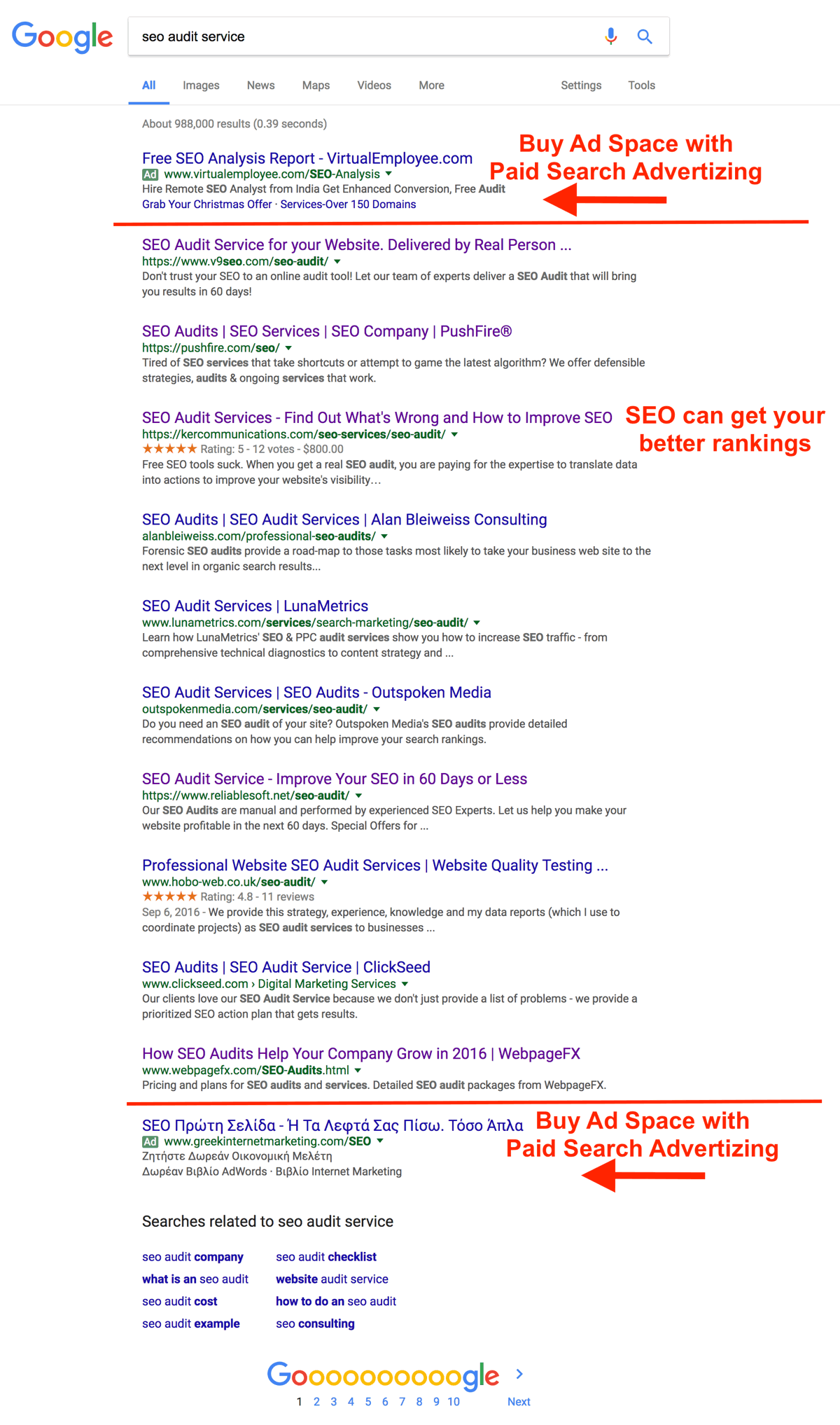
Well, 93% of the time, they find you via search engines like Google. Take a look at the anatomy of a search engine result page below:

how to do digital marketing 101: the search results

Search engine marketing (SEM) is a combination of techniques and marketing methods that aim to make your company dominate the search engine results page for a particular set of phrases, questions, and keywords.  This is done in two ways: Search engine optimization (SEO) and with paid search ads (PPC).

Search Engine Optimization (SEO)

common SEO mistakes to avoid, and what SEO success looks like

That first organic position on Google mobile search has a 31.35% clickthrough rate—which means it’s incredibly valuable. So, how do you get your website to be in that top-ranking Google position?

With SEO.

SEO is one branch of SEM, and is the process of tweaking and updating your website code and content to get your web pages to rank higher in the search results organically.

Here’s how search engines (like Google, Bing, and Yahoo!) work: They use search crawlers to scan web pages and decipher what they’re about. That way, they can spit out the web pages that are most relevant to your search query.

But, here’s the problem: Search engine crawlers speak a different language than we do—HTML. They can’t just read the words on a page, and they can’t “see” an image. What we do with SEO is write clues for crawlers in a language they understand. It’s like adding subtitles.

How SEO Works

Here’s how SEO actually works: Google and other search engines crawl pages on the web, indexing and categorizing them in what would be the universe’s biggest library. When you search for something online, you’re putting in a request to the library. Google uses machine learning and artificial intelligence to decipher your search term and produce web pages with the information you’re looking for.

Here’s where SEO comes in. Search crawlers speak a different language than we do—HTML. So, they need some extra help to determine what a web page is about so they can correctly index it.

Think of it like this: You’ve gone to the world’s biggest library, but the librarian speaks Russian, and all the books are in English. By optimizing your website for search, you’re using specific tactics—like adding in extra bits of code and structuring your website a specific way—that act like subtitles and make it easier for crawlers to understand, categorize, and index each web page.

internet marketing for remodelers: ideas and strategies

SEO is arguably the most reliable and profitable digital marketing tactic. But, before you ditch all your other advertising methods, understand that SEO is a lot like the stock market. You pick stocks—your keywords—based on information available at the time. Then, you wait for the returns, occasionally tweaking your strategy. Depending on ho
w well-optimized your presence is, it can take anywhere from three months to a year to gather steam.

Like the stock market, results fluctuate—often due to factors like seasonal or yearly consumer behavior, Google algorithm tweaks, and advances in digital technology. Also like the stock market, one thing is certain: If you play your cards right with SEO, you’ll get accelerated returns as time goes on.

There are more than 200 signals these crawlers use to determine what a page is about, but here’s a basic breakdown of what search engines look for:

  1. Secured sites (HTTPS vs. HTTP)
  2. Websites that are mobile-friendly
  3. Schema markup
  4. Webpage content quality
  5. Webpage content length
  6. Page speed
  7. Social signals
  8. Quality backlinks
  9. Optimized images
  10. Domain age
  11. User experience (UX)

SEO is one of the best digital marketing channels you can invest in—leads have a 14.6% close rate, compared to only 1.7% for outbound leads like print ads.

Learn more about SEO here >>

  • FREE SEO Analysis

  • Enter your website to see if you could benefit from SEO.

  • http://www.*
  • Try it – it’s FREE!

Pay Per Click Advertising (PPC)

Pay per click advertising is an umbrella term for online paid ads where you only pay teach time someone clicks on your ad, hence the name “pay per click.”

Paid search ads are the ones you’re probably most familiar with—they’re the ones that show up in the search results. Most of the time (except for some home services queries) those ads are search ads, meaning they are triggered when someone searches for a particular set of keywords. On average, 41% of clicks go to the top three paid ads on the search results page, and 75% of people say paid search ads make it easier to find the information they need

You’re not limited to paid search ads if you want PPC ads.  Within “pay per click” there are a few different types of ad strategies:

So, how effective are PPC ads? Well, businesses make an average of $2 in income for every $1 they spend in Google Ads.

Learn more about PPC ads here >>

  • FREE PPC Analysis

  • Enter your website to see how to improve your PPC performance.

  • http://www.*
  • Try it – it’s FREE!

Remarketing

Ever feel like websites you’ve visited are following you with their ads? You’re not crazy—that’s called remarketing.

Here’s how remarketing works: When someone visits your website from any device, a few lines of code from your retargeting partner (like Google AdWords) drops an anonymous cookie in the user’s browser. This cookie is a small file that stores various bits of information and tracks the site visit without storing any sensitive personal info. Then, when this cookied user leaves your website, the cookie tells your ad platform when they land on another one. Then—POOF—your ad appears.  It works, too—visitors retargeted with ads are 70% more likely to convert on your website.

digital marketing 101: remarketing

You can retarget and remarket on hundreds of websites and platforms, including social media like Twitter, LinkedIn, and Facebook.

Email Marketing and Marketing Automation

Email marketing is pretty much what it sounds like—marketing sent through email. It has a wildly high ROI when compared to other types of digital marketing, and is one that can skyrocket your leads for pennies.

type of digital marketing strategy: email marketing

Consider this:

  • The first thing 66% of business leaders do in the morning is check their email
  • 61% of consumers enjoy receiving promotional emails weekly, and 28% would like emails to come even more frequently
  • Email marketing has a 4,400% ROI, with a return of $44 for every $1 spent

Email marketing is not the same thing as marketing automation. Marketing automation is an umbrella term that can include any form of messaging that is triggered automatically. This can include everything from email marketing to automated texts and messenger marketing on Facebook and LinkedIn.

Here’s an example: Someone visits your website, and enters their email address or phone number to download something. That email address or phone number then goes into an automated system that automatically sends pre-determined emails and messages. We highly recommend incorporating marketing automation into your digital marketing strategy.

Learn more about email marketing here >>

digital marketing channels like email marketing

Social Media Marketing

Social media marketing refers to any marketing activity done via social media profiles and platforms. Currently, seven out of ten consumers expect a business to have a well-maintained social media presence, and 17% of consumers actively use social networks when looking for infor
mation about a business. The top platforms for social media marketing are:

  • Facebook
  • LinkedIn
  • Twitter
  • Pinterest
  • Instagram

However, not all platforms are created equal, and picking the wrong ones can tank your social media strategy. At most, you should be on four social media platforms (unless you have a dedicated team devoted to social media marketing). Find out which social platforms are best for your business here.

That being said, organic reach on social media is at an all-time low, thanks to a combination of social media feed algorithms and the rising popularity of using the platforms for business. What that means is you can’t get by with only posting organically. You need to supplement your social media campaign with paid social media ads, or else your message will die on the wind.

Learn more about social media marketing here >>

  • FREE SEO Analysis

  • Enter your website to see if you could benefit from SEO.

  • http://www.*
  • Try it – it’s FREE!

Video Marketing

Video marketing is exactly what it sounds like—marketing that takes the shape of a video. It’s incredibly effective—take a look at these video marketing statistics:

  • A video is 50 times more likely to get organic page ranks in Google than plain text
  • Half of the consumers who watch online product videos say it helps them make more confident purchasing decisions.
  • People who watch videos stay on a site two minutes longer on average and are 64% more likely to make a purchase.
  • U.S. consumers now watch up to six hours of digital video per day
  • Studies show that web pages with videos have a significantly higher average time on site than those without videos.
  • Next to Google, YouTube is the second largest search engine out there.
  • Videos allow you to drive branding and build trust. They’re like a TV commercial—for a fraction of the price.

what is digital marketing? US consumers watch more than 6 hours of video a day, so you need an online marketing strategy to connect with them

The best marketing videos are under 60 seconds—in fact, they should be under 10 seconds for maximum impact. Because consumers prefer short videos, they are more likely to watch yours if they know you provide quick, succinct details. To get started, we recommend making the following videos into your marketing plan:

  • How-to videos of your products and services
  • Customer testimonials
  • Company culture videos
  • Videos that highlight the benefits of using your products or services

Learn more about video marketing here >>

Tracking and Analytics: The Metrics and KPIs that Matter

None of this matters unless you’re tracking your campaigns and tweaking them based on metrics that affect your bottom line. However, thanks to the massive proliferation of data analytics capabilities, most companies are drowning in it. The key here is to identify which metrics matter, and to do that, you need to understand the difference between a metric and a Key Performance Indicator (KPI).

types of marketing metrics examples:KPI is key performance indicator in 2018 and 2019

Metric: A metric is a number

KPI: A KPI is a metric that is most closely tied to the overall business success

While metrics are helpful in forming specific strategies, only certain ones can help you refine and tailor your business strategy.

Bounce rates, page views, time on page, new visitors, and search rankings are all metrics.

These are the KPIs that really matter to your digital marketing strategy:

  • Total sales
  • Leads
  • Revenue
  • Return on marketing investment (ROMI)
  • Lead-to-sale conversion rate
  • Booking rate (from calls)
  • Cost per lead (CPL)

How to Develop Killer Digital Marketing Strategy

Where you’ll go with digital marketing depends on the data of where you’ve been, your digital strengths, and your company’s weaknesses. The number one way to start your digital marketing strategy is to have a digital competitive analysis done.

A competitive analysis will pit your online presence against your top competitors to see where you stand. You’ll also find out what opportunities they are taking that you aren’t and what’s necessary to beat them in the search engines and grow your company. With the best digital competitive analyses, you’ll also get a roadmap of the marketing channels that are the most important for your business.

  • FREE Competitor Analysis

  • want to outrank your competitors?

    Enter your website to see how you compare to your competition.

  • http://www.*
  • Try it – it’s FREE!

Source

How to Create an SEO Strategy for 2020 Template Included

Here’s a cliche among digital marketers: Search engine optimization (SEO) isn’t what it used to be.

Here’s a true statement you don’t hear as often: Your SEO strategy for 2019 shouldn’t focus on keywords.

These days, most businesses understand the basic concepts of SEO and why it’s important.

Download Now: Free SEO Starter Pack

However, when it comes to developing and executing a sound SEO strategy for your business, just creating content for the keywords your customers are searching for is both arduous and, well, wrong.

What is SEO strategy?

SEO strategy is the process of organizing a website’s content by topic, which helps search engines like Google understand a user’s intent when searching. By optimizing a web page around topics, then keywords within that topic, you can increase your expertise in the eyes of a search engine and rank well for long-tail keywords related to that topic.

What is an SEO?

Search engine optimizers (SEOs) are people who optimize websites to help them show up higher on search engines and gain more “organic traffic.” In essence, an SEO is a highly specialized content strategist, and helps a business discover opportunities to answer questions people have about the industry via search engines.

Here are three types of SEO that an SEO strategist can focus on:

  • On-page SEO: This SEO focuses on the content that’s “on the page,” and how to optimize that content to help boost the website’s ranking for specific keywords.
  • Off-page SEO: This SEO focuses on the links that are directing to the website from elsewhere on the internet. The number of “backlinks,” and the publishers carrying those links, that link to your website help you build trust in the eyes of a search engine. This causes your website to rank higher as a result.
  • Technical SEO: This SEO focuses on a website’s architecture, examining the backend of that website to see how each webpage is “technically” set up. Google cares as much about the code of a website as it does its content, making this speciality quite important to a website’s search engine ranking.

Bear in mind that not every business can optimize their website for search the same way, and therefore not every SEO will have the same optimization process. It’s an SEO’s job to examine his or her industry, find out what’s important to their audience, and develop an SEO strategy that puts the right content in front of that audience.

With that in mind, here are nine steps you can take to make sure all of your SEO bases are covered in 2019. Then, at the bottom of this blog post, you can grab your free planning template to master on-page SEO.

SEO Content Strategy

  1. Make a list of topics.
  2. Make a list of long-tail keywords based on these topics.
  3. Build pages for each topic.
  4. Set up a blog.
  5. Blog every week to develop page authority.
  6. Create a link-building plan.
  7. Compress all media before putting it on your website.
  8. Stay current on SEO news & practices.
  9. Measure and track your content’s success.

1. Make a list of topics.

Keywords are at the heart of SEO, but they’re actually not your first step to an organic growth play anymore. Your first step is to make a list of topics you’d like to cover from one month to the next.

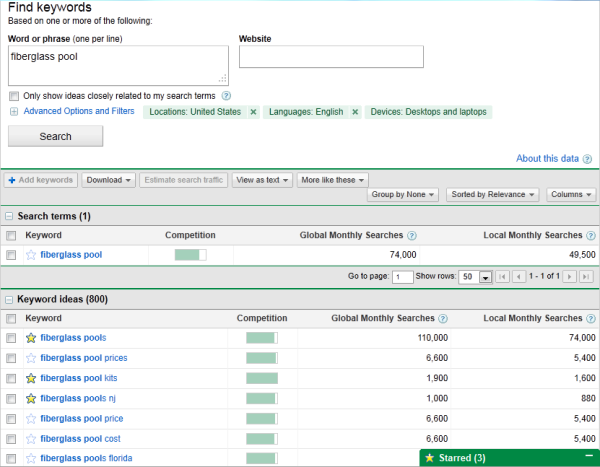
To start, compile a list of about 10 short words and terms associated with your product or service. Use an SEO tool (Google’s Keyword Tool, Ahrefs, SEMRush or GrowthBar just to name a few) to identify their search volume and come up with variations that make sense for your business. 

You are associating these topics with popular short-tail keywords, as you can tell, but you’re not dedicating individual blog posts to these keywords. These keywords are simply too competitive to rank highly for on Google if you’re just starting to optimize your website for search. We’ll go over how to use these topics in just a minute.

google adwords keyword tool screenshot resized 600

Using search volume and competition as your measure, narrow down your list to 10-15 short-tail keywords that are important to you, and that people within your audience are searching for. Then rank this list in order of priority, based on its monthly search volume and its relevance to your business.

For example, if a swimming pool business is trying to rank for “fiberglass pools” — which is receiving 110,000 searches per month — this short-tail keyword can be the one that represents the overarching topic on which they want to create content. The business would then identify a series of long-tail keywords that relate to this short-tail keyword, have reasonable monthly search volume, and help to elaborate on the topic of fiberglass pools. We’ll talk more about these long-tails in the next step of this process.

Each of these keywords is called a “pillar,” and it serves as the primary support for a larger “cluster” of long-tail keywords, which is what brings us to our next Step …

2. Make a list of long-tail keywords based on these topics.

Here’s where you’ll start optimizing your pages for specific keywords. For each pillar you’ve identified, use your keyword tool to identify five to 10 long-tail keywords that dig deeper into the original topic keyword.

For example, we regularly create content on the topic of “SEO,” but it’s still very difficult to rank well on Google for such a popular topic on this acronym alone. We also risk competing with our own content by creating multiple pages that are all targeting the exact same keyword — and potentially the same search engine results page (SERP). Therefore, we also create content on conducting keyword research, optimizing images for search engines, creating an SEO strategy (which you’re reading right now), and other subtopics within SEO.

This allows a business to attract people who have varying interests in and concerns about owning their product — and ultimately create more entry points for people who are interested in buying something.

Use subtopics to come up with blog post or webpage ideas that explain a specific concept within each larger topic you identified in Step 1. Plug these subtopics into your keyword research tool to identify long-tail keywords on which to base each blog post.

Together, these subtopics create a cluster. So, if you have 10 pillar topics, they should each be prepared to support one cluster of five to 10 subtopics. This SEO model is called a “topic cluster,” and modern search engine algorithms depend on them to connect users with the information they’re looking for.

Here’s a short video on this concept:

Think of it this way: The more specific your content, the more specific the needs of your audience are — and the more likely you’ll convert this traffic into leads. This is how Google finds value in the websites it crawls; the pages that dig into the interworkings of a general topic are seen as the best answer to a person’s query, and will rank higher.

3. Build pages for each topic.

When it comes to websites and ranking in search engines, trying to get one page to rank for a handful of keywords can be next to impossible. But here’s where the rubber meets the road:

Take the 10 pillar topics you came up with in Step 1 and create a web page for each one that outlines the topic at a high level — using the long-tail keywords you came up with for each cluster in Step 2. A pillar page on SEO, for example, can describe SEO in brief sections that introduce keyword research, image optimization, SEO strategy, and other subtopics as they are identified. Think of each pillar page as a table of contents, where you’re briefing your readers on subtopics you’ll elaborate on in blog posts.

Use your keyword list to determine how many different pillar pages you should create. Ultimately, the number of topics for which you create pillar pages should coincide with how many different products, offerings, and locations your business has. This will make it much easier for your prospects and customers to find you in search engines no matter what keywords they use.

Each web page needs to include relevant content for your prospects and customers and should include pictures and links to pages on your site to enhance the user experience. We’ll talk about those links in Step 4.

4. Set up a blog.

Blogging can be an incredible way to rank for keywords and engage your website’s users. After all, every blog post is a new web page that gives you another chance to rank in search engines. If your business does not already have a blog, set one up. This is where you’ll elaborate on each subtopic and actually start showing up on Google.

As you write each blog post and fill up your clusters, you should do three things:

  1. First, don’t include your long-tail keyword more than three or four times throughout the page. Google doesn’t consider exact keyword matches as often as it used to. In fact, too many instances of your keyword can be a red flag to search engines that you’re “keyword stuffing.” This can penalize your website and drop your rank.
  2. Second, link out to the pillar page you created on this topic. You can do this in the form of tags in your content management system (CMS), or as basic anchor text in the body of the article.
  3. Once you publish each blog post, link into it from the pillar page that supports this subtopic. Find the point in your pillar page that introduces this blog’s subtopic, and link it here.

By connecting both the pillar and the cluster in this way, you’re telling Google there’s a relationship between the long-tail keyword and the overarching topic you’re trying to rank for.

5. Blog every week to develop page authority.

Not every blog post or web page you write needs to belong to a topic cluster. There’s also value in writing about tangential topics your customers care about in order to give your website authority in the eyes of Google. This will cue Google to pay extra attention your domain as you add content to your primary topics.

With that in mind, make a point to blog at least once a week. Remember, you are blogging primarily for your audience, not the search engines. Write about things your audience and/or prospects are interested in, make sure you’re including relevant keywords where appropriate, and your audience will slowly start to notice and click.

Keep in mind that each topic won’t be equal in importance, and as your clusters get off the ground, you’ll need to prioritize based on your company’s needs. So, create a list of all the different web pages you would like to create and rank them. Then, develop a schedule and devise a plan of attack to get those pages built.

Keep your list updated and prioritized by what web pages will help you to best achieve your business goals.

6. Create a link-building plan.

The topic cluster model is your way forward in SEO this year, but it’s not the only way to get your website content to rank higher once it’s been created.

Our first five steps were dedicated to on-page SEO tactics. Link-building is the primary objective of off-page SEO, and is also a huge factor in how search engines rank your web pages. What is link-building? Glad you asked.

Link-building is the process of attracting inbound links (also called “backlinks”) to your website from elsewhere on the web. As a general rule, the more page authority the origin website has, the bigger affect it will have on the rank of the web page to which it is linking.

Dedicate some time to brainstorm all the different ways you can attract inbound links to your website. Start small –- maybe share your links with other local businesses in exchange for links to their sites. Write a few blog posts and share them on Twitter, Facebook, Google+, and LinkedIn. Consider approaching other bloggers for guest blogging opportunities through which you can link back to your website.

Another great way to attract inbound links is to use your blog to post articles related to current events or news. That way, you have shot of getting linked to from an industry influencer or other bloggers in your industry.

7. Compress all media before putting it on your website.

This is a small but important step in the SEO process. As your blog or website grows, you’ll undoubtedly have more images, videos, and related media to host there. These visual assets can help retain your visitors’ attention, but it’s easy to forget these assets are still technically computer files — and computer files have file sizes.

As a general rule, the bigger the file size, the harder it is for an internet browser to render your website. And it just so happens that page speed is one of the most important ranking factors when search engines decide where to place your content in its index.

So, the smaller the file size, the faster your website will load, and the higher you can rank on Google as a result. But how do you shrink a file size once it’s on your computer?

If you’re looking to upload an image to a blog post, for example, examine the file for its file size first. If it’s anywhere in megabyte (MB) territory, even just 1 MB, it’s a good idea to use an image compression tool to reduce the file size before uploading it to your blog. Sites like TinyPNG make it easy to compress images in bulk, while Google’s very own Squoosh has been known to shrink image file sizes to microscopic levels.

Ultimately, keeping your files in the kilobytes (KB) can sufficiently protect your website’s page speed.

Be careful when compressing your images, and check the file’s actual size once you export it back to your computer. While some tools might not be true to the size it shows you, others can sacrifice some image quality when compressing the artwork.

8. Stay current on SEO news & practices.

Like the overall marketing landscape, the search engine space is ever-evolving. Staying on top of current trends and best practices is a difficult task, but there are multiple online resources that can make it easy for you to stay on top of SEO news and changes that may impact your website and your SEO strategy.

Here are a few resources to check out:

  1. SEOmoz
  2. SEOBook
  3. Search Engine Roundtable
  4. Search Engine Land
  5. Diggity Marketing
  6. This Blog!

9. Measure and track your content’s success.

SEO can take a lot of time and effort. What good is spending all this time and effort if you can’t see the fruits of your labor? There are many metrics you can track on a daily, weekly, or monthly basis to keep your SEO plan on track and measure your success.

Because the metric you care about is organic traffic (traffic that comes from a given search engine), seek out a tool that allows you to track both your overall organic traffic number and how your pages are ranking under each long-tail keyword your pages are targeting. SEMrush is a great reporting tool for just this purpose.

Create a monthly dashboard using Excel, Google Sheets, or a web analytics package so you can monitor how much traffic comes to your website from organic search.

Also, tracking indexed pages, leads, ROI, inbound links, keywords, and your actual ranking on SERPs (search engine results pages) can help you recognize your success as well as identify areas of opportunity.

SEO Process

Once you create your monthly SEO plan, you should also build a process to continue to optimizing it to fit new intent and keywords. Here are a few steps you can take. 

1. Historically optimize your content. 

Devote some time each month to updating old blog posts with new and up to date information so it continues to rank in SERPs. You can also use this time to add any SEO optimization that wasn’t in the original post, such as missing alt text.

2. Look out for changing keywords and new search intent.

After a few months, track where your blog posts are ranking and which keywords they’re ranking for. This can help you adjust subheads or text to leverage that new keyword ranking.

3. Add more editorial value to your old content.

Sometimes, you’ll find that a post is completely out of date. In this scenario, you should go beyond the average SEO update and give it a full refresher. You can do this by updating out of date information or stats, adding new sections that add depth to the post, or adding quotes or original data that can make the post gain more referral traffic.

4. Note new content and updates aimed at SEO in a monthly content plan.

To keep up with your SEO strategy, it can be helpful to create and refine a monthly content strategy. Then put your content plan into a spreadsheet or document that your team can monitor and track easily.

Below is an example of a content monthly content planning process that takes the steps above into account. 

SEO Monthly Plan

  1. Devote time to keyword research related to your industry.
  2. List blog post ideas that leverage opportunistic keywords.
  3. List blog posts that you can update.
  4. Identify other SEO opportunities, such as holidays.
  5. List all of your content ideas on a Search Insights Report.
  6. Assign content to your team.
  7. Take time at the end of each month to track your progress.

With a monthly SEO plan like the one above, plus a tracking document like a search insights report, you can build out and execute on an efficient SEO strategy. You can also identify and leverage low-hanging-fruit topics to discuss related to your industry.

To learn more about SEO, check out our Ultimate Guide to SEO

Editor’s Note: This blog post was originally published in April 2019 but was updated in March 2020 for consistency and freshness.

marketing

Originally published Mar 13, 2020 4:15:00 PM, updated May 05 2020

Topics:

SEO

Don’t forget to share this post!

Source

Your SEO Checklist 4 Steps to Optimizing Your Website

Free Book Preview No BS Guide to Direct Response Social Media Marketing

The ultimate guide to – producing measurable, monetizable results with social media marketing.

February 4, 2014 5 min read

Opinions expressed by Entrepreneur contributors are their own.

In his bookUltimate Guide to Optimizing Your Website, SEO and online marketing expert Jon Rognerud shows you how to build a high-performance website and get top ranking on all search engines. In this edited excerpt, the author outlines a broad strategy for successfully optimizing your website.

The goal of search engine optimization is to have the search engine spiders not only find your site and pages but also specifically rank the page relevance so that it appears at the top of the search engine results. The process of optimization is not a one-time process but requires maintenance, tuning, and continuous testing and monitoring.

Below is a broad four-step process for a strategy for search engine optimization. Use this as your top-level checklist.

Step 1: Target Market Business Analysis

  • Website analysis. Analysis of meta sets/keywords, visible text and code to deter­mine how well you’re positioned for search engines. For example, how much code do you have on a page compared to text?
     
  • Competitive analysis. Examination of content keywords and present engine rank­ings of competitive websites to determine an effective engine positioning strategy. Pick the top five results in the Google listing results to begin this process. Expand as necessary. Use tools such as Semrush.com and Keywordspy.com.
     
  • Initial keyword nomination. Development of a prioritized list of targeted search terms related to your customer base and market segment. Begin with this: What would you type into a search engine to find your business website or page? Then, ask your customers!

Step 2: Keyword Research and Development

  • Keyword analysis. From nomination, further identify a targeted list of key­words and phrases. Review competitive lists and other pertinent industry sources. Use your preliminary list to determine an indicative number of recent search engine queries and how many websites are competing for each key­word. Prioritize keywords and phrases, plurals, singulars and misspellings. (If search users commonly misspell a keyword, you should identify and use it). Please note that Google will try to correct the term when searching, so use this with care.
     
  • Baseline ranking assessment. You need to understand where you are now in order to accurately assess your future rankings. Keep a simple Excel sheet to start the process. Check weekly to begin. As you get more comfortable, check every 30 to 45 days. You should see improvements in website traffic, a key indicator of progress for your keywords. Some optimizers will say that rankings are dead. Yes, traffic and conversions are more important, but we use rankings as an indicator.
  • Goals and Objectives. Clearly define your objectives in advance so you can truly measure your ROI from any programs you implement. Start simple, but don’t skip this step. Example: You may decide to increase website traffic from a current baseline of 100 visitors a day to 200 visitors over the next 30 days. Or you may want to improve your current conversion rate of one percent to two in a specified period. You may begin with top-level, aggregate numbers, but you must drill down into specific pages that can improve products, services, and business sales.

Step 3: Content Optimization and Submission

  • Create page titles. Keyword-based titles help establish page theme and direction for your keywords.
     
  • Create meta tags. Meta description tags can influence click-throughs but aren’t directly used for rankings. (Google doesn’t use the keywords tag any­more.)
     
  • Place strategic search phrases on pages. Integrate selected keywords into your website source code and existing content on designated pages. Make sure to apply a sug­gested guideline of one to three keywords/phrases per content page and add more pages to complete the list. Ensure that related words are used as a natural inclu­sion of your keywords. It helps the search engines quickly determine what the page is about. A natural approach to this works best. In the past, 100 to 300 words on a page was recommended. Many tests show that pages with 800 to 2,000 words can outperform shorter ones. In the end, the users, the marketplace, content and links will determine the popularity and ranking numbers.
     
  • Develop new sitemaps for Google and Bing. Make it easier for search engines to index your website. Create both XML and HTML versions. An HTML version is the first step. XML sitemaps can easily be submitted via Google and Bing webmaster tools.
     
  • Submit website to directories (limited use). Professional search marketers don’t sub­mit the URL to the major search engines, but it’s possible to do so. A better and faster way is to get links back to your site naturally. Links get your site indexed by the search engines. However, you should submit your URL to directories such as Yahoo! (paid), Business.com (paid) and DMOZ (free). Some may choose to include AdSense (google.com/adsense) scripts on a new site to get their Google Media bot to visit. It will likely get your pages indexed quickly.

Step 4: Continuous Testing and Measuring

  • Test and measure. Analyze search engine rankings and web traffic to determine the effectiveness of the programs you’ve implemented, including assessment of individual keyword performance. Test the results of changes, and keep changes tracked in an Excel spreadsheet, or whatever you’re comfortable with.
     
  • Maintenance. Ongoing addition and modification of keywords and website con­tent are necessary to continually improve search engine rankings so growth doesn’t stall or decline from neglect. You also want to review your link strategy and ensure that your inbound and outbound links are relevant to your business. A blog can provide you the necessary structure and ease of content addition that you need. Your hosting company can typically help you with the setup/installation of a blog.

Source

9 Top Software Development Trends for 2020

Are you looking for top software development trends in 2020? Well, you are in the right place! Here you will read various best software trends that will rule the year 2020.


Do you have an idea about how much the global market is spending on technology in 2019? Well, the answer is a whopping $3360 billion! This is a big number and, considering the current dominance of the IT sector, it is only fair. In this blog, we will look at some top software development trends that will dominate 2020.


Be it the marketing of a business or learning a new programming language, people follow market inclinations to get an edge over others in that field. Every industry in today’s market is swarming with new businesses and to stand out in the herd, you should inculcate the top software trends in your company before anyone else. 


61.60%of software development companies agree that the average time of software development is4-6 months. The question is: what can you as a developer or a business owner do in this time period to make sure that your software is the best in the market?

software trends

The term “IT” is a vast field comprising different categories. From the use of the latest marketing tools to creating interactive websites and apps for your business, every little modification you do falls in one or the other category of the IT industry. 


Most of the trends in this list were also a trend in 2019 or 2018. For instance, the Internet of Things. The net worth of the IoT market was expected to be 1.7 trillion dollars in 2019. The IoT industry is only going to expand in 2020 and you should leverage it, along with other trends, for software development in your industry.


Software development is a significant part of the IT industry. You need to start using a futuristic approach and use top software development trends in the mainstream of your business operations. In this article, we discuss the top 9 software development trends you should follow in 2020 to stay ahead over your competitors.

Good Read: Top React Development Companies in India for 2020


Software Trend 1: The Blockchain Technology – Beyond Bitcoin


It doesn’t matter if you follow Bitcoin or not, you must have heard the sudden rise and fall in the value of Bitcoin in December of 2018. Well, we won’t be talking about Bitcoin or Ethereum here but the technology behind cryptocurrencies – Blockchain. 

Initially, Blockchain was limited to the finance industry but it is now moving to other sectors as well, such as healthcare, logistics, public administration software development, and more. The blockchain technology is one of the software development trends that can help your business reach new heights.


== What Is Blockchain and Why Should You Care?


To begin with, Blockchain is a series of non-changeable data records that are stored and managed by a bunch of computers and not just by a single entity. This accounts for the transparency of all the stored data but, at the same time, can’t be changed unless certain credentials are met. 


software development trends


The market of blockchain technology is increasing by each day and it is foreseen to impact the software development industry in a significant manner. The technology is still afresh and developers have already begun to implement it and build secure and decentralized solutions to real-world problems of different industries. 

Stay ahead of your competitors by leveraging the power of blockchain technology for software development in your business. 


Software Trend 2: Cross-Platform Development: Tools and Languages


The era of native apps is going down and cross-platform development is taking over because of its obvious benefits. Developers and business owners are investing in cross-platform development using the newest frameworks and programming languages for it.


Software developers are inclining towards programming languages that integrate features of two or more. One of the finest examples of this is: Kotlin and Scala taking over the good old JAVA in android app development. While JAVA is an object-oriented programming language, Kotlin and Scala offer object-oriented programming and functional programming at the same time. 


Cross-Platform software development not only helps you save from your budget but it also is logical. Why would anyone invest their resources in two different apps for iOS and Android when they can do with one? The concept of cross-platform development or hybrid apps has been existent for long but with development environments like Flutter and Xamarin, it has now become feasible to efficiently implement it in real-life.


best software development trends


The software industry is shifting towards cross-platform development and it is expected to dominate the market by 2020. Invest your business resources in cross-platform development, for instance – creating hybrid apps over native apps. Hire developers in India for quality software and mobile app development.


Software Trend 3: Progressive Web Apps (PWA) – Are They Still In Trend?


Yes. They are. Progressive Web Apps offer the most up-to-date and seamless user experience. Besides, they come with a long list of benefits. For instance, the PWA ofStarbucksis99.84% (233kB) smaller than the native app.


The bounce rate of a poorly designed website or a buggy app can give a serious blow to the conversion rates of your business. Your website cannot leverage a device’s hardware specifications to give its best performance. Similarly, the capability of your mobile app to use a device’s software and hardware specifications is limited. 


What if I told you that you can combine the good bits of your website and your app to offer your visitors a great experience?  Yes, you heard it right! Progressive Web Applications are a result of the perfect combination of a website and a mobile app. PWAs have cut the bounce rates and boosted the conversion rates of many brands in the market such as AliExpress.

software development trends


== What are Progressive Web Apps?


In simple words, Progressive Web Apps are designed to offer application-like experience in a browser for your customers. PWA Apps essentially lower the chances of bad user experience and thus, have a long list of advantages over a
hybrid or native apps. 


One of the major benefits of PWA Apps is that it cuts the development and distribution costs of your business to a large extent. Besides this, other advantages such as no updates required, less data usage, and better SEO, yield in better visitor or customer experience and hence, higher conversion rates.


PWAs are one of the most important software development trends you should use in 2020. Business leaders like Adobe and Google are already benefiting from PWAs. Hire PWAs developers and step into the future of software development.


Software Trend 4: The Internet of Things – Connecting Devices, Enhancing Accessibility


IoT has been a part of top software trends for long now and considering its dominance, it will continue being a topic of interest in the next decade as well. This technology has already reached people’s homes, such as Alexa, but is yet to reach its limits. 


Internet of Things is a group of physical objects (things) such as smart wearable devices that are connected and can transfer data over the Internet. IoT in software development opens a way to reliable, user-friendly, and secure solutions. It creates multiple possibilities for both developers as well as business owners. They can this trend to get an edge over their competitors in the market.  


top software trends


The IoT market is reaching new heights. The number of devices that are connected and are communicating through the Internet is increasing by each day. Gartner predicts the number of connected devices to reach 20.4 billion by 2020. Use the power of IoT to create secure and reliable software for your business today!


Software Trend 5: Cybersecurity – Secure Internet


The concept of cybersecurity i.e. security over the Internet is not new. As the entire population is gradually shifting on the Internet, the need to keep it secure becomes more urgent. If you think about it, you rely on the Internet for numerous things such as bank transactions, cloud storage, communication, and whatnot!


best software development trends


Cybersecurity makes sure that your personal and professional data is secured from cyber attacks. Following the ongoing software trend, by 2020, the need to use cybersecurity for the safety of applications and software will increase significantly. This can only be implemented by hiring developers who can design custom applications and software for your business. 

Software Trend 6: Use of Scanners and Sensors


Lately, mobile apps that use sensors and scanners to fulfill their purpose are coming into play, especially with the increasing market of IoT devices. The entire market is still innovating and sensors increase the chances of new applications. For instance, there are mobile apps that let you control your TV using your mobile phone.

Besides, there are sensors attached to your computers and mobile devices such as GPS, fan speed, temperature, and more. Using scanners and sensors for software development can push your business way ahead of your market competitors. 

Developers are using third-party platforms APIs, operating system support, and different tools to create compatible software and applications. Hire PHP developer with experience in a particular field to create futuristic apps for your business.


Software Trend 7: AI-Driven Software Development


The term “Artificial Intelligence” is used a lot nowadays and you might be wondering how is this a part of software development trends for 2020? The artificial intelligence industry is here but it is far from reaching its peak. The entire world is moving towards automation and software has a major role to play in it. 

best software trends


The revenue generated from AI is increasing and is predicted to generate trillions soon. Our software development technologies have now reached a level where they can be used for the real-life implementation of artificial intelligence. Be it machine learning, deep learning or anything else, businesses are using artificial intelligence to optimize their operations and create a better user experience.


Given its popularity, AI will remain in the top software trends for at least next few years. Companies are using artificial intelligence for better performance and decreased operation costs. To make your mark in the digital world in 2020, practice artificial intelligence-driven software development in your business.


Software Trend 8: Increasing Popularity of Cloud Services


Cloud has been in the market for a long time now. Even technologies in this list such as IoT and Blockchain function as a cloud service. The problem of data storage is real and cloud offers a reliable and secure alternative to that. The market is shifting from using physical data servers to cloud and your business should become a part of it at the earliest.

top software trends

By the use of cloud computing in software development, you can not only speed up the entire process but also increase transparency and decrease the overall project costs. This not only offers new opportunities for developers but also allows businesses to innovate. The reach of cloud services is increasing and it already has penetrated sectors like logistics, health care, finance, and more.

Types of cloud computing such as Platform-as-a-Service (PaaS), Infrastructure-as-a-Service (IaaS), and Software-as-a-Service (SaaS) are already being used by businesses to boost the overall efficiency of the development process. For instance, PaaS helps to develop and run applications without actually building them. The use of cloud services in software development will only increase and you should start leveraging its power for your business at the earliest. 


Software Trend 9: AR/VR/MR – The Use of Immersive Technologies


Augmented Reality (AR), Virtual Reality (VR), and Mixed Reality (MR) are terms that are commonly used in the current business world. The entire market of immersive technologies, no matter how popular it is right now, is in its budding phase. Immersive technologies provide a bagful of software development opportunities and you should jump in at the earliest.

software development trends

Statistica has projected the AR/VR market to reach 209.2 billion dollars by 2022. While AR is being used for training purposes while VR has found its way in the gaming and video industry. Immersive technologies ar
e bound to reach new market heights and it only makes sense to use it for the growth of your business.


We have access to powerful development tools and we can use to realize the power of immersive technologies. You can not only offer it as a service for your clients but also can use it for in-house operation. For instance, you can use these immersive technologies (AR/VR/MR) to apply different designs on furniture or to allow your customers to try clothes by dressing mannequins. As a software developer, these technologies offer opportunities to explore new and creative fields in the development world.


Here is one more Software Trend: Low/No-Code Development – Development Using GUIs


Low-code development is one of the less-acknowledged but an important part of software development trends of 2020. The first thing that usually crosses our mind when software development is talked about is complex programming languages. Well, the low-code development market is thriving. Well, what is low code development? 

Low code development is building software or an app with the use of graphical user interfaces and without using any programming language. With coding an application or software in parts, you can visualize it without having developers to program it. There are different platforms available for easy low code software development and the entire market is projected to increase by 2020.

Final Words

These top software development trends show where the entire industry is headed. As a developer, you can learn new technologies and build futuristic apps. As a business owner, you can use these top software trends to take your business ahead of your competitors by cutting operation costs, create awesome user experience, and boost your sales. You can also hire Indian developers to build software and applications using technologies like IoT, Blockchain, AR, VR, MR, and others.


Source

15 Common Windows PC Problems and How to Solve Them

PC problems are frustrating, especially when you aren’t an experienced user and deep down you know it would probably be a quick and easy fix if you just had the knowledge. Unfortunately, even a simple PC fix can feel out of reach.

Before you bother your family member again, or worse, spend your hard-earned money on an expert computer diagnostic, take a look at our guide to the most common Windows computer problems that anyone can fix. And we mean anyone.

To start with, we need to know which version of Windows is on your PC. Each version has its unique strengths and problems, so we’ve broken our tips into three sections – Windows 10, Windows 8, and Windows 7. No, we didn’t miss one, there is no Windows 9. Yeah, we don’t know why either.

If you don’t know what Windows you’re using, take a look at the images below and click the one that looks most like what is on your screen.

Let the computer troubleshooting begin!

If Microsoft is to be believed, this is the final version of Windows. That doesn’t mean they won’t be updating it, though, it just means that your operating system changes will evolve more naturally. We’re all for it as switching to a new Windows was always such a hassle. While it’s considered the best Windows experience so far, even Windows 10 isn’t perfect. Here are five common Windows 10 problems with easy fixes that anyone can solve.

WIN10: turn on system restore

Inexperienced PC users will often worry about doing something that “breaks” Windows. That’s why the System Restore feature is the safety net that everyone should be using. When something “breaks”, System Restore allows you to roll back the clock to a time when everything was working well.

To do this, you need to make sure that Windows is taking these snapshots (restore points) on a regular basis.

Follow these steps:

  1. Type “create a restore point” into the search bar
  2. In the system properties window click on your “system” drive to highlight it
  3. Click on “configure” 
  4. Check “turn on system protection”
  5. Drag the “max usage” slider so that it is around 5 GB
  6. Click “apply”

Enjoy the peace of mind of knowing that if you make a mistake, system restore has a time machine to take you back to before it happened.

System Protection for Local Disk in Windows 10

WIN10: speed up a slow PC

Windows 10 is probably the quickest Windows so far, but it is still vulnerable to common issues that slow down PCs like a hard drive full of junk files and background applications that waste memory. To keep your PC clean and optimized so that it runs as fast as possible there are a lot of manual things you can do.

Reduce startup programs

Many programs will load when Windows start, even though they don’t need to. This wastes your resources. To trim the fat follow these steps:

  1. Type “System configuration” into the Windows search field
  2. Open the app
  3. Click on the “Services” tab and check “Hide all Microsoft services”
  4. Now turn off the programs you don’t think you need and click apply

Use System Configuration to remove useless programs from startup on Windows 10

Uninstall programs you no longer use

The next step is to remove programs from your system that you no longer use. This will free up space and speed up your PC. Here’s what you do:

  • Type “Programs and features” into the Windows search field
  • Open the app
  • Highlight an app you are sure you no longer need and click “Uninstall/Change”

Uninstall programs on Windows 10 PC with Programs and Features

Find junk files and delete them to free up space

Another way to lighten your hard drive and speed up Windows is to identify all the temporary junk files that apps build up on your system. Follow these steps:

  • Type “Disk cleanup” into the Windows search field
  • Open the app
  • Select the drive to clean (normally c:)
  • Select the files you want cleaned – if you’re unsure highlight the item and Windows will explain in more detail

How to use Disk Cleanup tool

Instead of all these different manual methods, you could download a specialist cleaning app called CleanMyPC. This app is a one-stop solution for many issues that slow your computer, including what we mentioned above but all whole lot more than that. Once installed a simple click on each of the tools will automatically start the cleaning process.

It’s quick and easy, and when you’re done, you’re going to have a PC that probably performs even better than the systems of the people you would normally be asking for help from.

WIN10: make files open with right apps

How annoying is it to double click on a file and have it open with an app you don’t recognize? Windows 10 wants you to use its apps as the default, but the best apps are often not Windows apps. To get Windows to always open particular files with the apps that you want, follow these easy steps.

  1. Find a file type that opens with the wrong app
  2. Right click on it and go to Open with > Choose another app
  3. Highlight the app you want it to open with and check “Always use this app” 
  4. Click “Ok”

That’s how easy it is. From now on, every time you double-click this file type (for example it could be .jpg for photos or .mp3 for music) Windows will open the app you chose.

How to change the default application for a file type

WIN10: remove annoying pop-up ads in Microsoft Edge browser

If you’re using Microsoft Edge, the new Windows default web browser, you should be enjoying a fast and user-friendly browsing experience. If Microsoft Edge is not working properly and you miss Internet Explorer, typing that into the Start field will reveal that the old web browser is still there.

One of the more common problems with Microsoft Edge is pop-up ads. Not only do they get in the way, if clicked, they can also cause all sorts of problems for Windows.

Thankfully it’s easy to fix Microsoft Edge pop-ups:

  1. Open Edge and click on the three dots in the top right of the app
  2. Click on “settings” 
  3. Scroll down and click on “view advanced settings” 
  4. Make sure “block pop-ups” is turned to “on”

How to block pop-ups in Microsoft Edge browser

WIN10: get a DVD to play

Windows 10 doesn’t come with a pre-installed application to play DVD movies, which seems crazy to us but there you have it.

If you type “store” into the search bar and open the Windows Store app and then search for “DVD player” you will see that Microsoft has made one available, but it costs $15 (unless you upgraded). Luckily there are other free options, like VLC, that will get your PC playing all your favorite DVD movies in no time at all.

Windows 10 PC problems fixed? You did it! 

We couldn’t be more proud of you. Using Windows 10 doesn’t have to be an experience where you’re always in fear of doing something wrong, and feel like you always have to get help from someone else. If nothing else, let this this be the start of a new you. A person that is able to identify common PC errors and find the fixes.

How to solve common Windows 8 PC problems

Poor Windows 8. It’s like the awkward middle child. Its radical new direction made many users want to stay on Windows 7, even after Windows 8.1 had addressed a lot of the most common issues. And when Windows 10 arrived on the scene, everyone who wanted the latest systems jumped ship.

It’s still a great operating system, though, so if you’re still on board, here are some common computer problems and their easy fixes to make your journey as comfortable as possible.

WIN8: give your PC a speed boost

Is Windows 8 performing slower and slower every day? Many things could be dragging your system down. You may think you need an expert to solve them, but in a lot of cases you can do a lot of good yourself.

Free hard drive space is incredibly important to a smooth running Windows system. If you are storing data on your Windows/system drive then we would recommend moving these files to another internal drive, or an external drive.

Another solution would be to manually clean out all the temporary junk files that Windows accumulates over time. To do this, simply run the Windows 8 app called Disk Cleanup and follow the instructions.

The best option of all would probably be CleanMyPC, an app that was made for inexperienced computers users. Not only does it remove junk files, clean registries, make certain applications are properly uninstalled, and so much more, it does everything automatically with just a click needed to start each operation.

To clear junk files with CleanMyPC:

CleanMyPC will now do all the dirty work for you, just click “Clean” button.

Clean your PC with app

WIN8: speed up your startup

Is Windows taking longer and longer to start? It could be because you’ve installed too many programs, many of which like to automatically run when Windows starts, even if they aren’t needed. An IT guy who comes out to help you will definitely look at your startup programs to try and limit how many of them load.

Want to know how he does it? This is how:

  • Type “msconfig” into the search
  • Run the app
  • Click on the “services” tab
  • Check the “Hide all Microsoft services” box

System Configuration on Win8

Now just look through the list and if you see a program that you know you don’t use very often, turn it off and “apply”.

If that sounds too confusing, CleanMyPC once again presents an easier solution. Just open the app and click on the “Autorun” section. Now you can immediately toggle on and off startup programs. It’s safe and easy and if you toggle off something you realize you need running, just open the app and turn it back on.

How easy is that?

WIN8: turn on laptop touchpad

Many Windows 8 laptop users have encountered the problem of their touchpad not working. Not too big of a problem if you have a mouse to plug in but a real annoyance if you travel a lot and like to use your laptop on the go. Luckily, the problem is usually that the trackpad is simply turned off.

To turn it on, plug in a mouse and then follow these steps:

  1. Press Windows key + C
  2. Click on “settings” and then “change PC settings”
  3. Go to PC and devices > Mouse and touchpad
  4. Make sure Touchpad is enabled

How to turn on laptop touchpad on Win8

WIN8: sharpen blurry text

Windows 8 caters for devices that have high-resolution displays. If you could zoom in, you’d see that these displays effectively have more dots. A common Windows 8 problem is when an old application isn’t able to scale itself to this resolution. When this occurs Windows jumps in to save the day by doubling the size of the interface.

Thanks, Windows! (happy tone)

The problem is that now the text is often blurry.

Thanks, Windows! (sarcastic tone)

If you would prefer a smaller interface with sharper text, follow these easy steps:

  1. Right click on the application’s shortcut
  2. Click on the “compatibility” tab
  3. Turn off “display scaling on high DPI settings”
  4. Now restart the app and enjoy sharper text.

How to sharpen blurry text in Win8

WIN8: enable delete confirmation dialog box

If you were recently a Windows 7 user, you would have noticed that, unlike in 7, in Windows 8 a deleted file moves into the recycle bin without warning. This saves time for power users, but if you aren’t as comfortable at the keyboard, you probably want an extra step before a file is moved to the trash. Luckily you can turn the warning dialog back on by following these steps:

  1. Right click on the Recycle Bin and select “Properties”
  2. Turn on “Display delete confirmation dialog box”
  3. Click “OK”

Now, next time your finger accidentally taps delete, you’ll be saved by the warning.

How to enable delete confirmation dialog box in Windows 8

Windows 8 PC problems fixed? You did it! 

Don’t let anyone tell you Windows 8 is awful. Especially now that you’ve solved a lot of the more common Windows 8 problems. Let this be the beginning of a new way to look at your relationship with your computer. It doesn’t rule you anymore. You are in control.

How to solve PC problems in Windows 7


The old kid on the block. Windows 7 is still a popular choice, especially for casual users who aren’t keen to have to re-learn their way around newer versions of Windows. One day these users will have to upgrade but right now Microsoft intends to keep supporting Windows 7 until 2020, so you’ve still got time.

To get the most out of your Windows 7 experience, you don’t need a PC diagnostic from an expert; you just need to follow some simple computer troubleshooting tips.

WIN7: low on space part 1 – uninstall properly

To perform operations smoothly, Windows 7 needs a lot of free space. To free up space, you should take a look at your installed programs. Everyone has at least a few programs, uninstalled ages ago, that are never used but take up disk space and system resources.

To purge your system of old programs follow these steps:

  1. Click on the Start and open “Control panel”
  2. Open “Programs and Features”
  3. Look through the list and find programs you don’t use anymore – just click “Uninstall” to remove

Uninstall or change programs on Windows 7

The normal Windows uninstall will leave some parts of the program behind, which is why an even better method is to use the Uninstaller feature in CleanMyPC. It will remove every inch of the program to maximize the space you free up.

WIN7: low on space part 1 – remove junk

Windows 7 absolutely loves creating temporary files, which over time build up. The problem with temporary files is that they serve no purpose and Windows never removes them. Thanks a lot, Windows.

To take out the trash yourself, follow these steps:

  1. Click Start, and in the search box type “Disk Cleanup”
  2. Open the app and select the drive th
    at you would like to clean
  3. Choose which types of files you would like to delete

Another option is an app created specifically for the cleaning of Windows systems. CleanMyPC doesn’t just find and easily remove junk files, it is a complete PC diagnostic solution. It couldn’t be easier to use and allows normal people to clean their PC like a pro.

To remove junk files with CleanMyPC:

  1. Open the app
  2. Click “scan” from the “My computer” tab
  3. And…uh…that’s pretty much it

Within minutes you’ll be shown all the space you can free up with a single click of the mouse. Who needs a repair guy when you have programs like CleanMyPC?

Clean up Windows 7 with CleanMyMac

WIN7: fix security certificate issues

A familiar Windows 7 problem is the warning dialog, ‘there is a problem with this website’s security certificate,’ which you receive while browsing the web. If you get this error often, it’s probably due to your time and date being incorrect.

Look in the tray for your clock. Click on it and select “Change time and date settings” to make sure your PC is living in the present. Now you should be able to browse the web in peace. And you didn’t even need a professional PC diagnostic!

virus free Windows 7

WIN7: stay virus free

When you’re not a techie, it can be hard to know what files are safe and what files are potentially dangerous for your system. If you are experiencing weird computer problems then you may be infected

For a start, make sure that:

  • Windows 7 and your programs are up to date
  • Your antivirus is also up to date and has real-time protection turned on
  • You’re running a virus scan at least once a week
  • Windows Firewall is turned on

Another important factor is to just be careful about which links and files to open. Were they sent from someone you don’t know? Were they sent from a friend but are written suspiciously? Do they sound too good to be true? If you’re unsure, rather contact the person to make sure they did actually send it. Or do a Google search using the text you were sent. If it’s part of a scam, there are ways to find out.

WIN7: improve video performance

After a long day of work you just want to sit down with your laptop and enjoy a good movie. But playback is so poor that you end up putting your laptop away in disgust and grabbing a book.

If this sounds familiar, then we have a solution that could help improve your video playback.

Follow these instructions:

  1. Click Start and type “Power options”
  2. Click “Power options”
  3. Click “Change plan settings”
  4. Click “Change advanced settings” and expand the “Multimedia settings” section
  5. Change the setting for “Play video” to “Optimize performance”

Windows 7 PC problems fixed? You did it! 

If you were able to solve even just 2 or 3 of the Windows 7 problems above, congratulations, we hope you feel as empowered as you should. With just a little guidance and the right tools, you can improve your Windows experience without always relying on someone else.

Source

What is the Difference Between SEO and SEM

The difference between SEO and SEM is simply that Search Engine Optimization is part of Search Engine Marketing or Search Marketing as it is widely known. Both processes aim in increasing visibility in search engines.

SEO is about optimizing your website to get higher rankings in the organic search results while SEM goes beyond SEO. It involves other methods that can get you search engine traffic like PPC advertising.

SEO vs SEM

SEO vs SEM

SEO vs SEM

Search Engine Optimization (SEO)

For the purpose of doing a comparison between SEO and SEM, it is important to start with the definition of SEO, so that it is clear for everyone what the difference between the two is.

What is SEO?

SEO is the process of optimizing your website for the purpose of getting free traffic from search engines.

SEO is important because an optimized web site is easily understood by search engine crawlers and this increases the chances of ranking higher in SERPS (search engine results pages).

What are the main components of SEO?

There are 3 main pillars of SEO: technical SEO, on-site SEO, and off-site SEO.

THE COMPLETE SEO COURSE

  • SEO Full Course
  • Become an SEO expert
  • Increase your traffic in 60 days or less
  • Trusted by more than 3000 students

DOWNLOAD NOW

Technical SEO refers to the process of optimizing your website for the crawling and indexing phase. With technical SEO you ensure that search engines can crawl and index your website without any problems.

On-Site SEO  are rules you can apply on individual pages and content so that they optimized for specific keywords.

For example, you need to have optimized titles, good descriptions, well-formatted URLs, optimized headings (H1, H2), alt text for images, and many more.

You can read the comprehensive SEO Tutorial for beginners, to get a good idea of how you can optimize your website for search engines.

Off-site SEO refers to the process of getting references (backlinks) from other websites for the purpose of increasing your web site’s trust in the eyes of search engines.

For beginners, this may be confusing but try to think about it like a ranking system where the website that has the most references, ranks higher.

References, in this case, are links coming from other web sites to your site. That is also the reason why off-site SEO is referred to as link building.

To avoid any misunderstandings, it’s not only a matter of how many links you have pointed to your website but also from where these links are coming (and a number of other factors).

Search Engine Marketing (SEM)

Search Engine Marketing is over and above SEO but it’s only a subset of your overall Digital Marketing Strategy.

The diagram below shows the relationship between Digital Marketing, Search Engine Marketing (SEM) and SEO.

SEM in Digital Marketing

SEM in Digital Marketing

SEM in Digital Marketing

As you can see above, there are many more ways to increase your web site’s traffic besides SEM and SEO.

What is SEM?

SEM is a digital marketing process with the goal of increasing visibility in search engines either by getting organic traffic through SEO or paid traffic through PPC advertising.

Through paid search advertising you essentially buy advertising space in the search engine results. So, instead of trying to rank in one of the top positions organically through SEO and get free traffic, you pay to appear in front of the search results.

The most well-known advertising agency for PSA is Google Ads (formally Google Adwords). Through Google Ads, you can get your ads to appear in the Google search results and you pay only for the clicks on your ads.

This is also the reason why the whole process is called Pay-per-click or PPC. Bing and Yahoo have a similar system but it not so successful and widely known as Google Ads.

Resources to Learn More
Digital marketing courses – Online courses to help you learn how to use SEM and other digital marketing techniques to increase your traffic.

Which is better, SEO or SEM?

Despite the fact that SEO is one of the two components of search engine marketing, many marketers when they refer to SEM they mean PPC advertising.

Basically they consider Paid Search Advertising as being the only component of SEM. In this case, you can do a comparison between the two.

SEO VS SEM

Organic SEO is generally the best marketing tactic for long-lasting results. Websites that rank high in the organic results for their target keywords, can get free traffic 24/7, industry recognition, and enjoy all the benefits of SEO.

Websites that use PPC can still get targeted traffic from search engines but they have to pay for it. Once they stop the paid campaigns, the traffic disappears.

Another major difference between SEO and SEM is that it takes a lot of time for SEO to work and generate results while PPC is almost instant.

So, which is better depends on your overall digital marketing goals. If you want to get traffic fast then you can start with SEM (paid search advertising) and in parallel work on your SEO. If you want to create a long-lasting online business without relying on paid traffic, then SEO is your answer.

Does SEM help SEO?

Despite what many people think, SEM does not help SEO. If you use PPC to target specific keywords and get search engine traffic, that does not positively or negatively affect your SEO efforts.

SEO rankings are decided after taking into account hundreds of factors and SEM or PPC campaigns are NOT one of them.

Importance of SEM Traffic

Search Engine Marketing traffic (either through organic SEO or Paid Search Advertising) is considered the most important source of Internet traffic because it is targeted. It is widely accepted that people use search engines to find a solution to a problem, an answer to a question or to learn how to do something.

So, w
hen searchers click on a website from the search results or click on an ad, they are more likely to convert. The relevancy of the displayed web sites and ads makes SEM traffic more valuable than any other source of traffic.

Facebook and Twitter are trying to optimize their advertising platforms to utilize targeted traffic but still, traffic coming directly from search engines has a better ROI.

Key Learnings

What is SEO?

SEO is the process of optimizing your website for the purpose of getting free traffic from search engines.

What is SEM?

Search Engine Marketing (SEM) is the process of increasing visibility in search engines and getting traffic either through SEO or paid search ads.

Does SEM help SEO?

SEM does not help SEO. If you use paid ads to target specific keywords and get search engine traffic, that does not positively or negatively affect your SEO efforts.

Why is SEM traffic important?

SEM traffic, either through SEO or Paid Search Ads is considered the most important source of Internet traffic because it is targeted.

10x YOUR TRAFFIC FROM GOOGLE Get VIP access to exclusive SEO tips that I only share with my subscribers. Download FREE guides, SEO checklists & templates to accelerate your website’s traffic.

Source

100 common Windows 10 problems and how to solve them

Now that Windows 10 has overtaken Windows 7 as the most popular operating system, it’s bigger than ever. The sequel to Windows 8.1 has been out for more than three years now, and has given users plenty of time to figure it out. 

Luckily, most Windows 10 problems have been patched out by Microsoft over the last few years. There are still some security exploits and other bugbears that have either lingered or have been caused by recent Windows updates. This is in part because Windows 10 updates are still kind of a mess, the most recent of which, the October 2018 Update, caused all kinds of issues, including Blue Screen errors on Microsoft’s own Surface devices. 

That could be why the adoption of that update is only now starting to take off, just in time for the next one. 

If all of these problems are any indication, Microsoft has a lot of work to do. Plus, there are still a lot of Windows 10 problems that are still around, like printer connectivity issues. But, who knows, maybe Microsoft will actually fix some of these problems in the Windows 10 May 2019 Update, which should be out soon

Still, if you’re having a hard time with the operating system, we’ve compiled a guide to 100 of the most common Windows 10 problems, and how to fix them – whether it’s a Windows 10 problem with a printer or connectivity issues. So, if you’re trying to troubleshoot your device, keep reading.

1. Having enough space to install Windows 10

Image Credit: Microsoft

Image Credit: Microsoft

If you’re planning to move to Windows 10, actually installing the OS is the first area you could potentially run into problems with. Installing a new operating system requires a certain amount of free space on your drive so that it can be downloaded and certain elements can be run successfully.

For Windows 10, the space requirement is 16GB, which should be kept free on the main system drive the computer uses. This is actually the same as previous versions of Windows, so if you’ve upgraded before you can most likely do it again.

If you want to check how much space is left on your PC, go to My Computer (or This PC, depending on which version of Windows you’re running) where any drives you have will be listed. You can see the remaining space indicated beneath each drive, or you can right click and select Properties for a better overview (your system drive is usually C:)

2. Checking you have a powerful enough PC

 Image Credit: Microsoft 

 Image Credit: Microsoft 

Just as with space requirements, your PC will also have to be capable of running Windows 10. This means that it must reach certain minimum system requirements.

The requirements for running Windows 10 are relatively low: A processor of 1GHz or faster; 1GB (32-bit) or 2GB (64-bit) of RAM; 16GB of free drive space; Microsoft DirectX 9 graphic device; and a Microsoft account combined with internet access.

To find out your PC’s spec, go to Control Panel and select System and Security, then System.

However, keep in mind that these are the minimum requirements, and you should shoot for higher specs to have a smooth and enjoyable experience. 

3. Activating Windows 10

 Image Credit: Microsoft 

 Image Credit: Microsoft 

Some users have reported issues with activating their copies of Windows 10, which could have been down to a number of different reasons. In some cases, the easiest way to get around the problem is to purchase a legitimate copy of Windows 10.

Unlike previous versions of Windows, the latest one is almost exclusively available online, which means that official Microsoft websites are the best bet for your purchase. The company was giving the OS away for free, but that promotion ended quite a while ago.

Microsoft has a helpful website that provides a downloadable copy in either 32-bit or 64-bit versions.

If you do find that you’re unable to activate Windows 10 successfully, handily Microsoft introduced a new activation troubleshooter feature way back in the Anniversary Update. You’ll find this in Settings, then click Update & Security, go to Activation and select Troubleshoot (you won’t see this option if the OS has been activated).

 Image Credit: Microsoft 

 Image Credit: Microsoft 

Windows 10 is, in many ways, a truly internet-based operating system. Mostly, this is a bonus but there are times when it isn’t – and Microsoft’s attitude towards operating system updates is one such time.

The most annoying part of automatic updates is the restarting, which can seemingly come at random (and inconvenient times). The simplest way to counteract this is to head to Windows Update (in Settings > Update & Security), click on Advanced Options and then Notify to Schedule Restart, which means the OS will request a reboot instead of interrupting everything you’re working on.

5. Updating old software to work with Windows 10

 Image Credit: Microsoft 

 Image Credit: Microsoft 

Each version of a new operating system comes with its own set of backwards compatibility issues and Windows 10 is no exception.

The transition from Windows 8.1 to 10 is far less jarring than the move from Windows 7 to 8 was, but there are still certain applications that can become broken and, in some cases, cease to work at all.

If a program isn’t working with Windows 10, try looking in the Windows Store for an update and, if that doesn’t work, delete and reinstall it. 

Now that Windows 10 has been out for a few years, most programs should be compatible with the operating system. If they aren’t, then they likely never will be.

Consider moving to a newer version of the software, or if it’s stopped being developed, it may be time to look for alternatives.

6. Changing privacy and Wi-Fi Sense settings

 Image Credit: Microsoft 

 Image Credit: Microsoft 

Data security is incredibly important, especially as hackers become increasingly sophisticated and the number of cyber-attacks is on the up.

Windows 10 comes with a decent set of built-in protection measures, but you can never be too careful. One such feature that should be disabled by privacy-minded individuals is Wi-Fi Sense, which automatically shares the Wi-Fi password across Windows 10 devices on the same account.

Microsoft updated Wi-Fi Sense to share less data, but switching it off is the ideal way of preventing anything you don’t want happening. To turn it off, go to the Start Menu, select Sett
ings and click on Network & Internet, then Wi-Fi, and head to Manage Wi-Fi Settings – turn off all the options in here.

Also in Settings, it’s possible to get an overview of everything else happening on Windows 10 in terms of privacy – unsurprisingly, under the Privacy section. In here, you’ll be presented with a bunch of toggles that adjust some privacy options to help keep everything under control.

 Image Credit: Microsoft 

 Image Credit: Microsoft 

If you have an older device, printer compatibility can turn into a real problem. If you’re upgrading from Windows 7 (or earlier) to Windows 10, you need to update all available printer drives, which will prevent them from not working post-upgrade.

Luckily, this couldn’t be easier. Just search for the name of your printer in the search engine of your choice, and download the latest Windows 10 compatible drivers – make sure you’re downloading them from the actual manufacturers website, though. Follow the manufacturer’s instructions to install them, and you’re good to go.

8. Grappling with the touchscreen

Image Credit: TechRadar

Image Credit: TechRadar

Microsoft ships Windows 10 with Edge, the successor to its Internet Explorer browser (although IE is still present in the OS). For many people, however, using Chrome or Firefox is the norm, no matter what Microsoft wants.

To install Chrome or Firefox – and get back to normality – open Edge, search for either, and find a Windows 10 version. Download it, install it, and make sure it’s set as the default browser option so that Edge doesn’t keep reappearing. To do this, head to Settings, System, and click on Default Apps – click under Web Browser and you can then select your preferred default browser.

But, now that Microsoft Edge is moving to Chromium, you may have less of a reason to switch over. 

9. Grappling with the touchpad

Image Credit: TechRadar

Image Credit: TechRadar

Having a touchpad-enabled laptop is also good for Windows 10, but some users have reported that the upgrade from Windows 7 (and sometimes Windows 8) breaks it.

One of the ways to solve this is by first checking to see if your keyboard has a key that turns the touchpad off. If it doesn’t – or the right setting is toggled – then head to Devices > Mouse & Touchpad > Additional mouse options.

A new window will appear. From here, select the tab that says Device Settings, then Devices, and then make sure the touchpad is enabled.

If none of these options work, press Windows Key + X, select Device Manager, then the option for Mice and other pointing devices, and update the driver. This should fix things.

10. Finding Safe Mode

 Image Credit: Microsoft 

 Image Credit: Microsoft 

Safe Mode is just what you’d expect – a safe way of booting up a PC and running the system with no startup apps and only essential drivers, which should hopefully allow the computer to boot successfully when it won’t otherwise due to some issue or other.

With Windows 10, to access Safe Mode, hold down the Shift key during boot-up (or select Restart from the desktop while holding down Shift).

11. Making sure Windows 10 knows where you are

 Image Credit: Microsoft 

 Image Credit: Microsoft 

Location-based apps are fairly prominent in Windows 10 which makes it a good idea to let your PC know (roughly) where you are. Cortana, for example, can give far more information if it can accurately pinpoint where in the world it’s being used.

To update your computer’s location settings, head to the Start menu, click Settings, Time & Language, and click Region & Language – then make sure the correct country is selected. To turn on Location services, go to Settings > Privacy > Location, and flick the Location switch on.

 Image Credit: Microsoft 

 Image Credit: Microsoft 

12. Setting up Windows Hello

Windows Hello is one of the most innovative features that Microsoft has built into Windows 10. Essentially, it lets a user login just by using facial recognition (or a fingerprint) virtually instantly.

The software, which is available to all Windows 10 users, does require special hardware (and most likely won’t work on older computers). Assuming you have the necessary hardware, how do you set up Windows Hello?

You need to go to the Start menu, click on Account, and select Change Account Settings. Select Sign-in Options and set a PIN. Once you’ve done this, there will be an option to Setup under Face. Select this and follow the instructions.

 Image Credit: Microsoft 

 Image Credit: Microsoft 

If you’re forever having trouble finding files on your PC, one way to keep track of them is to use ‘tags’ in Windows 10.

To tag a file, right click it, select Properties, go to the Details tab, and if you click on the Tags section (under Description) you can add a tag from there – simply type it in. You can then use those tags when searching – for example, you could tag a few files as a specific work project, all of which would come up when you searched for that term at a later date. 

14. Installing apps you’ve downloaded from the web

 Image Credit: Microsoft 

 Image Credit: Microsoft 

The move from distributing apps via the web to the Windows Store means that unfortunately it’s sometimes not such a straightforward matter to install software grabbed from the former. Programs like Windows Defender and Firewall, which we’ve talked about earlier, can try to combat potential malware by only allowing certain apps to install. 

If you’re having trouble, to get around this and install an app from the web, you may have to fine-tune Defender’s settings. 

To do this, go to the Cortana/search box (bottom-left, next to the Start menu), search for Windows Defender and you’ll need to access its Settings menu. You’ll be presented with a home page of sorts, so click on Settings. Once you’re in Settings, you’ll see a list of options related to various functions Defender performs. 

Tweaking these options is easy, and the one that will yield results for our purposes is Exclusions, which dictates the areas of the system that are left unchecked by Defender. You can click ‘Add an exclusion’ to add the file you’re installing and make sure that Defender doesn’t interfere with the installation.

15. Using Windows 10 gestures to work quickly

Image Credit: TechRadar

Image Credit: TechRadar

Is working with the keyboard and mouse too sluggish for your liking at times? Well, Windows 10 is a touchscreen-optimised operating system (just as Windows 8 was), and that means it can do a lot of cool stuff rather swiftly with just a finger prod.

For example, swiping in from the left will bring you to Task View, an overview of all the apps running currently. Swiping in from the right brings up Action Center, where notifications are displayed and settings can be changed. Swiping down from the top produces a title bar complete with minimisation tools.

To see the full range of gestur
es available, go to the Cortana/search box, and search for ‘touch’.

16. The power of virtual desktops

Image Credit: TechRadar

Image Credit: TechRadar

One desktop not enough for you? Well, handily enough, Windows 10 lets you run multiple virtual desktops so you can work across different projects on just the one monitor screen.

To fire up a fresh virtual desktop in Windows 10, click Task View (on the right of the Cortana/search box on the taskbar) and select the New Desktop option in the bottom-right corner of the screen. It’s as easy as that – and moving apps across virtual desktops is equally simple: just access Task View again and drag the app from one desktop to another. 

To close these desktops, go back to Task View and hit the cross. There is no limit on how many virtual desktops you can create, incidentally.

17. Work faster by ‘peeking’ at desktops

Image Credit: TechRadar

Image Credit: TechRadar

Productivity tips don’t just extend to keyboard shortcuts, especially in Windows 10 – there are other ways of accomplishing things more swiftly for those frustrated at their inability to get around the OS fast. One of the niftiest tools in this respect is ‘peeking’ at desktops, which can save time if you’re working across many virtual desktops (which we just discussed above). 

To do this, right-click on the thin button at the far right end of the taskbar and choose ‘Peek at desktop’. Now when you roll the pointer over it, it’ll show you a quick preview of the desktop and revert back when you move away.

18. Hover don’t click

Image Credit: TechRadar

Image Credit: TechRadar

Here’s another time-saving little trick that Windows 10 is capable of in order to smooth the path of those who get frustrated with sluggishness and want to speed up and streamline their usage of the operating system.

Say you have the Settings app and an Edge window open side-by-side. Settings is in the foreground but you want to scroll the Edge window. In Windows 8.1, you’d need to click on the window to do it. Not anymore. Microsoft changed how Windows 10 works so that just having the mouse pointer over Edge is enough. Pretty neat. 

19. Use Cortana to the max

 Image Credit: Microsoft 

 Image Credit: Microsoft 

Cortana is a virtual assistant of many talents, and can help Windows 10 users out in many different ways. However, you may not be aware of the full range of functionality Cortana offers – but there’s an easy way to find out.

Simply go to the Cortana box in the taskbar and type in:

Cortana help

This will list all of the commands and functions Cortana can take care of, which includes setting reminders or calendar alerts, creating lists, getting directions, working out sums and calculations, checking the weather, or your stocks, flight times and so on.

Source

Best Server Management Software

Finding software can be overwhelming. Software Advice helps businesses choose the right server management software so they can improve the monitoring and optimization of their dedicated or cloud servers.

Showing 1-20 of 15 products

LogicMonitor

LogicMonitor

LogicMonitor

LogicMonitor is a cloud-based network performance monitoring solution that helps businesses monitor on-premise, cloud-based and hybrid data centers, as well as physical devices, from a single platform. LogicMonitor automatically discovers…

Price:

Platforms: MacWinLinux

Deployments: Cloud

Business Size:Site24x7

Site24x7

Site24x7

Site24x7 is a cloud-based website and server monitoring platform that helps small to large size businesses monitor websites, servers, clouds, networks, applications and real-time users. The platform enables users to derive insights…

Price:

Platforms: MacWinLinux

Deployments: Cloud

Business Size:SQL Sentry

SQL Sentry

SQL Sentry

SQL Sentry is a cloud-based database monitoring solution designed to help small to large businesses track and identify performance issues across SQL servers. Key features include troubleshooting, workflow creation, index analysis,…

Price:

Platforms: MacWinLinux

Deployments: Cloud

Business Size:Pulseway

Pulseway

Pulseway

Pulseway is an integrated IT assets and network monitoring solution designed for IT administrators to remotely monitor and control their business IT resources. The solution supports multi-deployment architecture, allowing the users…

Price:

Platforms: MacWinLinux

Deployments: CloudOn premise

Business Size:Scalyr

Scalyr

Scalyr

Scalyr offers cloud-based log management and server monitoring for engineering, DevOps teams, sysadmins and technology officers. Scalyr’s dashboard allows users to view servers, process metrics and web traffic. Users can customize…

Price:

Platforms: MacWinLinux

Deployments: Cloud

Business Size:Netwrix Auditor

Netwrix Auditor

Netwrix Auditor

Netwrix Auditor is a cloud-based and on-premise security solution that allows administrators to manage server log files, security events and syslogs across the company network. The solution alerts administrators in real time on critical…

Price:

Platforms: MacWinLinux

Deployments: CloudOn premise

Business Size:ManageEngine OpManager

ManageEngine OpManager

ManageEngine OpManager

ManageEngine OpManager is a network management solution that includes network and server monitoring, bandwidth analysis, configuration management and fault management. The solution is suitable for businesses of all sizes. OpManager…

Price:

Platforms: WinLinux

Deployments: On premise

Business Size:Naverisk

Naverisk

Naverisk

Naverisk is a remote monitoring and management solution for businesses of all sizes. The solution is used by managed service providers and IT professionals. Key features include technology monitoring, management patching, alerting,…

Price:

Platforms: MacWinLinux

Deployments: Cloud

Business Size:ManageEngine Exchange Reporter Plus

ManageEngine Exchange Reporter Plus

ManageEngine Exchange Reporter Plus

Exchange Reporter Plus is a cloud-based reporting solution for Microsoft Exchange servers. It is offered by ManageEngine for businesses of all sizes. The solution allows users to track incoming and outgoing email messages, monitor…

Price:

Platforms: MacWinLinux

Deployments: CloudOn premise

Business Size:SolarWinds Remote Monitoring & Management

SolarWinds Remote Monitoring & Management

SolarWinds Remote Monitoring & Management

SolarWinds Remote Monitoring & Management is a server management solution that helps small to large enterprises track all system devices across networks. It comes with an administrative dashboard, which enables users to manage passwords,…

Price:

Platforms: MacWinLinux

Deployments: Cloud

Business Size:Datadog

Datadog

Datadog

Datadog is a network monitoring tool that helps companies gain visibility into application performance. The software provides an overview of a product to a single SQL query and correlates app performance or errors with infrastructure…

Price:

Platforms: MacWinLinux

Deployments: CloudOn premise

Business Size:ManageEngine EventLog Analyzer

ManageEngine EventLog Analyzer

ManageEngine EventLog Analyzer

EventLogAnalyzer by ManageEngine is an on-premise log management solution designed for businesses of all sizes across various industries such as information technology, retail, finance, education and more. Key features include event…

Price:

Platforms: WinLinux

Deployments: On premise

Business Size:NinjaRMM

NinjaRMM

NinjaRMM

NinjaRMM is an ITSM solution for small and midsize businesses in education, health care, manufacturing, IT and more. Key features include network monitoring and task automation tools, remote controls, background management, patch management,…

Price:

Platforms: MacWinLinux

Deployments: Cloud

Business Size:Titan FTP Server

Titan FTP Server

Titan FTP Server

Titan FTP Server is a cloud-based and on-premise solution, which helps businesses of all sizes manage processes related to file transfer and server monitoring across multiple networks. The platform comes with an account expiration…

Price:

Platforms: MacWinLinux

Deployments: CloudOn premise

Business Size:

ipMonitor

ipMonitor is an on-premise solution designed to help businesses monitor performance and uptime/downtime across servers, networks and applications. It uses a centralized console to communicate and alert IT staff about application failures…

Price:

Platforms: MacWinLinux

Deployments: CloudOn premise

Business Size:

Source

Skip to content