15 Common Windows PC Problems and How to Solve Them

PC problems are frustrating, especially when you aren’t an experienced user and deep down you know it would probably be a quick and easy fix if you just had the knowledge. Unfortunately, even a simple PC fix can feel out of reach.

Before you bother your family member again, or worse, spend your hard-earned money on an expert computer diagnostic, take a look at our guide to the most common Windows computer problems that anyone can fix. And we mean anyone.

To start with, we need to know which version of Windows is on your PC. Each version has its unique strengths and problems, so we’ve broken our tips into three sections – Windows 10, Windows 8, and Windows 7. No, we didn’t miss one, there is no Windows 9. Yeah, we don’t know why either.

If you don’t know what Windows you’re using, take a look at the images below and click the one that looks most like what is on your screen.

Let the computer troubleshooting begin!

If Microsoft is to be believed, this is the final version of Windows. That doesn’t mean they won’t be updating it, though, it just means that your operating system changes will evolve more naturally. We’re all for it as switching to a new Windows was always such a hassle. While it’s considered the best Windows experience so far, even Windows 10 isn’t perfect. Here are five common Windows 10 problems with easy fixes that anyone can solve.

WIN10: turn on system restore

Inexperienced PC users will often worry about doing something that “breaks” Windows. That’s why the System Restore feature is the safety net that everyone should be using. When something “breaks”, System Restore allows you to roll back the clock to a time when everything was working well.

To do this, you need to make sure that Windows is taking these snapshots (restore points) on a regular basis.

Follow these steps:

  1. Type “create a restore point” into the search bar
  2. In the system properties window click on your “system” drive to highlight it
  3. Click on “configure” 
  4. Check “turn on system protection”
  5. Drag the “max usage” slider so that it is around 5 GB
  6. Click “apply”

Enjoy the peace of mind of knowing that if you make a mistake, system restore has a time machine to take you back to before it happened.
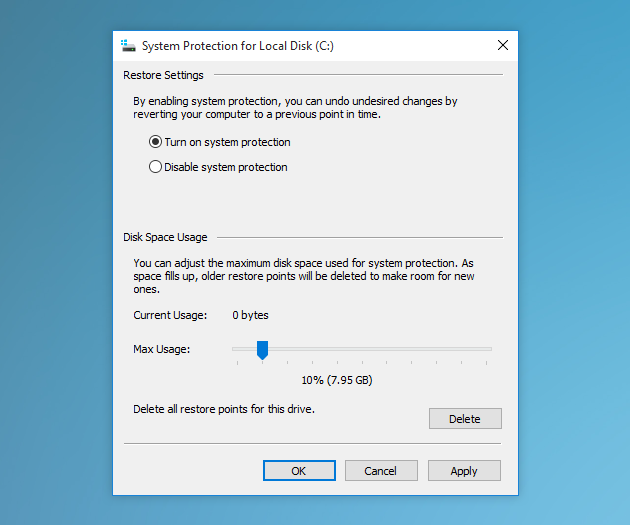
System Protection for Local Disk in Windows 10

WIN10: speed up a slow PC

Windows 10 is probably the quickest Windows so far, but it is still vulnerable to common issues that slow down PCs like a hard drive full of junk files and background applications that waste memory. To keep your PC clean and optimized so that it runs as fast as possible there are a lot of manual things you can do.

Reduce startup programs

Many programs will load when Windows start, even though they don’t need to. This wastes your resources. To trim the fat follow these steps:

  1. Type “System configuration” into the Windows search field
  2. Open the app
  3. Click on the “Services” tab and check “Hide all Microsoft services”
  4. Now turn off the programs you don’t think you need and click apply
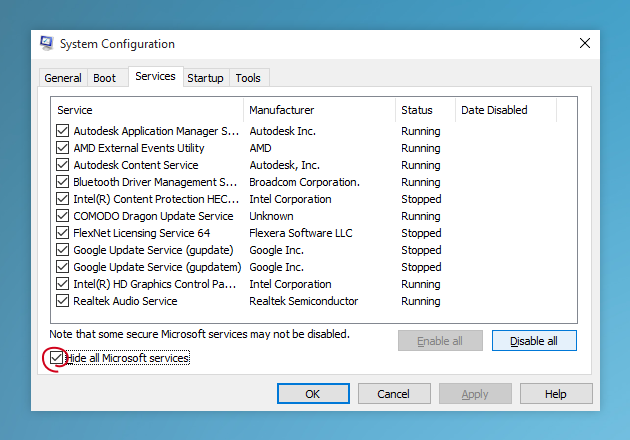
Use System Configuration to remove useless programs from startup on Windows 10

Uninstall programs you no longer use

The next step is to remove programs from your system that you no longer use. This will free up space and speed up your PC. Here’s what you do:

  • Type “Programs and features” into the Windows search field
  • Open the app
  • Highlight an app you are sure you no longer need and click “Uninstall/Change”
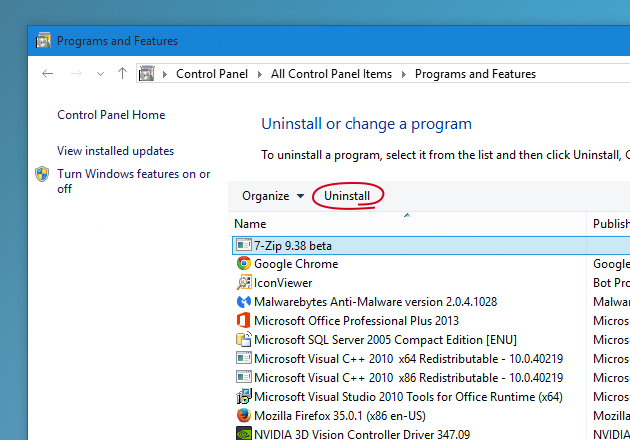
Uninstall programs on Windows 10 PC with Programs and Features

Find junk files and delete them to free up space

Another way to lighten your hard drive and speed up Windows is to identify all the temporary junk files that apps build up on your system. Follow these steps:

  • Type “Disk cleanup” into the Windows search field
  • Open the app
  • Select the drive to clean (normally c:)
  • Select the files you want cleaned – if you’re unsure highlight the item and Windows will explain in more detail
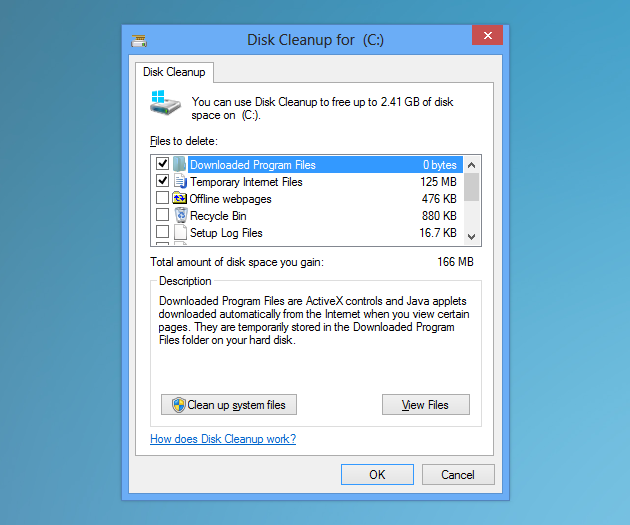
How to use Disk Cleanup tool

Instead of all these different manual methods, you could download a specialist cleaning app called CleanMyPC. This app is a one-stop solution for many issues that slow your computer, including what we mentioned above but all whole lot more than that. Once installed a simple click on each of the tools will automatically start the cleaning process.

It’s quick and easy, and when you’re done, you’re going to have a PC that probably performs even better than the systems of the people you would normally be asking for help from.

WIN10: make files open with right apps

How annoying is it to double click on a file and have it open with an app you don’t recognize? Windows 10 wants you to use its apps as the default, but the best apps are often not Windows apps. To get Windows to always open particular files with the apps that you want, follow these easy steps.

  1. Find a file type that opens with the wrong app
  2. Right click on it and go to Open with > Choose another app
  3. Highlight the app you want it to open with and check “Always use this app” 
  4. Click “Ok”

That’s how easy it is. From now on, every time you double-click this file type (for example it could be .jpg for photos or .mp3 for music) Windows will open the app you chose.
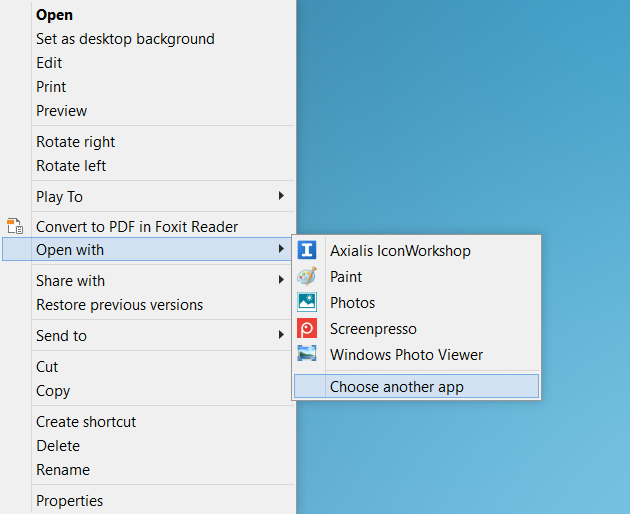
How to change the default application for a file type

WIN10: remove annoying pop-up ads in Microsoft Edge browser

If you’re using Microsoft Edge, the new Windows default web browser, you should be enjoying a fast and user-friendly browsing experience. If Microsoft Edge is not working properly and you miss Internet Explorer, typing that into the Start field will reveal that the old web browser is still there.

One of the more common problems with Microsoft Edge is pop-up ads. Not only do they get in the way, if clicked, they can also cause all sorts of problems for Windows.

Thankfully it’s easy to fix Microsoft Edge pop-ups:

  1. Open Edge and click on the three dots in the top right of the app
  2. Click on “settings” 
  3. Scroll down and click on “view advanced settings” 
  4. Make sure “block pop-ups” is turned to “on”
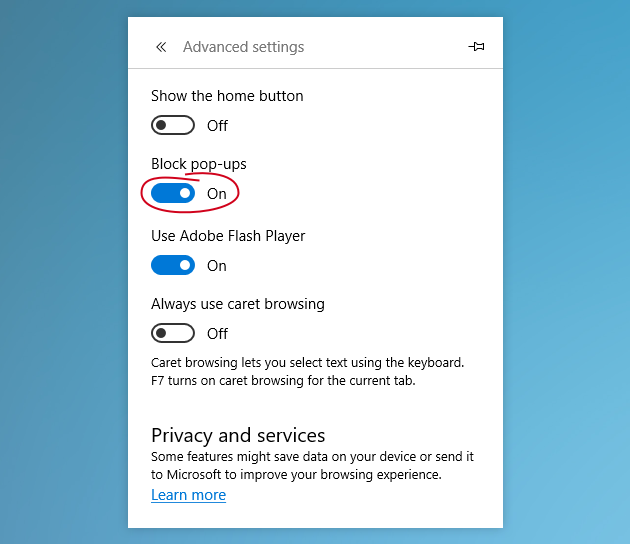
How to block pop-ups in Microsoft Edge browser

WIN10: get a DVD to play

Windows 10 doesn’t come with a pre-installed application to play DVD movies, which seems crazy to us but there you have it.

If you type “store” into the search bar and open the Windows Store app and then search for “DVD player” you will see that Microsoft has made one available, but it costs $15 (unless you upgraded). Luckily there are other free options, like VLC, that will get your PC playing all your favorite DVD movies in no time at all.

Windows 10 PC problems fixed? You did it! 

We couldn’t be more proud of you. Using Windows 10 doesn’t have to be an experience where you’re always in fear of doing something wrong, and feel like you always have to get help from someone else. If nothing else, let this this be the start of a new you. A person that is able to identify common PC errors and find the fixes.


How to solve common Windows 8 PC problems

Poor Windows 8. It’s like the awkward middle child. Its radical new direction made many users want to stay on Windows 7, even after Windows 8.1 had addressed a lot of the most common issues. And when Windows 10 arrived on the scene, everyone who wanted the latest systems jumped ship.

It’s still a great operating system, though, so if you’re still on board, here are some common computer problems and their easy fixes to make your journey as comfortable as possible.

WIN8: give your PC a speed boost

Is Windows 8 performing slower and slower every day? Many things could be dragging your system down. You may think you need an expert to solve them, but in a lot of cases you can do a lot of good yourself.

Free hard drive space is incredibly important to a smooth running Windows system. If you are storing data on your Windows/system drive then we would recommend moving these files to another internal drive, or an external drive.

Another solution would be to manually clean out all the temporary junk files that Windows accumulates over time. To do this, simply run the Windows 8 app called Disk Cleanup and follow the instructions.

The best option of all would probably be CleanMyPC, an app that was made for inexperienced computers users. Not only does it remove junk files, clean registries, make certain applications are properly uninstalled, and so much more, it does everything automatically with just a click needed to start each operation.

To clear junk files with CleanMyPC:

CleanMyPC will now do all the dirty work for you, just click “Clean” button.
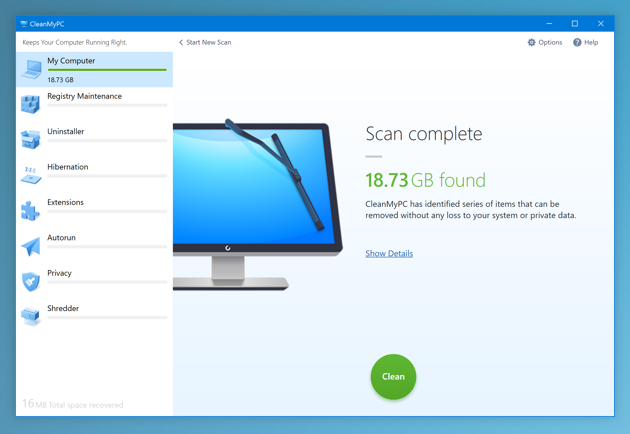
Clean your PC with app

WIN8: speed up your startup

Is Windows taking longer and longer to start? It could be because you’ve installed too many programs, many of which like to automatically run when Windows starts, even if they aren’t needed. An IT guy who comes out to help you will definitely look at your startup programs to try and limit how many of them load.

Want to know how he does it? This is how:

  • Type “msconfig” into the search
  • Run the app
  • Click on the “services” tab
  • Check the “Hide all Microsoft services” box
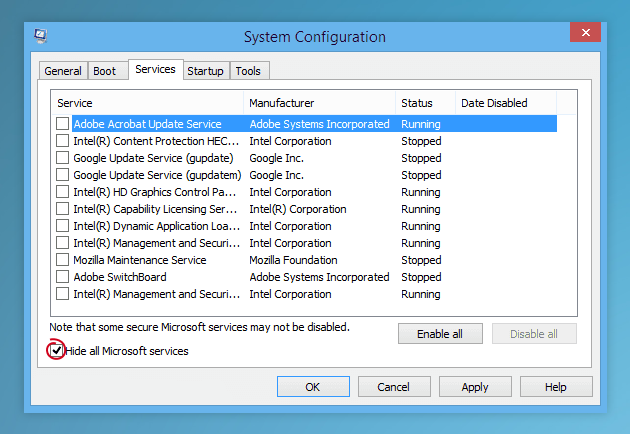
System Configuration on Win8

Now just look through the list and if you see a program that you know you don’t use very often, turn it off and “apply”.

If that sounds too confusing, CleanMyPC once again presents an easier solution. Just open the app and click on the “Autorun” section. Now you can immediately toggle on and off startup programs. It’s safe and easy and if you toggle off something you realize you need running, just open the app and turn it back on.

How easy is that?

WIN8: turn on laptop touchpad

Many Windows 8 laptop users have encountered the problem of their touchpad not working. Not too big of a problem if you have a mouse to plug in but a real annoyance if you travel a lot and like to use your laptop on the go. Luckily, the problem is usually that the trackpad is simply turned off.

To turn it on, plug in a mouse and then follow these steps:

  1. Press Windows key + C
  2. Click on “settings” and then “change PC settings”
  3. Go to PC and devices > Mouse and touchpad
  4. Make sure Touchpad is enabled

How to turn on laptop touchpad on Win8

WIN8: sharpen blurry text

Windows 8 caters for devices that have high-resolution displays. If you could zoom in, you’d see that these displays effectively have more dots. A common Windows 8 problem is when an old application isn’t able to scale itself to this resolution. When this occurs Windows jumps in to save the day by doubling the size of the interface.

Thanks, Windows! (happy tone)

The problem is that now the text is often blurry.

Thanks, Windows! (sarcastic tone)

If you would prefer a smaller interface with sharper text, follow these easy steps:

  1. Right click on the application’s shortcut
  2. Click on the “compatibility” tab
  3. Turn off “display scaling on high DPI settings”
  4. Now restart the app and enjoy sharper text.
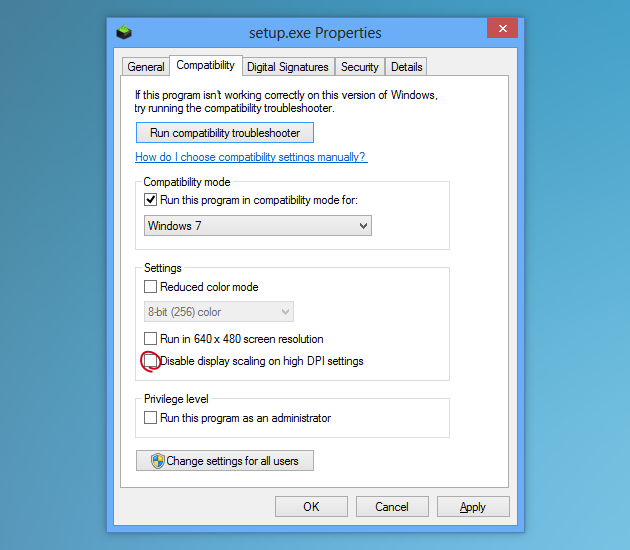
How to sharpen blurry text in Win8

WIN8: enable delete confirmation dialog box

If you were recently a Windows 7 user, you would have noticed that, unlike in 7, in Windows 8 a deleted file moves into the recycle bin without warning. This saves time for power users, but if you aren’t as comfortable at the keyboard, you probably want an extra step before a file is moved to the trash. Luckily you can turn the warning dialog back on by following these steps:

  1. Right click on the Recycle Bin and select “Properties”
  2. Turn on “Display delete confirmation dialog box”
  3. Click “OK”

Now, next time your finger accidentally taps delete, you’ll be saved by the warning.
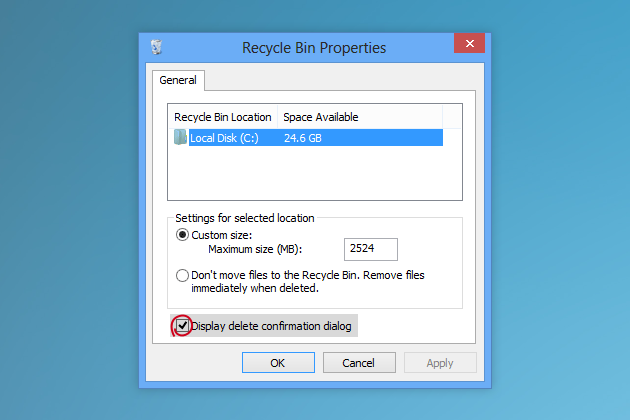
How to enable delete confirmation dialog box in Windows 8

Windows 8 PC problems fixed? You did it! 

Don’t let anyone tell you Windows 8 is awful. Especially now that you’ve solved a lot of the more common Windows 8 problems. Let this be the beginning of a new way to look at your relationship with your computer. It doesn’t rule you anymore. You are in control.

How to solve PC problems in Windows 7


The old kid on the block. Windows 7 is still a popular choice, especially for casual users who aren’t keen to have to re-learn their way around newer versions of Windows. One day these users will have to upgrade but right now Microsoft intends to keep supporting Windows 7 until 2020, so you’ve still got time.

To get the most out of your Windows 7 experience, you don’t need a PC diagnostic from an expert; you just need to follow some simple computer troubleshooting tips.

WIN7: low on space part 1 – uninstall properly

To perform operations smoothly, Windows 7 needs a lot of free space. To free up space, you should take a look at your installed programs. Everyone has at least a few programs, uninstalled ages ago, that are never used but take up disk space and system resources.

To purge your system of old programs follow these steps:

  1. Click on the Start and open “Control panel”
  2. Open “Programs and Features”
  3. Look through the list and find programs you don’t use anymore – just click “Uninstall” to remove
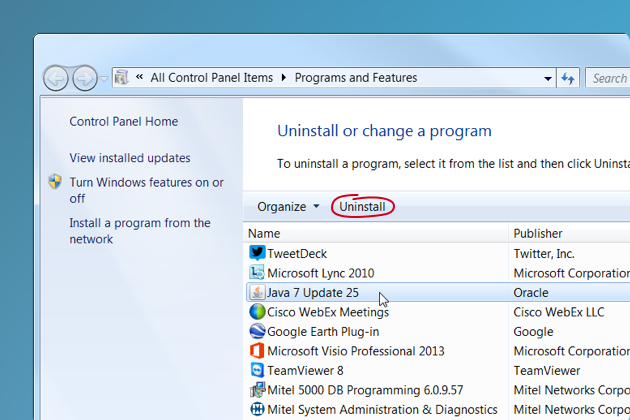
Uninstall or change programs on Windows 7

The normal Windows uninstall will leave some parts of the program behind, which is why an even better method is to use the Uninstaller feature in CleanMyPC. It will remove every inch of the program to maximize the space you free up.

WIN7: low on space part 1 – remove junk

Windows 7 absolutely loves creating temporary files, which over time build up. The problem with temporary files is that they serve no purpose and Windows never removes them. Thanks a lot, Windows.

To take out the trash yourself, follow these steps:

  1. Click Start, and in the search box type “Disk Cleanup”
  2. Open the app and select the drive th
    at you would like to clean
  3. Choose which types of files you would like to delete

Another option is an app created specifically for the cleaning of Windows systems. CleanMyPC doesn’t just find and easily remove junk files, it is a complete PC diagnostic solution. It couldn’t be easier to use and allows normal people to clean their PC like a pro.

To remove junk files with CleanMyPC:

  1. Open the app
  2. Click “scan” from the “My computer” tab
  3. And…uh…that’s pretty much it

Within minutes you’ll be shown all the space you can free up with a single click of the mouse. Who needs a repair guy when you have programs like CleanMyPC?
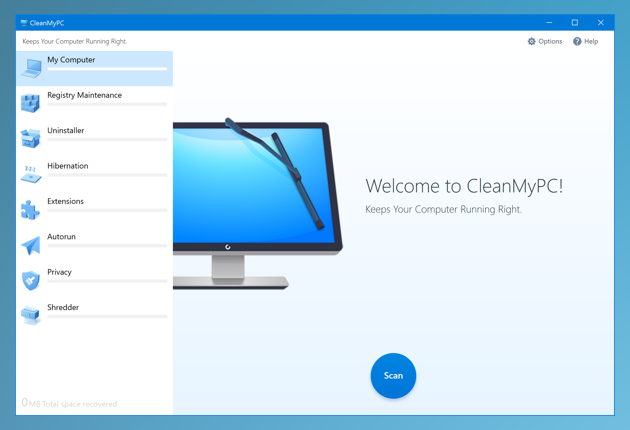
Clean up Windows 7 with CleanMyMac

WIN7: fix security certificate issues

A familiar Windows 7 problem is the warning dialog, ‘there is a problem with this website’s security certificate,’ which you receive while browsing the web. If you get this error often, it’s probably due to your time and date being incorrect.

Look in the tray for your clock. Click on it and select “Change time and date settings” to make sure your PC is living in the present. Now you should be able to browse the web in peace. And you didn’t even need a professional PC diagnostic!

virus free Windows 7

WIN7: stay virus free

When you’re not a techie, it can be hard to know what files are safe and what files are potentially dangerous for your system. If you are experiencing weird computer problems then you may be infected

For a start, make sure that:

  • Windows 7 and your programs are up to date
  • Your antivirus is also up to date and has real-time protection turned on
  • You’re running a virus scan at least once a week
  • Windows Firewall is turned on

Another important factor is to just be careful about which links and files to open. Were they sent from someone you don’t know? Were they sent from a friend but are written suspiciously? Do they sound too good to be true? If you’re unsure, rather contact the person to make sure they did actually send it. Or do a Google search using the text you were sent. If it’s part of a scam, there are ways to find out.

WIN7: improve video performance

After a long day of work you just want to sit down with your laptop and enjoy a good movie. But playback is so poor that you end up putting your laptop away in disgust and grabbing a book.

If this sounds familiar, then we have a solution that could help improve your video playback.

Follow these instructions:

  1. Click Start and type “Power options”
  2. Click “Power options”
  3. Click “Change plan settings”
  4. Click “Change advanced settings” and expand the “Multimedia settings” section
  5. Change the setting for “Play video” to “Optimize performance”

Windows 7 PC problems fixed? You did it! 

If you were able to solve even just 2 or 3 of the Windows 7 problems above, congratulations, we hope you feel as empowered as you should. With just a little guidance and the right tools, you can improve your Windows experience without always relying on someone else.


Source

What is the Difference Between SEO and SEM

The difference between SEO and SEM is simply that Search Engine Optimization is part of Search Engine Marketing or Search Marketing as it is widely known. Both processes aim in increasing visibility in search engines.

SEO is about optimizing your website to get higher rankings in the organic search results while SEM goes beyond SEO. It involves other methods that can get you search engine traffic like PPC advertising.

SEO vs SEM

SEO vs SEM

SEO vs SEM

Search Engine Optimization (SEO)

For the purpose of doing a comparison between SEO and SEM, it is important to start with the definition of SEO, so that it is clear for everyone what the difference between the two is.

What is SEO?

SEO is the process of optimizing your website for the purpose of getting free traffic from search engines.

SEO is important because an optimized web site is easily understood by search engine crawlers and this increases the chances of ranking higher in SERPS (search engine results pages).

What are the main components of SEO?

There are 3 main pillars of SEO: technical SEO, on-site SEO, and off-site SEO.

THE COMPLETE SEO COURSE

  • SEO Full Course
  • Become an SEO expert
  • Increase your traffic in 60 days or less
  • Trusted by more than 3000 students

DOWNLOAD NOW

Technical SEO refers to the process of optimizing your website for the crawling and indexing phase. With technical SEO you ensure that search engines can crawl and index your website without any problems.

On-Site SEO  are rules you can apply on individual pages and content so that they optimized for specific keywords.

For example, you need to have optimized titles, good descriptions, well-formatted URLs, optimized headings (H1, H2), alt text for images, and many more.

You can read the comprehensive SEO Tutorial for beginners, to get a good idea of how you can optimize your website for search engines.

Off-site SEO refers to the process of getting references (backlinks) from other websites for the purpose of increasing your web site’s trust in the eyes of search engines.

For beginners, this may be confusing but try to think about it like a ranking system where the website that has the most references, ranks higher.

References, in this case, are links coming from other web sites to your site. That is also the reason why off-site SEO is referred to as link building.

To avoid any misunderstandings, it’s not only a matter of how many links you have pointed to your website but also from where these links are coming (and a number of other factors).

Search Engine Marketing (SEM)

Search Engine Marketing is over and above SEO but it’s only a subset of your overall Digital Marketing Strategy.

The diagram below shows the relationship between Digital Marketing, Search Engine Marketing (SEM) and SEO.

SEM in Digital Marketing

SEM in Digital Marketing

SEM in Digital Marketing

As you can see above, there are many more ways to increase your web site’s traffic besides SEM and SEO.

What is SEM?

SEM is a digital marketing process with the goal of increasing visibility in search engines either by getting organic traffic through SEO or paid traffic through PPC advertising.

Through paid search advertising you essentially buy advertising space in the search engine results. So, instead of trying to rank in one of the top positions organically through SEO and get free traffic, you pay to appear in front of the search results.

The most well-known advertising agency for PSA is Google Ads (formally Google Adwords). Through Google Ads, you can get your ads to appear in the Google search results and you pay only for the clicks on your ads.

This is also the reason why the whole process is called Pay-per-click or PPC. Bing and Yahoo have a similar system but it not so successful and widely known as Google Ads.

Resources to Learn More
Digital marketing courses – Online courses to help you learn how to use SEM and other digital marketing techniques to increase your traffic.

Which is better, SEO or SEM?

Despite the fact that SEO is one of the two components of search engine marketing, many marketers when they refer to SEM they mean PPC advertising.

Basically they consider Paid Search Advertising as being the only component of SEM. In this case, you can do a comparison between the two.

SEO VS SEM

Organic SEO is generally the best marketing tactic for long-lasting results. Websites that rank high in the organic results for their target keywords, can get free traffic 24/7, industry recognition, and enjoy all the benefits of SEO.

Websites that use PPC can still get targeted traffic from search engines but they have to pay for it. Once they stop the paid campaigns, the traffic disappears.

Another major difference between SEO and SEM is that it takes a lot of time for SEO to work and generate results while PPC is almost instant.

So, which is better depends on your overall digital marketing goals. If you want to get traffic fast then you can start with SEM (paid search advertising) and in parallel work on your SEO. If you want to create a long-lasting online business without relying on paid traffic, then SEO is your answer.

Does SEM help SEO?

Despite what many people think, SEM does not help SEO. If you use PPC to target specific keywords and get search engine traffic, that does not positively or negatively affect your SEO efforts.

SEO rankings are decided after taking into account hundreds of factors and SEM or PPC campaigns are NOT one of them.

Importance of SEM Traffic

Search Engine Marketing traffic (either through organic SEO or Paid Search Advertising) is considered the most important source of Internet traffic because it is targeted. It is widely accepted that people use search engines to find a solution to a problem, an answer to a question or to learn how to do something.

So, w
hen searchers click on a website from the search results or click on an ad, they are more likely to convert. The relevancy of the displayed web sites and ads makes SEM traffic more valuable than any other source of traffic.

Facebook and Twitter are trying to optimize their advertising platforms to utilize targeted traffic but still, traffic coming directly from search engines has a better ROI.

Key Learnings

What is SEO?

SEO is the process of optimizing your website for the purpose of getting free traffic from search engines.

What is SEM?

Search Engine Marketing (SEM) is the process of increasing visibility in search engines and getting traffic either through SEO or paid search ads.

Does SEM help SEO?

SEM does not help SEO. If you use paid ads to target specific keywords and get search engine traffic, that does not positively or negatively affect your SEO efforts.

Why is SEM traffic important?

SEM traffic, either through SEO or Paid Search Ads is considered the most important source of Internet traffic because it is targeted.

10x YOUR TRAFFIC FROM GOOGLE Get VIP access to exclusive SEO tips that I only share with my subscribers. Download FREE guides, SEO checklists & templates to accelerate your website’s traffic.

Source

100 common Windows 10 problems and how to solve them

Now that Windows 10 has overtaken Windows 7 as the most popular operating system, it’s bigger than ever. The sequel to Windows 8.1 has been out for more than three years now, and has given users plenty of time to figure it out. 

Luckily, most Windows 10 problems have been patched out by Microsoft over the last few years. There are still some security exploits and other bugbears that have either lingered or have been caused by recent Windows updates. This is in part because Windows 10 updates are still kind of a mess, the most recent of which, the October 2018 Update, caused all kinds of issues, including Blue Screen errors on Microsoft’s own Surface devices. 

That could be why the adoption of that update is only now starting to take off, just in time for the next one. 

If all of these problems are any indication, Microsoft has a lot of work to do. Plus, there are still a lot of Windows 10 problems that are still around, like printer connectivity issues. But, who knows, maybe Microsoft will actually fix some of these problems in the Windows 10 May 2019 Update, which should be out soon

Still, if you’re having a hard time with the operating system, we’ve compiled a guide to 100 of the most common Windows 10 problems, and how to fix them – whether it’s a Windows 10 problem with a printer or connectivity issues. So, if you’re trying to troubleshoot your device, keep reading.

1. Having enough space to install Windows 10

Image Credit: Microsoft

Image Credit: Microsoft

If you’re planning to move to Windows 10, actually installing the OS is the first area you could potentially run into problems with. Installing a new operating system requires a certain amount of free space on your drive so that it can be downloaded and certain elements can be run successfully.

For Windows 10, the space requirement is 16GB, which should be kept free on the main system drive the computer uses. This is actually the same as previous versions of Windows, so if you’ve upgraded before you can most likely do it again.

If you want to check how much space is left on your PC, go to My Computer (or This PC, depending on which version of Windows you’re running) where any drives you have will be listed. You can see the remaining space indicated beneath each drive, or you can right click and select Properties for a better overview (your system drive is usually C:)

2. Checking you have a powerful enough PC

 Image Credit: Microsoft 

 Image Credit: Microsoft 

Just as with space requirements, your PC will also have to be capable of running Windows 10. This means that it must reach certain minimum system requirements.

The requirements for running Windows 10 are relatively low: A processor of 1GHz or faster; 1GB (32-bit) or 2GB (64-bit) of RAM; 16GB of free drive space; Microsoft DirectX 9 graphic device; and a Microsoft account combined with internet access.

To find out your PC’s spec, go to Control Panel and select System and Security, then System.

However, keep in mind that these are the minimum requirements, and you should shoot for higher specs to have a smooth and enjoyable experience. 

3. Activating Windows 10

 Image Credit: Microsoft 

 Image Credit: Microsoft 

Some users have reported issues with activating their copies of Windows 10, which could have been down to a number of different reasons. In some cases, the easiest way to get around the problem is to purchase a legitimate copy of Windows 10.

Unlike previous versions of Windows, the latest one is almost exclusively available online, which means that official Microsoft websites are the best bet for your purchase. The company was giving the OS away for free, but that promotion ended quite a while ago.

Microsoft has a helpful website that provides a downloadable copy in either 32-bit or 64-bit versions.

If you do find that you’re unable to activate Windows 10 successfully, handily Microsoft introduced a new activation troubleshooter feature way back in the Anniversary Update. You’ll find this in Settings, then click Update & Security, go to Activation and select Troubleshoot (you won’t see this option if the OS has been activated).

 Image Credit: Microsoft 

 Image Credit: Microsoft 

Windows 10 is, in many ways, a truly internet-based operating system. Mostly, this is a bonus but there are times when it isn’t – and Microsoft’s attitude towards operating system updates is one such time.

The most annoying part of automatic updates is the restarting, which can seemingly come at random (and inconvenient times). The simplest way to counteract this is to head to Windows Update (in Settings > Update & Security), click on Advanced Options and then Notify to Schedule Restart, which means the OS will request a reboot instead of interrupting everything you’re working on.

5. Updating old software to work with Windows 10

 Image Credit: Microsoft 

 Image Credit: Microsoft 

Each version of a new operating system comes with its own set of backwards compatibility issues and Windows 10 is no exception.

The transition from Windows 8.1 to 10 is far less jarring than the move from Windows 7 to 8 was, but there are still certain applications that can become broken and, in some cases, cease to work at all.

If a program isn’t working with Windows 10, try looking in the Windows Store for an update and, if that doesn’t work, delete and reinstall it. 

Now that Windows 10 has been out for a few years, most programs should be compatible with the operating system. If they aren’t, then they likely never will be.

Consider moving to a newer version of the software, or if it’s stopped being developed, it may be time to look for alternatives.

6. Changing privacy and Wi-Fi Sense settings

 Image Credit: Microsoft 

 Image Credit: Microsoft 

Data security is incredibly important, especially as hackers become increasingly sophisticated and the number of cyber-attacks is on the up.

Windows 10 comes with a decent set of built-in protection measures, but you can never be too careful. One such feature that should be disabled by privacy-minded individuals is Wi-Fi Sense, which automatically shares the Wi-Fi password across Windows 10 devices on the same account.

Microsoft updated Wi-Fi Sense to share less data, but switching it off is the ideal way of preventing anything you don’t want happening. To turn it off, go to the Start Menu, select Sett
ings and click on Network & Internet, then Wi-Fi, and head to Manage Wi-Fi Settings – turn off all the options in here.

Also in Settings, it’s possible to get an overview of everything else happening on Windows 10 in terms of privacy – unsurprisingly, under the Privacy section. In here, you’ll be presented with a bunch of toggles that adjust some privacy options to help keep everything under control.

 Image Credit: Microsoft 

 Image Credit: Microsoft 

If you have an older device, printer compatibility can turn into a real problem. If you’re upgrading from Windows 7 (or earlier) to Windows 10, you need to update all available printer drives, which will prevent them from not working post-upgrade.

Luckily, this couldn’t be easier. Just search for the name of your printer in the search engine of your choice, and download the latest Windows 10 compatible drivers – make sure you’re downloading them from the actual manufacturers website, though. Follow the manufacturer’s instructions to install them, and you’re good to go.

8. Grappling with the touchscreen

Image Credit: TechRadar

Image Credit: TechRadar

Microsoft ships Windows 10 with Edge, the successor to its Internet Explorer browser (although IE is still present in the OS). For many people, however, using Chrome or Firefox is the norm, no matter what Microsoft wants.

To install Chrome or Firefox – and get back to normality – open Edge, search for either, and find a Windows 10 version. Download it, install it, and make sure it’s set as the default browser option so that Edge doesn’t keep reappearing. To do this, head to Settings, System, and click on Default Apps – click under Web Browser and you can then select your preferred default browser.

But, now that Microsoft Edge is moving to Chromium, you may have less of a reason to switch over. 

9. Grappling with the touchpad

Image Credit: TechRadar

Image Credit: TechRadar

Having a touchpad-enabled laptop is also good for Windows 10, but some users have reported that the upgrade from Windows 7 (and sometimes Windows 8) breaks it.

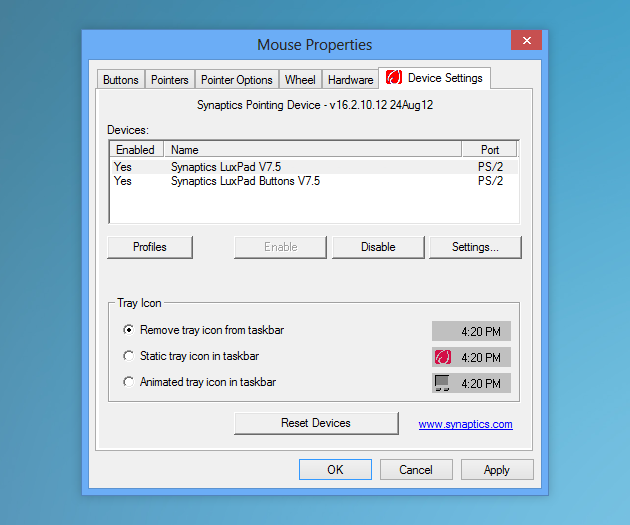
One of the ways to solve this is by first checking to see if your keyboard has a key that turns the touchpad off. If it doesn’t – or the right setting is toggled – then head to Devices > Mouse & Touchpad > Additional mouse options.

A new window will appear. From here, select the tab that says Device Settings, then Devices, and then make sure the touchpad is enabled.

If none of these options work, press Windows Key + X, select Device Manager, then the option for Mice and other pointing devices, and update the driver. This should fix things.

10. Finding Safe Mode

 Image Credit: Microsoft 

 Image Credit: Microsoft 

Safe Mode is just what you’d expect – a safe way of booting up a PC and running the system with no startup apps and only essential drivers, which should hopefully allow the computer to boot successfully when it won’t otherwise due to some issue or other.

With Windows 10, to access Safe Mode, hold down the Shift key during boot-up (or select Restart from the desktop while holding down Shift).

11. Making sure Windows 10 knows where you are

 Image Credit: Microsoft 

 Image Credit: Microsoft 

Location-based apps are fairly prominent in Windows 10 which makes it a good idea to let your PC know (roughly) where you are. Cortana, for example, can give far more information if it can accurately pinpoint where in the world it’s being used.

To update your computer’s location settings, head to the Start menu, click Settings, Time & Language, and click Region & Language – then make sure the correct country is selected. To turn on Location services, go to Settings > Privacy > Location, and flick the Location switch on.

 Image Credit: Microsoft 

 Image Credit: Microsoft 

12. Setting up Windows Hello

Windows Hello is one of the most innovative features that Microsoft has built into Windows 10. Essentially, it lets a user login just by using facial recognition (or a fingerprint) virtually instantly.

The software, which is available to all Windows 10 users, does require special hardware (and most likely won’t work on older computers). Assuming you have the necessary hardware, how do you set up Windows Hello?

You need to go to the Start menu, click on Account, and select Change Account Settings. Select Sign-in Options and set a PIN. Once you’ve done this, there will be an option to Setup under Face. Select this and follow the instructions.

 Image Credit: Microsoft 

 Image Credit: Microsoft 

If you’re forever having trouble finding files on your PC, one way to keep track of them is to use ‘tags’ in Windows 10.

To tag a file, right click it, select Properties, go to the Details tab, and if you click on the Tags section (under Description) you can add a tag from there – simply type it in. You can then use those tags when searching – for example, you could tag a few files as a specific work project, all of which would come up when you searched for that term at a later date. 

14. Installing apps you’ve downloaded from the web

 Image Credit: Microsoft 

 Image Credit: Microsoft 

The move from distributing apps via the web to the Windows Store means that unfortunately it’s sometimes not such a straightforward matter to install software grabbed from the former. Programs like Windows Defender and Firewall, which we’ve talked about earlier, can try to combat potential malware by only allowing certain apps to install. 

If you’re having trouble, to get around this and install an app from the web, you may have to fine-tune Defender’s settings. 

To do this, go to the Cortana/search box (bottom-left, next to the Start menu), search for Windows Defender and you’ll need to access its Settings menu. You’ll be presented with a home page of sorts, so click on Settings. Once you’re in Settings, you’ll see a list of options related to various functions Defender performs. 

Tweaking these options is easy, and the one that will yield results for our purposes is Exclusions, which dictates the areas of the system that are left unchecked by Defender. You can click ‘Add an exclusion’ to add the file you’re installing and make sure that Defender doesn’t interfere with the installation.

15. Using Windows 10 gestures to work quickly

Image Credit: TechRadar

Image Credit: TechRadar

Is working with the keyboard and mouse too sluggish for your liking at times? Well, Windows 10 is a touchscreen-optimised operating system (just as Windows 8 was), and that means it can do a lot of cool stuff rather swiftly with just a finger prod.

For example, swiping in from the left will bring you to Task View, an overview of all the apps running currently. Swiping in from the right brings up Action Center, where notifications are displayed and settings can be changed. Swiping down from the top produces a title bar complete with minimisation tools.

To see the full range of gestur
es available, go to the Cortana/search box, and search for ‘touch’.

16. The power of virtual desktops

Image Credit: TechRadar

Image Credit: TechRadar

One desktop not enough for you? Well, handily enough, Windows 10 lets you run multiple virtual desktops so you can work across different projects on just the one monitor screen.

To fire up a fresh virtual desktop in Windows 10, click Task View (on the right of the Cortana/search box on the taskbar) and select the New Desktop option in the bottom-right corner of the screen. It’s as easy as that – and moving apps across virtual desktops is equally simple: just access Task View again and drag the app from one desktop to another. 

To close these desktops, go back to Task View and hit the cross. There is no limit on how many virtual desktops you can create, incidentally.

17. Work faster by ‘peeking’ at desktops

Image Credit: TechRadar

Image Credit: TechRadar

Productivity tips don’t just extend to keyboard shortcuts, especially in Windows 10 – there are other ways of accomplishing things more swiftly for those frustrated at their inability to get around the OS fast. One of the niftiest tools in this respect is ‘peeking’ at desktops, which can save time if you’re working across many virtual desktops (which we just discussed above). 

To do this, right-click on the thin button at the far right end of the taskbar and choose ‘Peek at desktop’. Now when you roll the pointer over it, it’ll show you a quick preview of the desktop and revert back when you move away.

18. Hover don’t click

Image Credit: TechRadar

Image Credit: TechRadar

Here’s another time-saving little trick that Windows 10 is capable of in order to smooth the path of those who get frustrated with sluggishness and want to speed up and streamline their usage of the operating system.

Say you have the Settings app and an Edge window open side-by-side. Settings is in the foreground but you want to scroll the Edge window. In Windows 8.1, you’d need to click on the window to do it. Not anymore. Microsoft changed how Windows 10 works so that just having the mouse pointer over Edge is enough. Pretty neat. 

19. Use Cortana to the max

 Image Credit: Microsoft 

 Image Credit: Microsoft 

Cortana is a virtual assistant of many talents, and can help Windows 10 users out in many different ways. However, you may not be aware of the full range of functionality Cortana offers – but there’s an easy way to find out.

Simply go to the Cortana box in the taskbar and type in:

Cortana help

This will list all of the commands and functions Cortana can take care of, which includes setting reminders or calendar alerts, creating lists, getting directions, working out sums and calculations, checking the weather, or your stocks, flight times and so on.

Source

Best Server Management Software

Finding software can be overwhelming. Software Advice helps businesses choose the right server management software so they can improve the monitoring and optimization of their dedicated or cloud servers.

Showing 1-20 of 15 products

LogicMonitor

LogicMonitor

LogicMonitor

LogicMonitor is a cloud-based network performance monitoring solution that helps businesses monitor on-premise, cloud-based and hybrid data centers, as well as physical devices, from a single platform. LogicMonitor automatically discovers…

Price:

Platforms: MacWinLinux

Deployments: Cloud

Business Size:Site24x7

Site24x7

Site24x7

Site24x7 is a cloud-based website and server monitoring platform that helps small to large size businesses monitor websites, servers, clouds, networks, applications and real-time users. The platform enables users to derive insights…

Price:

Platforms: MacWinLinux

Deployments: Cloud

Business Size:SQL Sentry

SQL Sentry

SQL Sentry

SQL Sentry is a cloud-based database monitoring solution designed to help small to large businesses track and identify performance issues across SQL servers. Key features include troubleshooting, workflow creation, index analysis,…

Price:

Platforms: MacWinLinux

Deployments: Cloud

Business Size:Pulseway

Pulseway

Pulseway

Pulseway is an integrated IT assets and network monitoring solution designed for IT administrators to remotely monitor and control their business IT resources. The solution supports multi-deployment architecture, allowing the users…

Price:

Platforms: MacWinLinux

Deployments: CloudOn premise

Business Size:Scalyr

Scalyr

Scalyr

Scalyr offers cloud-based log management and server monitoring for engineering, DevOps teams, sysadmins and technology officers. Scalyr’s dashboard allows users to view servers, process metrics and web traffic. Users can customize…

Price:

Platforms: MacWinLinux

Deployments: Cloud

Business Size:Netwrix Auditor

Netwrix Auditor

Netwrix Auditor

Netwrix Auditor is a cloud-based and on-premise security solution that allows administrators to manage server log files, security events and syslogs across the company network. The solution alerts administrators in real time on critical…

Price:

Platforms: MacWinLinux

Deployments: CloudOn premise

Business Size:ManageEngine OpManager

ManageEngine OpManager

ManageEngine OpManager

ManageEngine OpManager is a network management solution that includes network and server monitoring, bandwidth analysis, configuration management and fault management. The solution is suitable for businesses of all sizes. OpManager…

Price:

Platforms: WinLinux

Deployments: On premise

Business Size:Naverisk

Naverisk

Naverisk

Naverisk is a remote monitoring and management solution for businesses of all sizes. The solution is used by managed service providers and IT professionals. Key features include technology monitoring, management patching, alerting,…

Price:

Platforms: MacWinLinux

Deployments: Cloud

Business Size:ManageEngine Exchange Reporter Plus

ManageEngine Exchange Reporter Plus

ManageEngine Exchange Reporter Plus

Exchange Reporter Plus is a cloud-based reporting solution for Microsoft Exchange servers. It is offered by ManageEngine for businesses of all sizes. The solution allows users to track incoming and outgoing email messages, monitor…

Price:

Platforms: MacWinLinux

Deployments: CloudOn premise

Business Size:SolarWinds Remote Monitoring & Management

SolarWinds Remote Monitoring & Management

SolarWinds Remote Monitoring & Management

SolarWinds Remote Monitoring & Management is a server management solution that helps small to large enterprises track all system devices across networks. It comes with an administrative dashboard, which enables users to manage passwords,…

Price:

Platforms: MacWinLinux

Deployments: Cloud

Business Size:Datadog

Datadog

Datadog

Datadog is a network monitoring tool that helps companies gain visibility into application performance. The software provides an overview of a product to a single SQL query and correlates app performance or errors with infrastructure…

Price:

Platforms: MacWinLinux

Deployments: CloudOn premise

Business Size:ManageEngine EventLog Analyzer

ManageEngine EventLog Analyzer

ManageEngine EventLog Analyzer

EventLogAnalyzer by ManageEngine is an on-premise log management solution designed for businesses of all sizes across various industries such as information technology, retail, finance, education and more. Key features include event…

Price:

Platforms: WinLinux

Deployments: On premise

Business Size:NinjaRMM

NinjaRMM

NinjaRMM

NinjaRMM is an ITSM solution for small and midsize businesses in education, health care, manufacturing, IT and more. Key features include network monitoring and task automation tools, remote controls, background management, patch management,…

Price:

Platforms: MacWinLinux

Deployments: Cloud

Business Size:Titan FTP Server

Titan FTP Server

Titan FTP Server

Titan FTP Server is a cloud-based and on-premise solution, which helps businesses of all sizes manage processes related to file transfer and server monitoring across multiple networks. The platform comes with an account expiration…

Price:

Platforms: MacWinLinux

Deployments: CloudOn premise

Business Size:

ipMonitor

ipMonitor is an on-premise solution designed to help businesses monitor performance and uptime/downtime across servers, networks and applications. It uses a centralized console to communicate and alert IT staff about application failures…

Price:

Platforms: MacWinLinux

Deployments: CloudOn premise

Business Size:

Source

Compare the Best PBX Phone Systems of 2020

Home > Compare Top Business VoIP Providers of 2020 > Pbx Phone Systems

Compare and find the top business PBX phone systems at VoipReview. PBX stands for “Private Branch Exchange.” With a PBX phone system, you can lower telephone costs for your office by assigning extensions to various employees, instead of paying for separate phone lines for each employee with a phone.

Below, you can compare the best business PBX phone systems that can supply service and equipment for an IP PBX telephone system.

Find out how much you can save today with anIP PBX

Compare top IP PBX providers in the table below

Alliance Phones Alliance Phones Cloud PBX

  • Cloud PBX
  • Groups of extensions
  • Unlimited minutes

12% discount for subscribing and paying for a year upfront.

$ 19.97 /mo.*

*Rates shown do not include E-911 charges, taxes, and surcharges. Most providers offering unlimited calling have restrictions and some rates shown are promotional rates based on term contracts or promotional periods. Be sure to read individual providers terms and conditions before you buy. Rates and features displayed for each provider have been sourced from provider’s site and other online sources. While we strive to display current information, be sure to check directly with each provider as their plans, pricing, and features are subject to change.

computer cloud communications

What Does a Business PBX Offer?

A business PBX is a scalable and customizable phone solution for your business.

For some companies, an on-premise PBX is a more viable option than a hosted PBX.

An on-premise PBX phone system gives you:

  • More features flexibility, because the equipment is on-site and owned by your company.
  • More control over managing your phone system’s daily operations.
  • No surprises. If you own your broadband telephone system, you know what to expect.
  • A simple way to expand your phone system when your company expands.

However, it should be noted that an on-premise PBX is definitely a much more expensive option, considering that a business has to pay for all of the equipment up-front. 

Depending on your business’s needs, an on-premise VoIP PBX, IP-PBX, or virtual business PBX, (like the one offered by Jive) may fit your needs better than a hosted PBX service. Hardware companies can also make a cost difference with a Cheap IP PBX.

Do you want to learn more about business VoIP? If you’re interested in finding out why switching to VoIP is the best choice you can make for your business:

  1. How to switch to Business VoIP
  2. Enterprise VoIP
  3. Business VoIP Reliability

Are you a business considering a VoIP system? See how it can make all the difference:

  1. Compare PBXs
  2. The Real Value of Business VoIP Phone Service
  3. Is VoIP Right For Your Business?
  4. Open Source PBX Software

business voip connectivity

Benefits of PBX Phone Systems

Traditional PBX phone systems replaced the earlier key systems that companies used as their small business phone system. Key systems used phones with lights on the bottom of the phone to indicate a line was in use. But once PBX systems became affordable for small businesses, PBX phone systems became the standard for most small business telephone service. PBX phone systems are more efficient than key systems. PBX phone systems are faster and use fewer outside lines. Here’s where they are really different:

Key Systems

  • Key systems used dedicated lines. That meant busy signals.
  • Callers had to use a specific ‘outside line’ to make outbound phone calls.
  • Required more external lines.
  • Key system callers had to call a main line and be transferred. No direct inward dialing (DID).

PBX Systems

  • There’s DID and extension-to-extension dialing on PBX phone systems.
  • PBX phone systems feature line “pools” that allow for next-available use.
  • With SIP trunking, fewer outside lines are needed.
  • PBX offers more internal extensions and scalability.
  • PBX includes automation and convenience features, such as voicemail.
  • PBX offers after-hours messages, directory service, music-on-hold, and other features.
  • PBX systems handle and route calls in-house using a local circuit switch, so phone bills for local phone service are lower.
  • Can be hooked up to conference room microphones.

voice over internet protocol pbx questions

Exactly What Does a PBX Do?

In its most basic of terms, a PBX is a telephone switch operator within a business.

A PBX assigns extensions to employees and departments and transfers calls accordingly. without a PBX, a business would have to purchase a new phone line for each employee.

One of the main features of a PBX is an auto attendant, which will answer callers with a message and help them reach the proper extension.

An auto attendant assures that a customer or caller will never hear a busy signal. Instead, they will be transferred to an available employee or to a company voicemail. You can also set up rules for after-hours callers, callers from specific numbers – basically, an auto attendant means that you can always control the impression you make on your customers.

Types of VoIP PBX Solutions

Hosted PBX

Hosted PBX is the cheapest solution for a professional office phone system. Hosted PBX works very well for small businesses, under 20 or so employees.

No equipment is required for the PBX system – you only need VoIP service and an Internet connection. The VoIP provider hosts, maintains, and operates all the equipment at its own site (Hosted VoIP is also known as Managed VoIP). Configuration is easy or even non-existent in some cases, and the phone system is already set up – so you don’t have to configure it on your own.

Hosted PBX usually charges per seat or per user.

IP PBX

For larger business phone systems, IP PBX is a more appropriate option. IP PBX, Internet Protocol PBX, can interact with both VoIP and the public switched teleph
one network. Basically, IP PBX allows you to implement your own PBX, which can save you money with a large business or operation.

IP PBX can be either hardware, software, or both. It is sometimes called digital PBX when you run your own IP PBX software.

Equipment for hardware IP PBX systems can run into the thousands of dollars, but after paying upfront costs you can save money in the long run because you are only paying for Internet service, not telephony.

SIP Trunking for PBX

If you already have a hardware PBX, you can use SIP trunking to convert the phone system to VoIP. You’ll be able to pay cheaper VoIP prices for each phone line, instead of paying for analog phone lines.

Usually IP PBXs work with SIP trunking to set up a new phone system or renovate an existing system.

Virtual PBX

Virtual PBX is much like hosted PBX but it is a more basic service overall. You get essential features like voicemail, call forwarding, and extensions. Outbound calling is not usually included. For a complete phone system, you will have to get an additional PBX service.

using a voip-enabled phonevoice over internet protocol

The VoIP PBX Advantage

If PBX phone systems can do all that, why not stick with a traditional PBX? Why switch to a VoIP PBX phone system? There are a lot of reasons to make the switch to VoIP PBX. The major reasons to choose a VoIP PBX business phone system are cost, flexibility, convenience, and integration.

  • VoIP PBX systems are less expensive than traditional PBX phone service. Whether hosted or on-premises, VoIP PBX phone systems have less moving parts and machinery — almost everything is accomplished by software. That means fewer expenditures on service, repair, and upgrades than a traditional PBX. VoIP lines are also cheaper than analog lines.
  • VoIP PBX phone systems are easy to adapt to your business’ changing needs. VoIP phone systems are flexible and easy when it comes to adding or subtracting lines/extensions, changing locations, or adding/subtracting additional features.
  • VoIP phone systems can offer efficient call control features to small business phone system clients that would be too expensive (or not supported) with a traditional PBX. VoIP PBX phone systems offer call controls such as:
    • call flip
    • call waiting
    • click-to-dial
    • call record
    • caller ID with call waiting
    • voicemail-to-email
  • VoIP phone service makes it easy to connect with the office, wherever you are. Cell phones can be extensions, even using DIDs. Faxes can arrive in email inboxes. Voicemail messages can be transcribed and sent as email, or attached to an email as a soundclip.

Source

PBX Systems 101 Understanding a Standard PBX

Traditional Standard PBX Switchboard

Traditional Standard PBX Switchboard

A PBX, or Private Branch Exchange System, serves a private network of telephones in an office and acts as the gateway from a company to the outside world.A traditional standard PBX is a physical, on-site switching system that performs these central functions and hooks up to the public switched telephone system (PSTN). The PSTN connects the world’s telephone lines, cellular and satellite communications networks, and others, allowing us to hear a voice on the other end of the line.Leading hosted PBX solutionscan offer the same basic PBX features and more for 40-80% less.

A PBX system routes incoming calls to the appropriate extension in an office. It also allows businesses to share phone lines between extensions. Standard PBX users can add features and functions to better suit a business. However, with the physical limitations of this technology, every change or enhancement requires massive reconfigurations performed by a trained telephone technician.

The range of features offered by a PBX system varies. The price of the equipment and service required to introduce these features hampers their availability due to the high level of maintenance required. Primary functions of PBX phones include:

  • A single business number that gives access to all company employees and departments
  • A menu of options for directing the call, such as connecting to a specific extension or to a department
  • A directory of employee extensions accessible by inputting digits corresponding to employee first or last names
  • Evenly distributed calls to a department among available employees through Automatic Call Distribution (ACD) queues
  • The ability to place callers on hold when they are waiting for an available department employee
  • Music or custom messages whenever callers are waiting on hold
  • Voice messages for any employee extension, department, or for the company in general
  • Transfer of calls between extensions
  • Conferencing multiple incoming calls with employee extensions
  • Detailed records of incoming and outgoing calls

Not all equipment vendors offer these features and furthermore, not every customer will need them. Possibly the most valuable feature to include for many businesses, however, are Automatic Call Distribution (ACD) queues. Consequently, this is also one of the most challenging functions for physical switches to provide. ACD queues are typically unavailable or cost prohibitive from a standard PBX provider.

Standard PBX Strengths

Physical PBX phone systems are mature technologies that offer many benefits for the right type of application. Businesses that can reliably predict their needs can usually find a fixed, cost-effective system. To be more precise, this option works only for businesses who will not need to scale-up or scale-down the functionality of their system.

Standard PBX Weaknesses

Standard PBX Costs

Costs are problematic with standard PBX systems in two areas. First, it is very expensive to get an advanced system up and running. These costs typically run upwards of $2,000 per seat (user), including the cost of the equipment, installation, and wiring. At the lower end of the spectrum, the equipment offers limited features and usually limited scalability but both still lack most sophisticated features without special, and costly, configurations.

An additional, often overlooked expense goes towards ongoing maintenance and support. As PBX equipment continues to add functionality, highly trained support staff become mandatory to maintain the hardware and software, roll out system upgrades, and manage system use. Ongoing support and maintenance costs typically run at about 1% of the cost of the equipment each month. For example, a $20,000 PBX switch, which would provide service to 10 to 40 employees, depending on system features, would typically cost an additional $200 per month for maintenance.

Standard PBX Scalability

PBX hardware is limited in its ability to add internal and external lines and to support more users or features. Low-end systems are especially difficult in this regard. This often forces small businesses to overbuy in order to have enough capacity for the business they hope to grow into. There are also many features which cannot be added to an existing system. This forces businesses to pay for new systems in order to get relatively uncomplicated feature upgrades.

Standard PBX Adaptability

Original PBX equipment architects, designed system functionality for employees in a centrally located office. Today’s mobile environment is incompatible with this model. Basic PBX architecture is challenged to send calls out of its home network to a different phone.

For more information on the overall comparison between hosted and on-site PBX systems, visit the PBX Cost Comparisons Table.

Source

6 Key Advantages to Using Managed Services

Organizations across every industry are discovering how today’s technologies help them achieve their objectives. For example, retailers use beacons to personalize marketing messages to individual customers based on where they are inside a store. Hospitals use technology to track patients and understand their experiences, helping to reduce readmission rates. Airlines use apps to streamline check-in, and sports teams use them to boost stadium attendance.

While new technologies present powerful opportunities for enterprises, they also introduce challenges. The pace of change in IT is unprecedented. No longer can IT departments standardize on one or two computer models, a single operating system, and a short list of approved applications. The mobile devices and cloud-based technologies that have brought so much possibility have also introduced a hodgepodge of devices, platforms and apps for IT departments to manage and secure.

For many organizations, those challenges add up to significant expenses: the cost of hiring and training qualified workers, purchasing the infrastructure to support emerging technologies, and keeping systems up to date and secure. Rather than struggle to keep pace with technology, many organizations turn to managed services providers for help. By trusting a third party such as CDW to handle cloud deployments, data center solutions, mobile initiatives, collaboration tools and security, organizations can focus their time and resources on their core business objectives.

Managed service providers take a holistic approach to IT services, resulting in a higher standard than many organizations are able to achieve in-house. Top service providers also offer ongoing management and maintenance of the underlying infrastructure, along with end-user support and service guarantees.

The benefits are clear: In 2014, only 30 percent of organizations used managed services, but within a year, that figure had nearly doubled. Managed services can cut IT costs by as much as 40 percent while doubling operational efficiency.

Turning to a trusted partner offers several advantages, including:

1. Freeing up IT staff

Most IT departments are stretched thin. By outsourcing back-end functions or complex, rapidly changing technologies, organizations dedicate their in-house technology experts to projects that will further their core objectives and promote innovation.

2. Keeping pace with the demands for IT expertise

Organizations around the world are struggling to fill IT positions, particularly in cybersecurity and mobile app development. Outsourcing these functions to a partner with technically skilled and specialized engineers in new and emerging technologies alleviates these pressures.

3. Greater scalability

IT shops spend months — even years — deploying massive systems. Many organizations are finding it more effective to start small, move fast and expand as needed. CDW’s modular approach to managed services makes it easy for enterprises to scale up or down depending on demand, such as a retailer increasing capacity around the holidays, or a startup experiencing sudden growth.

4. 24/7 availability

The 9-to-5 workday is as outdated today as the phone booth. When users work around the clock, so must the network. With a managed services provider, help is always available — days, nights, weekends or holidays — to support users.

5. Shifting the burden of compliance

In addition to regular audits, many organizations are obligated to meet standards and requirements with their IT initiatives. The Health Insurance Portability and Accountability Act, Family Educational Rights and Privacy Act, Gramm–Leach–Bliley Act, Payment Card Industry Data Security Standard and Sarbanes–Oxley Act spell out rules regarding privacy, reporting and security in the healthcare, education, financial services and retail industries. CDW understands the regulations that organizations are bound by, and can provide the systems, processes and reports to guarantee that organizations meet their requirements — without placing that burden on in-house staff.

6. Predictable monthly costs

Every IT investment comes with peripheral costs. Organizations need adequate networks, storage, and security. They must train staff, deploy systems and manage equipment. Unexpected costs arise at any time. By outsourcing initiatives to a managed service provider, organizations can break down their costs into fixed monthly payments, as opposed to the large capital expenditures that come with managing systems in-house.

Download the white paper, “Managed Services: Helping Organizations Focus on Business,” to learn more about managed services for cloud environments, data centers, collaboration and security.

Source

How to Design a Website

3

Go to the top

The first thing that springs to mind when you think of quality web design is a professional agency, right? And while top companies largely do a great job, they can be eye-wateringly expensive.

Luckily, there is another way: website builders and ecommerce platforms. These are DIY online tools that allow you to create and design your own website – without needing to know a single line of code!

Naturally, there are tons of options out there – of varying quality – but we’ve put in the legwork and researched the best on the market. Through a combination of expert research and thorough testing, we can now reveal the best options for designing your very own site.

Below, we’ll run through the top three options for both regular websites and online stores. First, though, let’s address the elephant in the room: WordPress.

What about WordPress?

WordPress.org is a self-hosted, open-source CMS (content management system) – but all you really need to know is that it’s the most popular platform for designing a website.

WordPress gives you total control over the look and feel of your website, and is technically free to use. We say this because, in order to get your website live, you’ll actually need to pay for web hosting, security, a domain name, and any additional plugins or themes you need.

The biggest issue with WordPress, though, is that it’s not really suitable for the average Joe. Unless you’re comfortable with code – or have the budget to hire a professional developer – WordPress will prove near-impossible to use.

For this reason, we’d recommend that people who are building their own site stick to website builders and ecommerce platforms.

Designing Websites: Website Builders

Unless you’re looking to sell online, website builders are the most effective way for non-tech whizzes to create their own website. If an online store is what you’re after, skip to our ecommerce platforms section. 

From our expert research, we’ve been able to establish the 10 best website builders available to you today. All cater to different needs, but for a general overview, take a look at our quality scale below:

Wix

Wix Pros Wix Cons
Highly intuitive and easy-to-use editor Can’t switch templates after your website goes live
Great value for money May have to spend more on third party apps to scale your website
Strong help and support features The sheer choice and amount of customizable options can be overwhelming
The builder our users were most likely to recommend

Wix is generally regarded as the best website builder on the market. Its easy to use drag-and-drop editor gives you total creative control, allowing you to add in all your content and position it wherever you see fit.

There’s also a choice of 510 professionally designed templates, a bunch of amazing features which come built-in, and a huge app store where you can install any extras you may need.

From thoroughly testing the platform ourselves, we can confirm Wix lives up to the hype. Have a look at our final research scores and see for yourself:

wix logo

4.7out of 5

Top Choice

Ease of Use

4.5 out of 5 stars

Features

4.5 out of 5 stars

Design Flexibility

4 out of 5 stars

Help and Support

5 out of 5 stars

Value For Money

4.5 out of 5 stars

Customer Score

5 out of 5 stars

We also arranged for regular people, just like you, to sit down with Wix and attempt to design their own website. These volunteers were blown away by just how quick and easy Wix was to use, as well as the sheer choice of features on display. Here’s what they had to say:

“I was genuinely surprised that it was that quick [to design a website]. I didn’t think that it would all get done in an hour.”

“I like the side menu where you can add images and apps etc. because it was simple and easy to navigate.”

logo-wix-100x100

Wix is the best website builder on the market. Sign-up to its free plan and see what you make of it.

Try Wix For Free

Wix Review– Read more about Wix in our in-depth review.

Wix Pricing – An overview of Wix’s pricing plans.

How to use Wix – A step-by-step guide for beginners.

Wix Editor vs Wix ADI – Learn about the different ways you can create a Wix website.

Squarespace

Squarespace Pros Squarespace Cons
Best quality templates in terms of design and flexibility Limited number of price plans
Best quality features of any builder on the market Not totally beginner friendly
Full customization control without the need for coding

Squarespace is a website builder that oozes class, and comes with a glossy, premium feel.

Squarespace prides itself on its templates. Their cutting-edge designs make them perfect for anyone in a creative field, such as photographers, artists, or graphic designers.

Squarespace also comes with an array of quality features. Here you can see how it scored in our research for all the major categories:

squarespace logo

4.3out of 5

Ease of Use

3.5 out of 5 stars

Features

4 out of 5 stars

Design Flexibility

5 out of 5 stars

Help and Support

4 out of 5 stars

Value For Money

3 out of 5 stars

Customer Score

4.5 out of 5 stars

Squarespace proved a real hit with our users, too. Here’s just a couple of their thoughts:

“My website looks really clean and fresh. I think a lot of that is down to how well the template I chose is designed.”

“It’s a huge challenge to create a site by yourself unless you’re a designer, so the fact that the templates have industry-specific features is a huge benefit. I’d say that’s one of the most important factors [when designing a website].”

squarespace-logo

Squarespace offers a 14-day free trial. Discover why creatives love it so much.

Try Squarespace For Free

Weebly

Weebly Pros Weebly Cons
Best for small businesses, with all the basic tools you need to build a great business site Drag-and-drop customization is limited – unless you’re confident with code
Cool customizable templates No personal restore option, so if your site goes down, you’re totally reliant on the Weebly support team
Really helpful SEO guides in Weebly’s help and support center No ADI option (short for Artificial Design Intelligence, this is where a website builder uses information you provide to automatically create a site for you)

Weebly is marketed as a website builder for all, but really, it specializes in small business websites. It has a great range of templates to choose from, and a drag-and-drop editor that’s pretty easy to get to grips with.

Weebly really comes into its own when you start looking at its features – there’s hundreds to choose from, and most of them are brilliant! For a closer look at where Weebly’s strengths lie, take a look at our scores:

weebly_logotype

4.1out of 5

Ease of Use

3.5 out of 5 stars

Features

4.5 out of 5 stars

Design Flexibility

4 out of 5 stars

Help and Support

3.5 out of 5 stars

Value For Money

4.5 out of 5 stars

Customer Score

5 out of 5 stars

Our users who tested Weebly really liked how it helped them structure their site, and how it showed them that anyone really can build their own website:

“I think Weebly’s templates are a good way of introducing you to the structure and presentation of a website.”

“Overall, it was really easy to use, and kind of debunks the myth that it’s really, really difficult [to build a website].”

comparacion de editores de paginas web weebly

Weebly’s free plan lets you ‘try before you by’. Take a look at what all the fuss is about.

Try Weebly For Free

Designing Websites: Ecommerce Platforms

Ecommerce platforms work in a very similar way to website builders, but they’re specifically designed to help you set up an online store. Some are purpose-built just for ecommerce, while others (like Wix) are website builders that have ecommerce functionalities.

Shopify

Shopify Pros Shopify Cons
Sell across multiple channels, including Facebook, Instagram, Amazon and eBay You have to create your storefront between the editor and dashboard, meaning you’ll have to flick between the two
Brilliant inventory system which helps you manage your store Only platform to enforce its own transaction fee with Shopify Payments
Came first in our research for sales features and customer score Content doesn’t automatically reformat if you switch to a different theme

Shopify stands head and shoulders above its peers as the best ecommerce platform. It has a range of themes which are all designed with your products in mind, and more sales features than you can shake a stick at.

Where Shopify really excels, though, is away from your website. The platform allows you to broaden your online store’s reach by tapping into different channels, and by selling across various marketplaces and social media networks.

Here you can see how Shopify performed in our ecommerce platform testing:

shopify logo small website builder

4.7out of 5

Top Choice

Ease of Use

4 out of 5 stars

Design Flexibility

4 out of 5 stars

Sales Features

5 out of 5 stars

Website Features

4.5 out of 5 stars

Help and Support

4.5 out of 5 stars

Value For Money

3.5 out of 5 stars

Customer Score

5 out of 5 stars

Shopify is slightly different to website builders in that you predominantly work from a dashboard, rather than an editor.

Because there is so much more to consider with online stores – like marketing, inventory, and shipping – it makes sense that you have a hub to manage everything from, including your website’s design.

shopify logo small website builder

Shopify’s 14-day free trial lets you get a real feel for the platform before deciding whether to invest

Try Shopify For Free

Wix eCommerce

Wix eCommerce Pros Wix eCommerce Cons
Eye-catching designs – add product videos to give customers a better shopping experience No social media integration – doesn’t let you sell across multiple channels, such as Facebook, Instagram, and Pinterest
Advanced ecommerce tools, including abandoned cart recovery to catch customers who have left items at the checkout Too much creative freedom, which can get in the way of ecommerce design best practices
Multilingual sites – grow your business globally by creating multiple sites for different countries

“But haven’t you already covered Wix?” Well, yes – but building an online store with Wix is a whole other ball game!

Although Wix can’t rival Shopify when building a ‘pure’ online store, it’s perfect for people who just want to have a store section on their website.

Anyone who sells products on the side could benefit from Wix. If you’re in a band, for example, the main purpose of your site will pro
bably be to provide fans with tour information and take bookings for gigs.

However, you may also want to sell merchandise, such as tour tops, albums, and branded instruments. Wix makes it easy to either build an online store from the off, or add in a store section further down the line.

Here are Wix’s ecommerce-specific scores from our research:

wix logo

4.3out of 5

Ease of Use

4 out of 5 stars

Design Flexibility

4.5 out of 5 stars

Sales Features

3 out of 5 stars

Website Features

4 out of 5 stars

Help and Support

5 out of 5 stars

Value For Money

4.5 out of 5 stars

Customer Score

4.5 out of 5 stars

Squarespace and Weebly also offer online store pricing plans, so if you just want the option to sell online, it’s worth having a look around.

comparacion de editores de paginas web wix

Use Wix’s platform free of charge and see whether it’s worth upgrading to the online store plans.

Try Wix For Free

Wix eCommerce Review– Discover why Wix is the best website builder for ecommerce.

Wix vs Shopify – Learn more about the difference between the two platforms.

BigCommerce

BigCommerce Pros BigCommerce Cons
Most scalable ecommerce platform Hard for ecommerce beginners to get to grips with
More built-in features than any competitor No mobile app to run your store on the go
Lets you sell across multiple channels, including Facebook, Instagram, and Pinterest
Fantastic SEO tools

Between Shopify and Wix, BigCommerce is far more similar to the former. It’s designed solely for selling online, and is widely regarded as one of the best platforms to create an online store with.

One thing BigCommerce has over Shopify is the amount of built-in features it has. With Shopify, you may end up spending far more than just the standard monthly fee to install a whole bunch of apps – many of which are free to use with BigCommerce.

On the flip-side, BigCommerce is undoubtedly harder to use than Shopify. Some of the terms it uses are quite technical, and the actual design of your site can get quite complex – meaning it’s not exactly a beginner-friendly platform.

Still, BigCommerce more than held its own through our research testing:

bigcommerce logo

4.2out of 5

Ease of Use

3.5 out of 5 stars

Design Flexibility

3.5 out of 5 stars

Sales Features

4.5 out of 5 stars

Website Features

4.5 out of 5 stars

Help and Support

3.5 out of 5 stars

Value For Money

4 out of 5 stars

Customer Score

3.5 out of 5 stars

We’d see BigCommerce as a platform for those who are both more technically skilled and budget-conscious. It’s really designed for SMEs, so anyone just looking to sell a few products a month will be better off with a website builder that has ecommerce functionality.

Just a heads up, BigCommerce is currently offering up to three months free when you sign up for a new plan! Go to the BigCommerce website to see this offer live.

bigcommerce logo

BigCommerce offers a 15-day free trial for you to find your feet.

Try BigCommerce For Free

Go to the top

Source

Top 10 Most Common Computer Problems

Posted on May 6, 2012 by Kushal Tomar. Filed under Computer, Hardware, Tutorials

Computer-Icon

Computer-Icon

Although most complex computer issues at work can often be solved by the business IT support team, there are many other small, but common, issues that occur on a regular basis on a personal computer. The good news is that many problems with computers have simple solutions, and learning to recognise a problem and fix it yourself will save you a lot of time and money. The following are the top 10 common computer problems that you shouldn’t panic over.

1. The Computer Won’t Start

A computer that suddenly shuts off or has difficulty starting up could have a failing power supply. Check that the computer is plugged into the power point properly and, if that doesn’t work, test the power point with another working device to confirm whether or not there is adequate power.

2. The Screen is Blank

If the computer is on but the screen is blank, there may be an issue with the connection between the computer and the screen. First, check to see if the monitor is plugged into a power point and that the connection between the monitor and computer hard drive is secure. If the problem is on a laptop, then you may need to get a professional to fix it as some of the internal wires may be worn.

3. Abnormally Functioning Operating System or Software

If the operating system or other software is either unresponsive or is acting up, then try restarting your computer and run a virus scan. To avoid having this happen, install reliable anti-virus software.

4. Windows Won’t Boot

If you are having troubles booting Windows, then you may have to reinstall it with the Windows recovery disk.

5. The Screen is Frozen

When you computer freezes, you may have no other option than to reboot and risk losing any unsaved work. Freezes can be a sign of insufficient ram, registry conflicts, corrupt or missing files, or spyware. Press and hold the power button until the computer turns off, then restart it and get to work cleaning up the system so that it doesn’t freeze again.

6. Computer is Slow

If your computer is slower than normal, you can often fix the problem simply by cleaning the hard disk of unwanted files. You can also install a firewall, anti-virus and anti-spyware tools, and schedule regular registry scans. External hard drives are great storage solutions for overtaxed CPU’s, and will help your computer run faster.

7. Strange Noises

A lot of noise coming from your computer is generally a sign of either hardware malfunction or a noisy fan. Hard drives often make noise just before they fail, so you may want to back up information just in case, and fans are very easy to replace.

8. Slow Internet

To improve your Internet browser performance, you need to clear cookies and Internet temporary files frequently. In the Windows search bar, type ‘%temp%’ and hit enter to open the temporary files folder.

9. Overheating

If a computer case lacks a sufficient cooling system, then the computer’s components may start to generate excess heat during operation. To avoid your computer burning itself out, turn it off and let it rest if it’s getting hot. Additionally, you can check the fan to make sure it’s working properly.

10. Dropped Internet Connections

Dropped Internet connections can be very frustrating. Often the problem is simple and may be caused by a bad cable or phone line, which is easy to fix. More serious problems include viruses, a bad network card or modem, or a problem with the driver.

Tech Tip: Tired of your old bulky computer? Switch to next-gen virtual PC such as citrix xendesktop with an affordable xendesktop cost from CloudDesktopOnline with features such as remote access to windows applications and data from anywhere on any device (PC/Mac/Linux/android/iOS). You can also access complete MS Office suite on the same xendesktop by visiting O365CloudExperts.com powered with 24*7*365 days impeccable technical support from Apps4Rent.com.

Source

The Ultimate Guide to Digital Marketing

DIGITALMARKETER PRESENTS

The perfect resource for beginner-to-advanced digital marketers looking to learn new skills or hone existing ones.

The Ultimate Guide to Digital Marketing is full of insights and strategy for business owners, marketing professionals, students, and anyone else looking to hone their current skills and get up to speed on the latest in digital marketing.

Read it now to build or refine your digital marketing plan without the false starts and missteps that come with doing it alone.

When you get down to it, digital marketing is simply marketing.

It’s how today’s businesses are getting their message in front of their best prospects and customers.

Rule #1 in marketing is to make the right offer at the right time and in the right place. Today, your customers are online: hanging out in social media, staying updated on news sites and blogs, and searching online when they have a need.

Digital marketing puts you in those same channels, so your best prospects can see you, learn more about you, and even ask questions to learn more about you and your products or services.

If you’re new to digital marketing, it may feel overwhelming to think about mastering all the online marketing tactics used in digital marketing.

We get that…

And yes, there are different tactics you’ll need to learn. But they all work together to create a foundation for your business: attracting prospects, nurturing relationships, and making offers your audience will appreciate and respond to.

Let’s take a closer look at how that happens.

In many ways, digital marketing is no different than traditional marketing. In both, smart organizations seek to develop mutually beneficial relationships with prospects, leads, and customers.

But digital marketing has replaced most traditional marketing tactics because it’s designed to reach today’s consumers.

As an example…

Think about the last important purchase you made. Perhaps you purchased a home, hired someone to fix your roof, or changed paper suppliers at your office.

Regardless of what it was, you probably began by searching the Internet to learn more about available solutions, who provided them, and what your best options were. Your ultimate buying decision was then based on the reviews you read, the friends and family you consulted, and the solutions, features, and pricing you researched.

Most purchasing decisions begin online.

That being the case, an online presence is absolutely necessary—regardless of what you sell.

The key is to develop a digital marketing strategy that puts you in all the places your followers are already hanging out, then using a variety of digital channels to connect with them in a multitude of ways…

…Content to keep them updated with industry news, the problems they’re facing, and how you solve those problems…

…Social media to share that content and then engage with them as friends and followers…

…Search engine optimization (SEO) to optimize your content, so it will show up when someone is searching for the information you’ve written about…

…Advertising to drive paid traffic to your website, where people can see your offers…

…And email marketing to follow up with your audience to be sure they continue to get the solutions they’re looking for.

When you put all these pieces together, you’ll end up with an efficient, easy-to-operate digital marketing machine. And while it looks intimidating to build that machine from scratch, it’s as simple as learning and integrating one digital marketing tactic at a time.

Which is why we’ve put together this guide: To help you build or refine your own digital marketing plan without the false starts and missteps that come with doing it alone.

Having a strong digital presence will help you in multiple ways:

Be aware, the digital marketing scene is ever changing. Gurus, podcasts, and bloggers declare a tool or tactic hot one week and dead the next.

The truth is, digital marketing is less about “digital” and more about “marketing,” largely because digital marketing has come of age. Its fundamentals have already been established.

At DigitalMarketer, our objective is to clear the confusion about the tactics that work and how to use them to grow your business. We stand firmly against the so-called “gurus” who promote the next “shiny object” or “quick fix” that will reportedly kill email marketing, digital advertising, or search engine optimization.

Here, we’re all about the fundamentals.

As you’ll see in this guide, these 8 core disciplines of digital marketing will be critical to your business growth today, tomorrow, and for years to come. Each of these disciplines will be covered in depth in a chapter of this Ultimate Guide to Digital Marketing as shown below.

Digital marketing isn’t magic, and you don’t need to be a computer whiz to be good at it. If you offer a product or service that the market desires, you can successfully market them in digital channels using the strategies taught in this guide.

The Ultimate Guide to Digital Marketing doesn’t present hype about the latest flashy tactics in marketing—digital or otherwise. Instead, this resource covers foundational disciplines such as content marketing, social media marketing, and email marketing, always in the context of the goals that businesses care about.

These goals include acquiring new leads and customers, monetizing the leads and customers you already have, and creating communities of brand advocates and promoters.

In each chapter, we’ll cover 4 key aspects to the strategy being discussed:

Digital Marketing Methods

The Methods: the strategies and processes you’ll use to create your plan and execute it in your own business. This is the bulk of each chapter—because in digital marketing, how you execute a strategy is key. And in this Guide, we share the exact methods we use here at DigitalMarketer.

The Metrics: the numbers you’ll watch to measure your success and identify areas that need tweaking (or are worth doubling down on).

Digital Marketing Lingo

The Lingo: the terminology used by experts, so you can communicate intelligently (even if you don’t consider yourself a pro).

The Roles: the people in your organization who will likely have responsibility for planning and running each digital marketing tactic.

We’ve organized this Guide in a logical progression. Though you can jump around, learning the tactics in whatever order you feel you need them, we recommend you read through the chapters in order.

Take your time. Read and study one chapter at a time. Apply what you learn. And when you feel you’ve got the methods up and running, move on to the next chapter.

You’ll be surprised at how quickly you can implement t
hese digital marketing tactics if you focus on them one at a time. Then, when everything is up and running, you can focus on optimizing and improving your processes for maximum growth.

Ready to start?

Source

Skip to content