Here’s What to Do When Your Computer Doesn’t Turn On

It’s a really awful way to start a day: you press the power button on your computer and nothing happens.

There are many reasons why a computer won’t turn on and often very few clues about what might be the problem. The only symptom is usually the simple fact that “nothing works,” which isn’t much to go on.

An illustration of a computer that won't turn on. Grace Kim ©Lifewire 2018

Here’s what you need to do:

  1. Read Step 1 below! Trust us, it’ll make you feel better.
  2. Pick the best troubleshooting guide from Steps 2 through 9 based on how your computer is acting or choose Step 10 if your computer stops at any point because of an error message.

The troubleshooting guides below apply to all PC devices. In other words, they’ll help if your desktop or laptop won’t turn on, or even if your tablet won’t turn on. We’ll call out any important differences along the way.

These techniques are applicable no matter what Windows operating system is installed, including Windows 10, Windows 8, Windows 7, Windows Vista, and Windows XP. The first five steps even apply to other PC operating systems like Linux.

  1. Your files are probably OK. Most people tend to panic when faced with a computer that won’t start, worried that all their precious data is gone forever.

    It’s true that the most common reason a computer won’t start is because a piece of hardware has failed or is causing a problem, but that hardware isn’t usually a hard drive, the part of your computer that stores all of your files.

    In other words, your music, documents, emails, and videos are probably safe—they’re just not accessible at the moment.

    If you don’t want to fix this yourself, see How Do I Get My Computer Fixed? for a full list of your support options, plus help with everything along the way like figuring out repair costs, getting your files off, choosing a repair service, and a whole lot more.

  2. Computer shows no sign of power. Try these steps if your computer will not turn on and is showing no sign at all of receiving power—no fans running and no lights on the laptop or tablet, nor on the front of the computer’s case if you’re using a desktop.

    Here’s What to Do When Your Computer Has No Power

    Don’t worry about the monitor yet, assuming you’re using a desktop or an external display. If the computer won’t on because of a power supply problem, the monitor certainly can’t display anything from the computer. Your monitor light will likely be amber/yellow if your computer has stopped sending information to it.

  3. Here’s What to Do When Your Computer Shuts Off During Startup

    You’ll probably hear the fans inside your computer turn on, see some or all of the lights on your computer turn on or flash, and then it will all stop.

    You won’t see anything on the screen and you may or may not hear beeps coming from the computer before it shuts off by itself.

    Like in the previous scenario, don’t worry about the state your external monitor is in, if you have one. You may have a monitor problem as well but it’s not possible to troubleshoot it quite yet.

  4. Computer powers on but nothing happens. If your computer seems to be receiving power after turning it on but you don’t see anything on the screen, try these troubleshooting steps.

    Here’s What to Do When Your Computer Starts but Nothing Happens

    In these situations, the power lights will stay on, you’ll likely hear the fans inside your computer running (assuming it has any), and you may or may not hear one or more beeps coming from the computer.

    This situation is probably the most common in our experience working with computers that won’t start. Unfortunately it’s also one of the most difficult to troubleshoot.

  5. Here’s What to Do When Your PC Freezes During POST

    The POST on your computer might occur in the background, behind your computer maker’s logo (as shown here with the Dell laptop), or you may actually see frozen test results or other messages on the screen.

    Don’t use this troubleshooting guide if you encounter a problem during the loading of the operating system, which occurs after the Power On Self Test is complete. Troubleshooting Windows-related reasons why your computer won’t turn on begin with the next step below.

  6. Windows begins to load but stops or reboots on a BSOD. If your computer begins to load Windows but then stops and displays a blue screen with information on it, then try these steps. You may or may not see the Windows splash screen before the blue screen appears.

    How to Fix a Blue Screen of Death

    This kind of error is called a STOP error but is more commonly referred to as a Blue Screen of Death, or a BSOD. Receiving a BSOD error is a common reason why a computer won’t turn on.

    Choose this troubleshooting guide even if the BSOD flashes on screen and your computer restarts automatically without giving you time to read what it says.

  7. Here’s What to Do When Your Computer Freezes During Windows Startup

    The stopping, freezing, or reboot loop may happen on the Windows splash screen (shown here) or even on a black screen, with or without a flashing cursor.

    If you suspect that the Power On Self Test is still going on and that Windows has not yet started to boot, a better troubleshooting guide for why your computer won’t turn on might be the one from above called Computer Stops or Continuously Reboots During the POST. It’s a fine line and sometimes hard to tell.

    If your computer won’t start and you see a blue screen flash or remain on the screen, you’re experiencing a Blue Screen of Death and should use the troubleshooting guide above.

  8. Screenshot of the Startup Settings menu in Windows 8

    Solutions for a Computer That Won’t Go Past the Startup Options

    In this situation, no matter which Safe Mode option you choose, your computer eventually stops, freezes, or restarts on its own, after which you find yourself right back at the Startup Settings or Advanced Boot Options menu.

    This is a particularly annoying way in which your computer won’t turn on because you’re trying to use Windows’ built-in ways to solve your problem but you’re getting nowhere with them.

  9. What to Do When Windows Freezes During or After Login

    The stopping, freezing, or reboot loop may happen on the Windows login screen, as Windows is logging you in (as shown here), or any time up to Windows fully loading.

  10. hal.dll Error Message

Here’s What to Do When Your Computer Stops With an Error Message

Error messages are possible at any stage during your computer’s boot process, including during the POST, at any time during the loading of Windows, all the way up to the Windows desktop appearing.

The only exception to using this troubleshooting guide for an error message is if the error is a Blue Screen of Death. See the Windows Begins to Load but Stops or Reboots on a BSOD step above for a better troubleshooting guide for BSOD issues.

Source

Managed Services vs. Traditional IT Support Whats the Difference

As an IT leader, you may be asking yourself if your IT support services are keeping pace with the demand of your ever-evolving applications landscape. It’s an important question to contemplate and quite honestly should be a part of your regular planning cadence. More and more businesses are shifting their focus to Cloud, Cognitive and AI. They want to cut capital expenditures associated with server farms, have someone else manage updates and improve their disaster recovery capabilities. In addition, cognitive service management and AI provide improved productivity, lower costs, and better accuracy. Ensuring you have the right resources, who are properly trained to provide the right end-user assistance, impacts more than just downtime; it impacts the bottom line, your scalability, and ability to implement new technologies.

Gartner1defines IT services as “…the application of business and technical expertise to enable organizations in the creation, management and optimization of, or access to, information and business processes.” They also break IT services into segments based on the skills required to deliver the service (e.g., design, build, run, etc.) and the categories of service (i.e., business process services, application services and infrastructure services). So, let’s look at both traditional IT support services and managed services, break down the key differences, and help guide you in your decision-making process of which best fits your company’s circumstances.

Traditional IT Support

When we talk about traditional IT support and managed services (MS), it’s important to understand the basic differences. Let’s start with traditional IT support. This type of support is most commonly known as “break-fix” support and is usually depicted that way due to the reactive nature of the process. Something isn’t working right so the user notifies the help desk and waits for the problem to be fixed. This could mean waiting until the IT support group is back in the office if they offer services only during standard business hours.

Traditional IT support can be offered in-house or be outsourced. The in-house model is often used by smaller businesses who don’t want or need to invest in an outsourced model, but in-house support can also be found in medium to larger businesses. These businesses usually aren’t technical in nature and don’t rely heavily on their IT infrastructure to be fully available 24×7.

Traditional IT support solves many problems. If your business is not growing in complexity, a traditional IT support model may be a good choice. It may also be a good choice if you have a complex, customized application base that is not subject to frequent upgrades; or if your applications don’t require specialized skillsets and regular training to maintain.

Focus on Your Goals, We Handle Your Network

Managed Services are services provided by a third party to perform the care and feeding of all or some of your applications. One of the main differences between an MS and a traditional IT support is that an MS is considered “always on”. Coverage options are available to suit any business needs from regular business hours to 24×7. It is also a scalable model which allows customers to include additional solutions based on business needs. But rather than waiting for something to break and responding, the MS team is always working in the background to predict a possible disruption and take proactive actions to remediate it.

In an MS model, you usually leverage a highly technical enabled pool of experts specific to the supported applications. That means you always have the most current skill sets available to you and your business, so you’re not paying for resources that aren’t needed. This is a particularly valuable benefit because it reduces training and upskilling costs associated with an in-house, traditional IT support model. It also allows the customer to re-deploy internal resources to more strategic projects rather than spend their time chasing application issues.

Another key benefit to an MS is the fact that the service is governed by contractual service level agreements (SLAs) covering both responsiveness and issue resolution. You can be assured of the continuity of your application availability, customizations, integrations, and choose different levels of response time based on the severity of the issues. A MS also provides a governance process to achieve regularly scheduled timeframes for reporting on the performance of your applications and KPI’s of the team supporting them. This data is invaluable in identifying operational pain points you may want to address in your future planning process.

Pricing Models

The models of IT support and managed service described above have different price points. Here’s a brief summary of what comprises the pricing models for each:

Outsourced traditional IT support: If a traditional IT support model is outsourced, the business can either purchase a block of usable hours or pay an annual subscription fee for that service. This is usually sold as all-or-nothing. In other words, regardless of whether you are using all aspects of the service, you are still paying for them.

In-house traditional IT support: This usually means carrying the fully burdened cost of salary, benefits, and training for full-time employees. According to the most recent data published by the US Department of Labor2, the median base salary for a Computer Support Specialist runs around $50,980 a year and fully burdened can run up to $65,000 – $70,000 per employee.

Managed Service support is usually offered with a fixed fee model. That keeps the price static over a defined period allowing for predictable budgeting and cost management. For example, a typical MS engagement for ITSM over a 3-year period for a medium-sized company can cost up to approximately 40% less than a traditional in-house IT support unit. Parameters of the service are defined up-front based on ticket volumes, service coverage hours, and activities required to be performed. Another contributing factor for cost efficiency of an application MS is it will be provided globally via a remote delivery model.

Deciding Which Option is Right for Your Business

When considering what type of support model is right for your organization, it’s always best to look at the pro’s and cons as well as understanding the key pain points before deciding. This chart helps simplify the comparison between traditional in-house IT support, outsourced traditional IT support, and an MS on some of the key components that should be clarified as you contemplate whether an MS is right for your company:

Diagram Source: BMC Software

It’s also important to identify your key pain points as they relate to your IT services and how to solve them. Some of the key aspects that need to be considered are:

  • Application Vulnerabilities – Many of the organizations are unable to keep up with the security patches required for their applications, a MS proactively ensures that the application is secured from vulnerabilities.
  • Underutilized Applications – This usually means there is either poor performance or lack of education on the part of the user, tying into the category of service availability to meet the business need in the chart above.
  • Poor Adoption of New Applications – Poor adoption is usually the result of either inadequate training or organizational change con
    trol. Both can be solved by a MS provider whose core competency is to implement a comprehensive service and support model from application launch through run.
  • Performance Gaps – Performance gaps can be caused by many factors including inadequate monitoring to detect issues as well as patches and upgrades not being performed in a timely manner. Having a MS in place to ensure these activities are performed properly and timely can greatly reduce this pain point.
  • Productivity Loss due to Down Time – As with performance gaps, ensuring proper monitoring is in place and the applications are kept up to date greatly reduces the possibility of downtime.
  • Inability to Keep Key Resources Trained – This is a key deciding factor for many businesses to move to a MS model as the training cost and effort belong to the MS, not the business.

If your business is experiencing any of the above symptoms and pain points, then it’s definitely time to reevaluate your current landscape and worth reviewing which option is best for your business.

With the information I have provided, my hope is that you be able to understand that there really is a difference between managed services and traditional IT support. It’s important to understand the differences to determine which support model will enable growth in your business and facilitate a smooth transition to modern technologies like Cloud, AI and Cognitive. There is certainly a place for traditional IT support for smaller business that are stable and don’t have complex IT environments. However, if you are looking to minimize risk and get out of “break-fix” mode, bringing a MS onboard is a smart choice to ensure an “always-on” service to position your business for future growth. By reviewing your pain points and understanding what each support model brings to the table, you can make the best decision for your business.

If a managed service model sounds like it might be a fit for your BMC applications, please fill out our form to speak to an expert and get started.

1 “IT Services.” Gartner IT Glossary, 22 Nov. 2012, www.gartner.com/it-glossary/it-services.

2 “15-1151 Computer User Support Specialists.” U.S. Bureau of Labor Statistics, U.S. Bureau of Labor Statistics, 29 Mar. 2019, www.bls.gov/oes/current/oes151151.htm.

These postings are my own and do not necessarily represent BMC’s position, strategies, or opinion.

See an error or have a suggestion? Please let us know by emailing [email protected].

Source

11 Website Design And Development Best Practices For 2018

Aim higher to delight customers with amazing website performance.

thinkwithgoogle.com

ForbesWebfia • LinkedIn

In today’s global marketplace, it’s not enough to just have a digital presence. To capitalize on opportunity and captivate real, live, human readers, an optimized, functional, interactive website is a must. Unfortunately, the Internet is swarming with poor website designs that miss both the technical and content mark. Worse yet, clients and developers alike continuously contribute to the current outbreak of design delinquency in equal measure.

It’s time to end bad websites, once and for all. Let’s take a look at how clients and developers perpetrate this trend of low-quality websites and pinpoint new design and development standards in 2018 that will help end this vicious cycle of “all-surface-no-substance” sites.

Clients

A client’s unrealistic expectations can doom a website to fail before the design process even begins.

Unfortunately, many clients have limited knowledge of what a website should be, and more importantly, what a functional, intentional website can deliver. They underestimate the value of going beyond esthetics with their sites, assuming that build success relies solely on an appealing interface. Clients believe that, as long as their site “looks good,” it will float in cyberspace, effectively extending brand reach while magically attracting millions of interested users and converting them into customers.

The truth is, that’s not how website magic works.

To deliver digital results, a website must offer an engaging, dynamic user experience. Yes, graphics are critical to the design process. However, to optimize success, your site must provide more than compelling graphics. Your developer is or, at least should be working hard behind the scenes for you, creating a sophisticated infrastructure of both site and SEO functionality that must be developed and tested before going live. That is where the website magic truly begins.

A client’s budget expectations can also play a major role in launching an inferior website. When it comes to promoting your brand, it’s important to remember that you ultimately get what you pay for. Effective, intuitive website design is complicated. But the return is well worth the investment. So, clients, invest already. And trust your developer’s insight, talent, and experience as you navigate through the process to a final design that doesn’t just look great, but also achieves all of your critical online marketing goals.

Developers

Of course, clients aren’t the only ones perpetuating bad websites. Developers themselves can also contribute to the slew of poorly-designed, ineffective sites plaguing the Internet. How? It often starts by treating must-have digital marketing features as “extras” when offering site packages to clients.

Not cool, developers. Not cool.

Developers, 2018 is the year you up your game and raise the bar on acceptable industry standards. No more static, one-dimensional tactics that render a site into a mere Powerpoint presentation (aka a static and boring data deluge). Going forward, refuse to work on a design that isn’t multidimensional and fully-functional. Every project you take on should have all necessary digital marketing functions to elevate both owner and user experience.

Yes, some of your clients will express a bit of sticker shock. Stand firm. Rather than dilute design features, enlighten them on the many benefits offered by a highly-functioning website. If they insist on a cheap and crummy website? Don’t take on the project. It’s far better to refuse one client than to lose countless prospects who notice you have a knack for churning out poor product.

2018 Website Feature Checklist

Ready to put an actionable plan in place to redefine the new normal for 2018 sites? Here are nine non-negotiable standards (and two bonus tips) to implement on your site:

1. Fast Loading — No one wants to wait (and wait and wait) for your site to load. Design sites with prompt loading times for all users on all devices (even the ones with slower Internet connections). You can use Pingdom or Pagespeed Insights by Google to check your website speed and see how you can improve.

2. Mobile Ready — Virtually everyone uses smart devices on a daily basis. Create an engaging, mobile-friendly design that your audience can access whenever they want, wherever they roam.

3. Tracking Enabled — Analytics matter – it’s the best way to determine that your website is actually doing its job. The final design should include functionality to gauge key indicators such as traffic, goals, and conversions.

4. SEO Savvy — Don’t underestimate the power of optimizing your site for both browsers and humans. Develop compelling, readable content for your followers. For the search engines, always include all important on-page SEO tags and elements, including schema and XML sitemaps.

5. Enabled CMS — We aren’t quite done with the power of the written word just yet. Consistently publishing fresh, original content not only captivates your audience, it can deliver invaluable, long-term digital marketing momentum. Include a back-end Content Management System in the design so clients can post and edit content as needed.

6. Conversion Optimized — Have a conversion-centric client? Implement tools for creating campaign landing pages into your design. These designated pages can keep your readers moving through your site and direct them to schedule an appointment, request a product demonstration, and even make a purchase.

7. Email Marketing — Yes, email marketing is still a thing – and a highly effective thing at that. A site’s email capture forms should sync with the client’s email marketing system for seamless access and connection.

8. Social Media — Never miss an opportunity to leverage the power of social media. Integrate all relevant social media platforms within your design. Allowing users to quickly access social media pages from the website instantly broadens a brand’s reach and helps increase visibility and traffic.

9. Strong Security — Never compromise on-site security. Every design should include fundamental security and privacy protocols, such as basic security checks, to protect client and user data.

This concludes the non-negotiable portion of our 2018 website design guidelines. However, there are two bonus tips to consider when creating a site:

10. Progressive Web Apps — Savvy web designers, intrigued by the impact apps have on mobile media platforms, have successfully blended the very best web and app features into a hybrid known as Progressive Web Apps. Expect to see Progressive Web Apps out in full force throughout 2018. As a developer, consider including various features into your design such as splash screens, push notifications, and animated page transitions to elevate overall UX.

11. Machine Learning And Artificial Intelligence — Yes, really. Artificial intelligence is no longer a futuristic, high-tech term and has successfully worked its way into our everyday vernacular and online experience. Don’t believe me? Have you ever posed a question to Siri or Alexa? I rest my case. Adobe’s Sensei is delivering AI tools to various web design platforms worldwide, making it a more accessible, available resource.

Is Your Brand’s Website Up To 2018 Standards?

If not, it’s time for an immediate online renovation. Remember, it’s not about grand gestures and overhauls. Rather, 2018 will focus on a shift towards simple, functional, and futuristic designs. Implementing these (relatively painless) standards as a non-negotiable design baseline can have a significant impact on the way we do bus
iness and connect with potential customers online for optimal ROI with every user engagement.

___

Denis Pinsky is a Director of Digital Marketing and Analytics at Forbes. For the past 15 years, he’s been using industry-leading practices to assist companies implement masterful solutions in all aspects of internet marketing and e-commerce. With a team of industry veterans and an arsenal of the cutting-edge technologies, Denis founded Webfia Inc to provide scalable and sustainable solutions in the areas of eCommerce, Web Analytics, Web Visibility, Website Optimization, and SEO.

Connect With Denis on FacebookLinkedIn, Twitter

More On Forbes

Original Source: 9 Website Design Standards For 2017

8 Smart Tips For Choosing A Winning Domain Name

7 On-Page SEO Tips For Non-Technical Content Creators

10 Things To Do Before You Hit ‘Publish’

ForbesWebfia • LinkedIn

Source

Learn IT Software development

1. What is software development?

Software development is the process of developing software through successive phases in an orderly way. This process includes not only the actual writing of code but also the preparation of requirements and objectives, the design of what is to be coded, and confirmation that what is developed has met objectives.

Before systems development methods came into being, the development of new systems or products was often carried out by using the experienceand intuition of management and technical personnel. However, the complexityof modern systems and computer products long ago made the need clear forsome kind of orderly development process.

Typical phases of software development:

1) Identification of required software
2) Analysis of the software requirements
3) Detailed specification of the software requirements
4) Software design
5) Programming
6) Testing
7) Maintenance

In general, the development of commercial software is usually a result of demand in the marketplace, while enterprise software developmentgenerally arises from a need or a problem within the enterprise environment.
 

Related Links:

Rafeeq Ur Rehman and Christopher Paul’s Introduction to software development goes into more detail about the software development process.
 

SearchVB offers a selection of resources about design and development.


2. How is software development guided?
 

The software development process is almost invariably guided bysome systematic software development method (SDM). Referred to by a numberof terms, including process models, development guidelines,and systems development life cycle models (SDLC), software development methods nevertheless generally include the same development phases:
 

  • The existing system is evaluated and its deficiencies identified, usually through interviewing system users and support personnel.
  • The new system requirements are defined. In particular, the deficiencies in the existing system must be addressed with specific proposals for improvement.
  • The proposed system is designed. Plans are laid out concerning the physical construction, hardware, operating systems, programming, communications, and security issues.
  • The new system is developed. The new components and programs must be obtained and installed. Users of the system must be trained in its use, and all aspects of performance must be tested. If necessary, adjustments must be made at this stage.
  • The system is put into use. This can be done in various ways. The new system can phased in, according to application or location, andthe old system gradually replaced. In some cases, it may be more cost-effective to shut down the old system and implement the new system all at once.
  • Once the new system is up and running for awhile, it should be exhaustively evaluated. Maintenance must be kept up rigorously at all times.Users of the system should be kept up-to-date concerning the latest modificationsand procedures.

The systems development life cycle model was developed as a structured approach to information system development that guides all the processesinvolved from an initial feasibility study through to maintenance of thefinished application. SDLC models take a variety of approaches to development.


Systems development life cycle models include:
 

· The waterfall model: This is the classic SDLC model, with a linear and sequential method that has goals for each developmentphase. The waterfall model simplifies task scheduling, because there areno iterative or overlapping steps. One drawback of the waterfall is thatit does not allow for much revision.
 

· Rapid application development (RAD): This modelis based on the concept that better products can be developed more quicklyby: using workshops or focus groups to gather system requirements; prototyping and reiterative testing of designs; rigid adherence to schedule; and less formality of team communications such as reviews.
 

· Joint application development (JAD): This modelinvolves the client or end user in the design and development of an application,through a series of collaborative workshops called JAD sessions.
 

· The prototyping model: In this model, a prototype (an early approximation of a final system or product) is built, tested,and then reworked as necessary until an acceptable prototype is finallyachieved from which the complete system or product can now be developed.
 

· Synchronize-and-stabilize: This model involves teams working in parallel on individual application modules, frequently synchronizing their code with that of other teams and stabilizing code frequently throughout the development process.
 

· The spiral model: This model of development combines the features of the prototyping model and the waterfall model. The spiral model is favored for large, expensive, and complicated projects.
 

Related Links:

Peter H. Gregory’s SearchNetworking article explores “Security in the software development life cycle.
 

The CTG also offers a white paper on the “Systems Development Process Model.
 

Bender RBT provides their document on “Systems Development Life Cycle Objectives and Requirements.


3. How has the open source development process influenced software development in general?

Open source software is developed collaboratively; source code is freely available for use and modification. The open source movement arose because some developers came to believe that competition amongst vendors leads to inferior products and that the best approach to development isa collaborative one.

The OSI (Open Source Initiative) is an industry body that certifies products as open source if they conform to a number of rules:
 

· The software being distributed must be redistributed to anyone else without any restriction
 

· The source code must be made available (so that the receiving party will be able to improve or modify it)
 

· The license can require improved versions of the software to carry a different name or version from the original software
 

Despite its emphasis on the collaborative process, the biggest influence that open source has had on software development in general may be through competition: by competing with proprietary software products, open source products force vendors to work that much harder to hold their market share in the face of viable open source alternatives.
 

Related Links:

The OSI has a Web site.

Margie Semilof’s SearchWin2000 article is called “Battening down the Windows: Open source vs. commercial tools.”

Jan Stafford’s SearchEnterpriseLinux article is called “Perens: IT pros must lobby for open source.”


4. What are some generally accepted best practices common to all or most development models?

Here’s a collection of some of the top tips from a variety of industry sources:
 

· Make sure that you’ve chosen a systems development life cycle model that suits your project, because every one of the processesinvolved depends on the model. That said, however, implementin
g any modelis better than none — much of the success of a project depends upon howscrupulously the model is adhered to.
 

· Reuse software components when it’s appropriate, but don’t use code that doesn’t work perfectly for its intended purpose just because you have it on hand.
 

· Be very thorough in gathering requirements, ensuring that all parties agree on what they are — and make sure you document them.
 

· Don’t promise the moon, if you can’t deliver it. Avoidletting someone who isn’t fully informed negotiate with the client.
 

· Make sure that the architecture you’ve chosen is appropriate for the application you’re building. To retain perspective, you might want to look at the smaller picture and plan the architecture incrementally.
 

· Change is part of life, including software development. You have to accept that various things — requirements, for example — are likely to change throughout the life of the project. Keep control of them, but not too rigidly.
 

· Set up peer review processes for every element of the project.
 

· Design thoroughly and with care, but remember the KISSprinciple: Keep it simple.
 

· In your project plan, split big projects into manageable chunks, with concrete milestones and deadlines.
 

· Ensure accountability: make sure that deadlines are clear and that people have to report on whether they made them, and explain why not if they don’t.
 

· Implement quality control procedures throughout the project.
 

· Test exhaustively — there’s no point in doing a cursory run through only to have an application fail when you run it for the client.
 

· After the project is completed, conduct a thorough post-mortem, with everyone involved. You’ll see what worked well and what should havebeen differently, and your future projects will benefit.
 

Related Links:

The IBM Web site offers Mike Perk’s article, “Best Practices for Software Development Projects.”

IEEE Software promotes the “Daily Build and Smoke Test” as a development best practice.

The Standish group provides a “Recipe for Success.”

W. Edwards Deming offers more advice in his list, 14 Points for Software Development.

Johanna Rothman advises developers to write out goals inplain English to help managers, team members and stakeholders find consensusin this Software Development Magazine article. (requires free registration)


5. What are some common mistakes in software development?

According to a Standish Group report, corporations in the United States spend over $275 billion every year on software development projects, many of which are doomed to failure. Research by the group found that over 80% of projects fail for various reasons, and that fully 30% of projectswere cancelled prior to completion because of poor execution.
 

David B. Stewart, at the University of Maryland, set out to document the 10 most common mistakes of software development. He found, however,that the sheer number of errors that were commonly practiced made it impossible to keep the number to ten. He ended up calling his article “Twenty-FiveMost Common Mistakes with Real-Time Software Development.” Even so, afterthe title had been established, he found another five errors so common thathe felt compelled to add them.
 

According to Dr. Michael Stovsky, of Stovsky and Associates, the most common project problems are due to failure to manage project elements successfully:
 

· Requirements are not clearly and accurately defined, and agreed upon by all concerned.
 

· Resources are not adequately planned and allocated.
 

· Threats to project success are not clearly detected, identified, and protected against.
 

· Critical path analysis is omitted, or poorly executed.
 

· The project’s progress is not tracked adequately.
 

· Quality management is not carried out well enough throughout the life of the project.
 

· Too little data is collected, or data is ignored or poorly understood.
 

Correcting flaws identified during software security audits is expensive and time consuming. Worse, vast resources are spent on containing and recovering from exploits. Fortunately, providing development staff with the knowledge and tools to avoid many of these pitfalls is easy and inexpensive.


Related Links:

David B. Stewart lists the Twenty-Five Most Common Mistakes in Software Development .

In this paper, Dr. Michael P. Stovsky explores Common Mistakes in Software Project Management.

6. Given a particular process model, is there a set of tools(a development environment) to support it?

In general, a process model usually begins as a philosophy of “who does what development when” rather than a rigid methodology complete with tools. For example, rapid application development (RAD) is an approach that can make use of existing development tools. In general, tools for supporting all or part of a process model tend to arrive later, if at all.

Historically, development tools have focused on the code-building, code archive management, documentation, testing, and packaging parts ofthe process, sometimes offered as a suite. Such a suite is generally knownas an integrated development environment (IDE).

A set of tools for managing or supporting a development project is generally known as a computer-assisted software environment (CASE). A number of companies offer products that support early stages of development such as requirements gathering, design prototyping, and data modeling. A number of these provide tools that support data modeling with the Unified Modeling Language. Overall, there is a trend toward providing all or most of the tools for a development project in a single product or related set of products.

Today, the main code-building development environments or program suites come from Microsoft with its Visual Studio and Visual Studio .NET, providing support for Visual Basic, Visual C#, Visual C++, and Visual J#; Sun Microsystems with its Java 2 Enterprise Environment; and numerous software vendors such as Borland who repackage these environments with some value-added features. Recently, almost all providers of software development environments have added features that enable the software to be used on the Web.
 

Related Links:

Microsoft provides a case study of a company that created an accounting system with its VisualBasic .NET product and additional products from PDSA.

The Caldera OpenLinux Workstation describes several different integrated development environments it provides for Linux and Unix systems.

Knowledgestorm lists many products that describe themselves as integrated development environment products.

Carnegie-Mellon Software Engineering Institute answers the question “What is a CASE Environment?”


7. How do you choose the “right” programming language for your project?

For
most projects, the right language is easy to choose. Your company may have standardized on a particular development environment and language (and you may have been hired because you were already familiar with the language). Or you may be updating or enhancing an existing program; it’s almost always best to use the same language the existing program is written in. In some cases, however, someone will need to select the best (or, since the best may be somewhat arguable, at least an appropriate language). In somecases, you or your team of developers may need to know several languages fordifferent purposes.

General truisms about programming languages are that:
 

  • Perl or a similar script language is most suitable for small tasks and sometimes acting as a program that goes between other, largerprograms.
  • Visual Basic is most suitable for relatively novice programmers and relatively simple programs.
  • Java, C++, or comparable languages like Python and Tcl aremost suitable for larger applications using object orientation as a designmodel.
  • C is most suitable for programs where efficiency and performance are the primary concern.
  • The appropriate assembler language is most suitable where the program is relatively short and high performance is critical.

Where constraints permit, some programmers may favor one object-oriented language over another (for example, Java, C++, Python, or Tcl). A programmer with skills in C is likely to prefer C++, which combines the proceduraland other concepts and syntax of C with object-oriented concepts.
 

Related Links:

Outback Software compares three object-oriented languages: C++, Smalltalk, and Java.

Kuro5hin compares three Visual Studio languages: C#, C++, and Java.

Jason Voegele’s table compares 21 features of nine pure or hybrid object-oriented languages, including Perl and Basic.

The Open Directory Project offers a list of links relating to programming language comparisons.


8. What are some trends regarding the future of software development?
 

Blogs  – A growing number of big-name softwaredevelopers are finding they can make better software applications if theyshare information with potential customers from the start and incorporate customer feedback into development decisions. While developers of gamessoftware have used this method for years, business software makers are nowalso catching on and using blogs (Web logs) as an important part of the development process.

Big-name support for independent software vendors (ISVs) –  Big players like Microsoft, IBM, and Sun have recognized that they cannot fill every niche industry’s software demands, so they have begun to activelyseek partnerships with small ISVs, in hopes that by encouraging ISVs to focuson nichy vertical industry applications, everyone will benefit.
 

Component-based development – In this approach, softwareis developed in modules that are linked dynamically to construct a completeapplication. Charles Simonyi (creator of the WYSIWYG editor) believes thateventually, software development will become so modular that  even lay-peoplewill be able to assemble  components effectively to create customizedsoftware applications.
 

Continued improvements in refactoring tools – Eric Raymond,a leading philosopher about program development, maintains that the conceptof refactoring is consistent with the idea of get-something-working-now-and-perfect-it-laterapproach long familiar to Unix and open source programmers. The idea is alsoembodied in the approach known as Extreme Programming. As software applicationsbecome larger, better refactoring tools will be required to maintain codebases and diagnose bugs.
 

Outsourcing – Using this approach, software companies hire employees around the world to take advantage of time zone and labor/cost differences.Proponents say that in effect, software development teams now have a 24-hourwork day, and are able to provide fast turn-around. Detractors say that outsourcingparts of a project leads to sloppy coding and only works if there is a highdegree of coordination regarding modularized tasks, and above-average communicationwithin the team.

Related Links:

Rormer CNET developers Dan Seewer and Kevin Cobb discuss the future of software development.


Charles Simonyi, creator of the WYSIWYG, is in the process of designing programming tools for the future that are so simple that even laypeople can use them.
 

Developers are using blogs to get closer to their users.

IBM DeveloperWorks is one of many free resources available for developers


10. Software Development Words-to-Go Glossary:

Browse through instant messaging vocabulary in a handy printable glossary.


11. Self-assessment:

After you’ve looked at the glossary, quiz yourself to see what you’ve learned about software development terms.


Source

How to solve the 10 most common tech support problems

Whether you’re dealing with your dad’s decade-old computer or your own custom-built gaming rig, troubleshooting PC problems is a part of everyday life. Before you make that $50 support call, though, try your hand at homebrew tech support. We spoke to some of the best support reps in the business about the most common problems they fix—and how you can do it yourself.

Try this first

I know it sounds like a no-brainer, but before you do anything else, restart your computer. Matthew Petrie of Falcon Northwest technical support says that most of his customers solve their problems with this simple step. “This long-standing maxim can work wonders,” says Petrie.

Regularly checking for operating system updates is important, because forgetting to do so could significantly impair your PC’s performance.

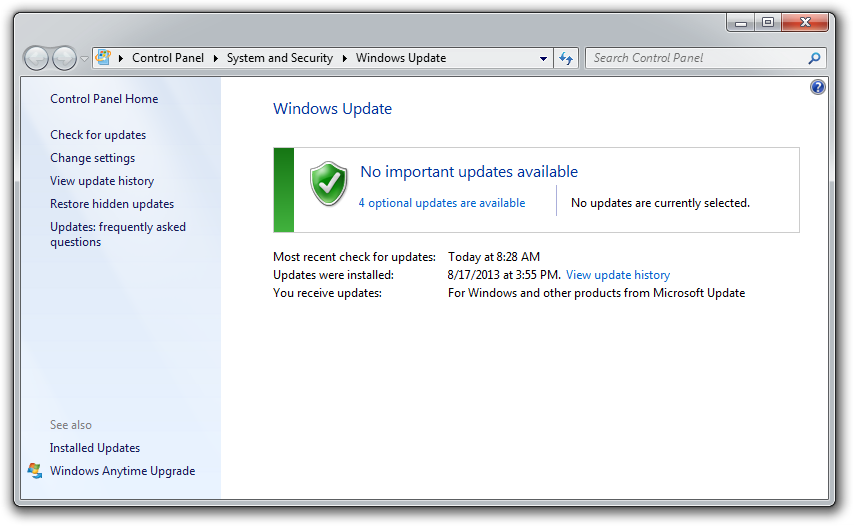
While you’re at it, make sure that your operating system is fully updated by running Windows Update. Neglecting updates could deprive you of important bug and performance fixes.

If you’re having problems with a peripheral, try switching it on and off. If that doesn’t work, try disconnecting and reconnecting the device. As a last resort, download the latest drivers and perform a full reinstall.

My computer is too slow

The first step to fixing a slow computer is to verify that your machine is the actual source of the problem. Videos that seem to buffer forever, and websites that take ages to load, may not be your computer’s fault. Geek Squad agent Derek Meister claims that many people mistakenly identify a slow system as the problem when “it’s actually not the computer, [but] their broadband connection.” See “Downloads are taking forever” below for instructions on how to use Speedtest.net to diagnose a slow connection.

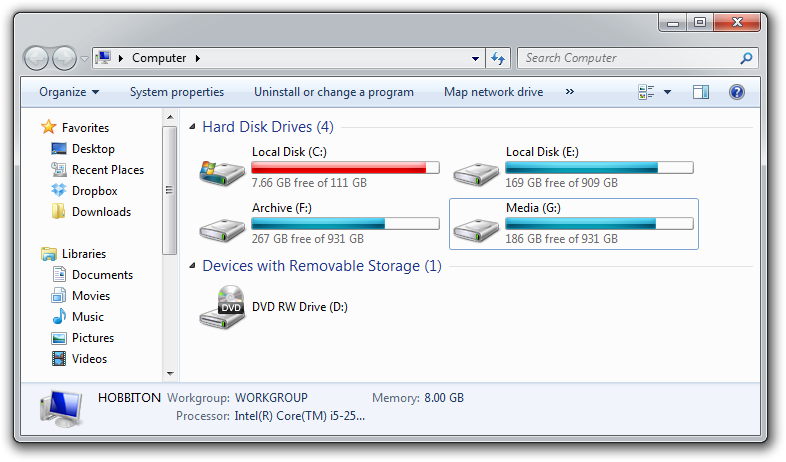
If the problem is your PC, check whether you have plenty of free space on the hard drive holding your operating system. Windows needs room to create files while your system is running. If your hard drive is maxed out, performance suffers. Now is the perfect time to clear some space.

If your computer’s operating system resides on an overstuffed C: drive, clearing out some space could boost OS performance.

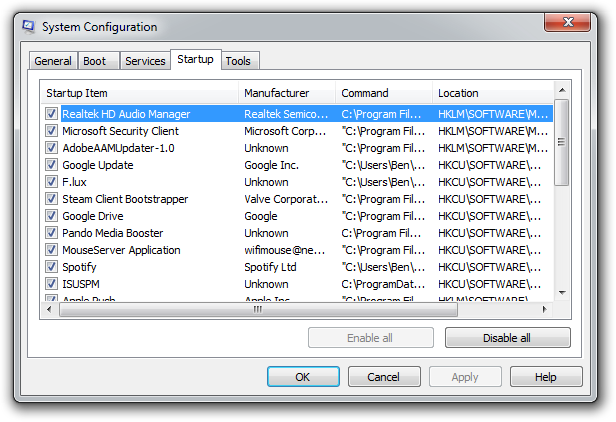
Microsoft’s System Configuration tool is your next-best bet for tackling slow performance. Many applications launch automatically when your machine boots up, which can stretch out boot time—especially on older, slower PCs. Make a habit of trimming the startup items. Open the tool by pressing Windows-R, typing msconfig, and pressing the Enter key.

Checking the Startup Item and Manufacturer columns is the best way to figure out which potential performance-killers you can safely disable. Avoid messing with any of the services and programs that have Microsoft Corporation listed as the manufacturer. Items such as AdobeAAMUpdater, Google Update, Pando Media Booster, Spotify, and Steam Client Bootstrapper are all fair game. Regardless, err on the side of caution: If you’re not sure what the program or service does, don’t disable it.

Windows’ System Configuration Tool lets you disable programs and services that automatically start when you boot your computer.

Once you’ve made all your changes, click OK and restart the computer. It should boot up quicker and feel noticeably faster.

Downloads are taking forever

Speedtest.net is your best friend when you’re having connectivity problems. Run a speed test to see what your download and upload speeds are—ideally they should be at least 50 percent of your Internet service provider’s advertised speeds, with a ping under 100 milliseconds.

If the speeds seem solid, make sure that you aren’t inadvertently downloading or uploading anything. Many torrent downloading programs run in the background and minimize into the system tray instead of the taskbar.

A good speed test should give you an accurate assessment of your ping, download speed, and upload speed.

Check your network hardware. Updates for network cards aren’t all that common, but if your card’s manufacturer offers a newer driver, download it. Resetting your router and modem can help with connection problems, too. Most routers and modems have reset buttons, but pulling the power cable for a second or two can do the same thing. Don’t cut the power for much longer, or the hardware may reset itself to factory defaults.

Still having problems? Call your ISP, which can tell you whether the problem is on your end. As a last-ditch measure, the ISP could reset the master connection to your home.

My machine keeps restarting

Hardware problems are hard to diagnose and solve. First, confirm that you aren’t just getting the latest wave of Windows updates, which can automatically restart your computer during installation. Then work on updating all of your critical system drivers. Your graphics card, motherboard, and network card drivers are crucial.

“Sometimes it can be viruses, sometimes it can be adware, sometimes it can be overheating, and sometimes it can be something as simple as making sure your video card is updated,” Geek Squad’s Meister says.

Is your computer making weird noises? If you’re lucky all you’ll need to do is give the machine a thorough cleaning. Modern computers have safeguards that shut down the system if a component is overheating, which can be the cause of frequent restarts when you’re running resource-intensive programs or video games.

Pop-up ads are appearing on my desktop

If you’re not running your Web browser and are still getting pop-up ads on your desktop, you’ve most likely installed adware—a program that displays unwanted ads. Although benevolent adware exists, most of the time adware is up to no good. Getting rid of it isn’t easy. “There’s a ton of little system-utility tools out there that promise to clean up everything, with names like PC Speed-up, PC Speed Pro, PC Speedifier,” Geek Squad’s Meister says. “A lot of times those programs are not going to do much. Some programs will work, others are snake oil.”

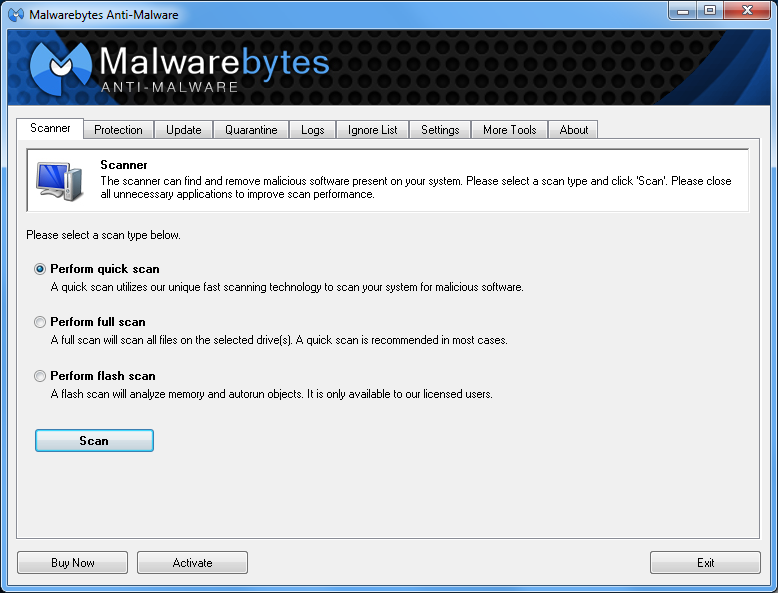
Avoid downloading programs that offer to speed up your PC or clean up your registry. Instead, use a trustworthy adware scanner like the free version of Malwarebytes’ Anti-Malware tool.

Running a full scan with credible antivirus software is your first step. If that program doesn’t find and remove the adware, turn to Malwarebytes Anti-Malware Free, a great utility for removing all types of malware. Just make sure to disable your standard antivirus software before running it.

“Multiple antivir
us programs working at the same time will often result in problems,” Falcon Northwest’s Petrie says. “You only want one active, real-time antivirus scanner installed, but it doesn’t hurt to run an additional ‘on demand’ virus or malware scanner.”

Searching online for the name of the advertised product can sometimes yield solutions from fellow victims. If all else fails, there’s always the nuclear option: a complete system reinstall. It might take a long time, but it’s the only surefire way to remove adware or spyware. Remember to back up all your personal files.

Google doesn’t look right

Browser hijackers are a particularly nasty breed of malware. Such programs take over your Web browser and can stealthily redirect your Google searches and other queries to fake pages meant to steal your personal information or to further infect your system.

Running a real-time antivirus utility is the best way to stay safe. If your browser has already been hijacked, uninstall the browser and use your antivirus program in conjunction with Malwarebytes to remove the intruder.

My Wi-Fi keeps disconnecting

Spotty wireless connections can be a puzzler. Is it your computer? Your router? Your ISP? Try a few things before calling your Internet service provider.

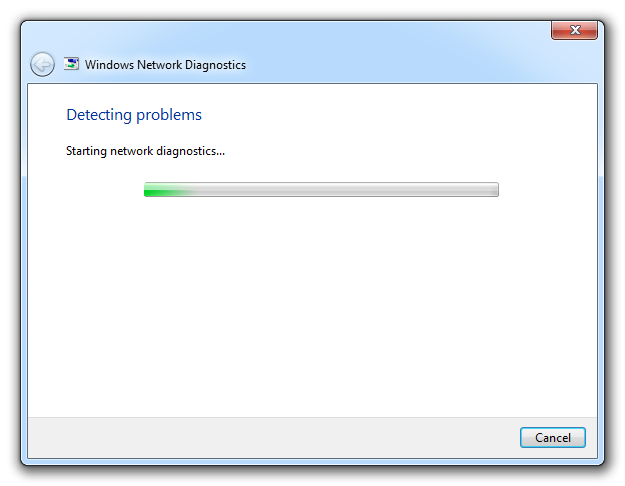
Windows Network Diagnostics may not always solve your problem, but it will usually point you in the right direction.

Confirm that your computer is within range of your wireless router. Weak signals mean weak connections. Next, make sure your PC’s wireless card has the latest drivers. Try letting Windows troubleshoot for you by right-clicking the Wi-Fi icon in the taskbar and selecting Troubleshoot problems.

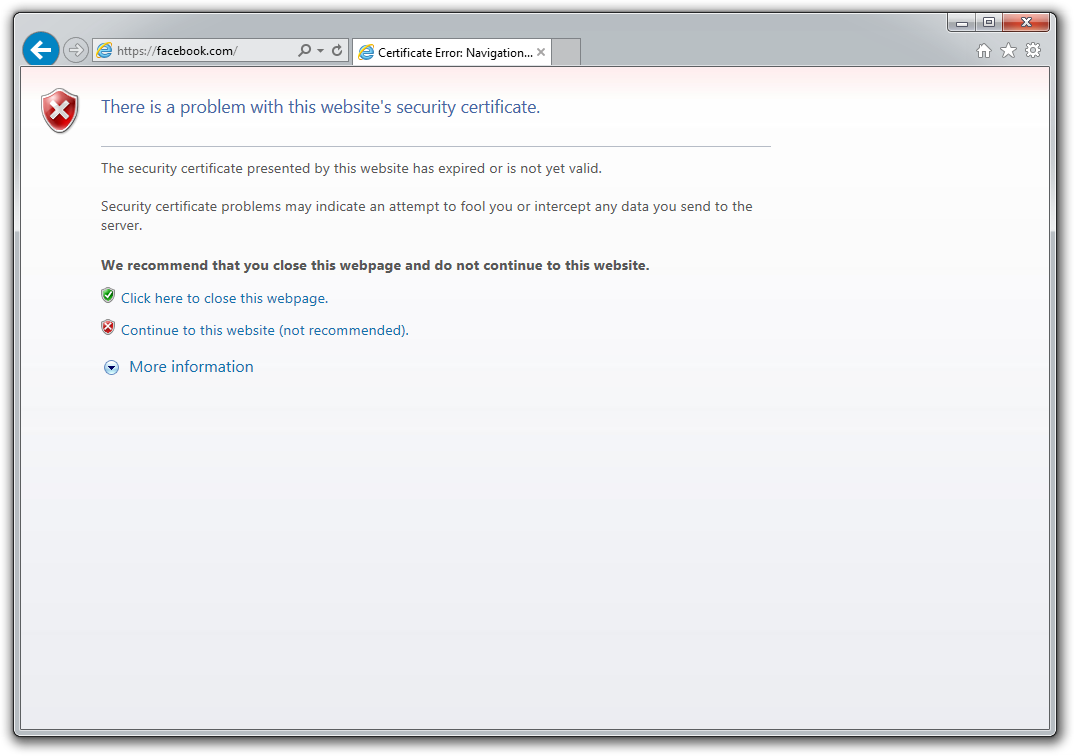
I keep seeing ‘There is a problem with this website’s security certificate’

Sometimes the biggest problems have the easiest fixes. According to support technicians, the lion’s share of issues are due to an incorrect system clock.

The problem is probably with your computer.

Website security certificates sync up with your computer’s clock. Old computers in particular run the risk of having a dead CMOS battery—the watch battery in your computer that keeps its system clock ticking. Click the clock in the system tray and select Change date and time settings to correct any issues.

My printer won’t print

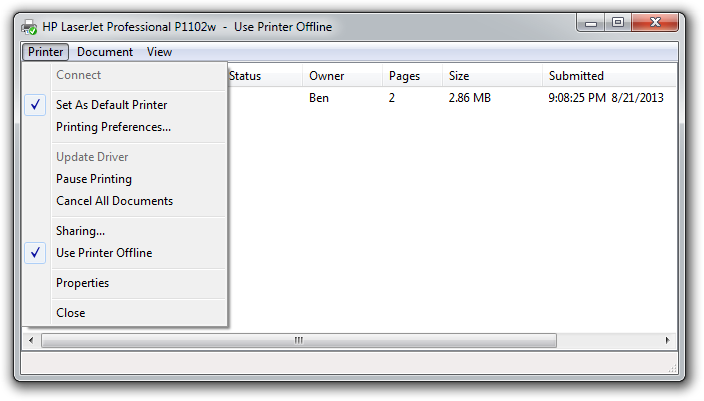
Let’s assume that your printer’s drivers are up-to-date, and that it has enough paper and ink or toner to print. Try turning the printer off and on. Unplug the printer and plug it back in. Check your printer’s print queue by looking for the printer icon in the system tray and double-clicking it. The print queue shows you the status of each job as well as the general status of your printer.

The print queue is your best bet for troubleshooting printer problems—just make sure that ‘Use Printer Offline’ isn’t selected.

Ensure that ‘Use Printer Offline’ isn’t checked. Sometimes, printing while your printer is turned off can cause Windows to set your printer to work offline, and that can stall jobs sent later.

I can’t open email attachments

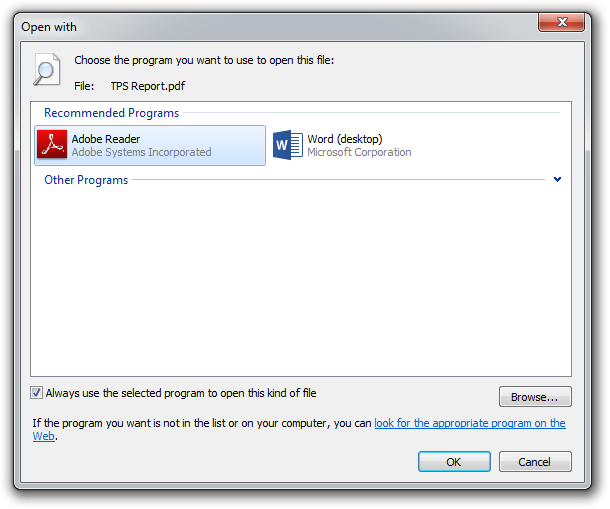
If you have ever encountered an attachment that you couldn’t open, it was probably because you didn’t have the software necessary to view the file.

If you don’t have Adobe Reader or another PDF-compatible program, you won’t be able to open that TPS report.

The usual suspect is the .pdf file, for which you can download a free PDF reader. If your problem involves a different file format, a quick search on the attachment’s file extension (the three letters after the period in the filename) should tell you what type of program you need. If the attachment lacks a file extension (which might happen if it was renamed), adding it back should set things right.

My favorite program isn’t working on my new PC

Before you call tech support, make sure that the software you’re trying to run is compatible with your operating system. Older software might not function on Windows 8, and an app created for Mac OS X definitely won’t run on your Windows PC. A 32-bit program might run on your 64-bit operating system, but it doesn’t work the other way around.

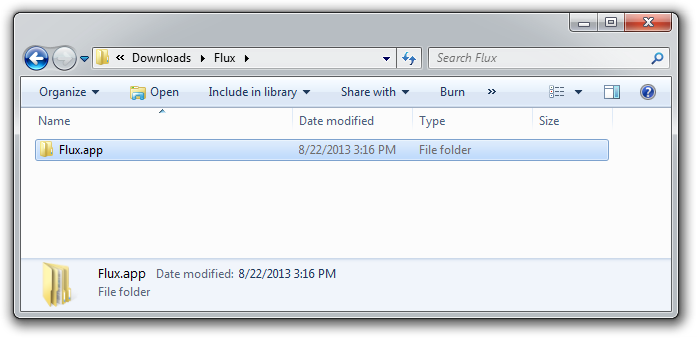
Not all file types work on Windows. For example, files that have the .app extension run exclusively on Mac OS X.

If an online game balks, you might be missing the required plug-ins—Java and Flash are the usual culprits. Most browsers will alert you to install these items if necessary.

When to throw in the towel

Falcon Northwest’s Petrie recommends connecting with tech support for “any problems that you aren’t comfortable addressing personally.” When in doubt, it’s better to steer clear of voiding a warranty or potentially damaging your system. “Being aware of your own skill set and limitations is important,” says Petrie, because “it’s often easy to make matters worse.” If you think the problem is too complicated, call up a more knowledgeable friend, or bite the bullet and work with a professional tech support service.

Note: When you purchase something after clicking links in our articles, we may earn a small commission. Read our affiliate link policy for more details.

Source

Skip to content