5 common computer problems you can fix yourself

  • 4d33b882-

    next

  • 5877e8ca-

    prev

Computers always act up at the worst times. You’re in the middle of a major report or playing your best game ever and — pffft.

Often, users get so frustrated that they needlessly go out and buy a new computer or pay for a computer repair. With a cool head and a little know-how, however, it’s easy to fix the most common computer problems. In fact, the solutions I recommend below are free.

1. Speed up a sluggish PC

Computers slow down over time — that’s normal.

If your PC is fairly new and it’s slow, remove the pre-installed programs, or bloatware, that came with it. PC Decrapifier will remove trial programs and other junk in a snap.

To give an older PC a speed boost, break out the CCleaner. This tool looks through Windows, Web browsers and other third-party programs for unwanted clutter and gets rid of it. CCleaner can also scan and fix errors in Windows’ registry. Just make sure you allow it to backup the registry before making changes.

Grab Duplicate Cleaner to remove duplicate files that might be clogging up the system. But, limit your file hunt to the Documents area of your computer. You don’t want to accidentally delete important system files.

In your cleaning process, you might find programs you no longer need. Windows’ built-in uninstaller has a tendency to leave fragments scattered around your hard drive. You can remove those fragments efficiently with Revo Uninstaller.

2. The Blue Screen of Death

Thankfully, Windows’ dreaded “Blue Screen of Death” is getting to be a rare event, but it still occurs. When it does, it isn’t very helpful in helping you hunt down the problem.

The problem can often be traced to bad memory modules. Memory is cheap and buying extra RAM capacity is usually worth it for the performance boost. You can find out what kind of memory your computer takes with this scanner.

It’s not difficult to remove and install memory modules. You’ll find video tutorials at all the major online memory stores.

Just remember to ground yourself when you open your computer. You don’t want to fry sensitive electronics with static electricity.

3. The zombie spyware plague

A message pops up on your screen repeatedly, telling you to buy a security program. It happens so often that you can’t get any work done.

Your gut tells you that this is a rip-off, and your gut is correct. The message is adware that found its way on to your system, probably through an online ad for a “free” security scan you clicked on.

If you do download – and often pay for – the security program, you’ll end up with fraudware. No matter how many times you run the program it will always find the same problems and keep trying to get more money out of you.

Before you buy any security software, make sure it’s real. Use this site to stay current on fake antivirus programs.

Once you have fraudware, running a real antivirus program probably won’t help. To stop the pop-ups, you must run an anti-spyware program. There are a number of good ones — I’d start with Ad-Aware. You can find that and more legitimate free security software in my Security Center.

4. SD card stuck in CD/DVD slot

This is one for the Mac people. If you’re distracted or pre-occupied, it’s annoyingly easy to shove an SD camera card into an iMac’s superdrive. The two slots are right next to each other on the right side of the computer.

You don’t have to take the machine apart or ship it to a service center. The fix is easy. Cut an L-shape out of cardboard to use as a fishing hook. Slide it in and pull out the SD card. Watch this video to see how it’s done.

5. Network issues

If your wireless network is dead, your router, cable or DSL modem probably crashed. It happens. Reboot the gadgets by unplugging them for 30 seconds, then plugging them back in. That usually solves the problem.

If your signal is weak or the connection is slow or drops out, there are a few tricks you can try to improve your home Wi-Fi, such as the beer-can antenna booster. I made a fun video to show you exactly how to make your own. Watch it now.

Copyright 2013, WestStar Multimedia Entertainment. All rights reserved.

Kim Komando hosts the nation’s largest talk radio show about consumer electronics, computers and the Internet. To get the podcast, watch the show or find the station nearest you, visit: http://www.komando.com/listen. To subscribe to Kim’s free email newsletters, sign-up at: http://www.komando.com/newsletters.

Source

What is SEO Search Engine Optimization 2020

SEO stands for Search Engine Optimization, which is the practice of increasing the quantity and quality of traffic to your website through organic search engine results.

Discover Our Range of Services

To understand the true meaning of SEO, let’s break that definition down and look at the parts:

  • Quality of traffic. You can attract all the visitors in the world, but if they’re coming to your site because Google tells them you’re a resource for Apple computers when really you’re a farmer selling apples, that is not quality traffic. Instead you want to attract visitors who are genuinely interested in products that you offer.
  • Quantity of traffic. Once you have the right people clicking through from those search engine results pages (SERPs), more traffic is better.
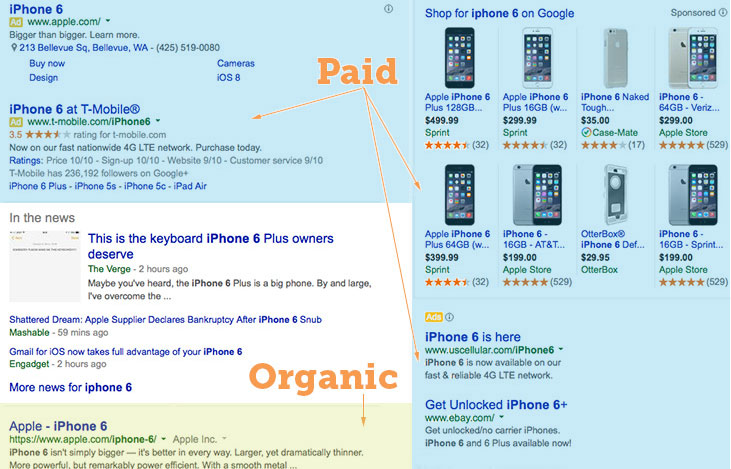
  • Organic results. Ads make up a significant portion of many SERPs. Organic traffic is any traffic that you don’t have to pay for.

Organic search traffic is specifically any unpaid traffic that comes from SERPs.

How SEO works

You might think of a search engine as a website you visit to type (or speak) a question into a box and Google, Yahoo!, Bing, or whatever search engine you’re using magically replies with a long list of links to webpages that could potentially answer your question.

That’s true. But have you ever stopped to consider what’s behind those magical lists of links?

Here’s how it works: Google (or any search engine you’re using) has a crawler that goes out and gathers information about all the content they can find on the Internet. The crawlers bring all those 1s and 0s back to the search engine to build an index. That index is then fed through an algorithm that tries to match all that data with your query.

There are a lot of factors that go into a search engine’s algorithm, and here’s how a group of experts ranked their importance:

rank-factors-pie-2013-lrg.gif?mtime=20170104131408#asset:2285:url

That’s all the SE (search engine) of SEO.

The O part of SEO—optimization—is where the people who write all that content and put it on their sites are gussying that content and those sites up so search engines will be able to understand what they’re seeing, and the users who arrive via search will like what they see.

Optimization can take many forms. It’s everything from making sure the title tags and meta descriptions are both informative and the right length to pointing internal links at pages you’re proud of.

Learning SEO

This section of our site is here to help you learn anything you want about SEO. If you’re completely new to the topic, start at the very beginning and read the Beginner’s Guide to SEO. If you need advice on a specific topic, dig in wherever suits you.

Here’s a general overview:

Building an SEO-friendly site

Once you’re ready to start walking that SEO walk, it’s time to apply those SEO techniques to a site, whether it’s brand new or an old one you’re improving.

These pages will help you get started with everything from selecting an SEO-friendly domain name to best practices for internal links.

Content and related markup

A site isn’t really a site until you have content. But SEO for content has enough specific variables that we’ve given it its own section. Start here if you’re curious about keyword research, how to write SEO-friendly copy, and the kind of markup that helps search engines understand just what your content is really about.

On-site topics

You’ve already learned a lot about on-site topics by delving into content and related markup. Now it’s time to get technical with information about robots.txt.

Link-related topics

Dig deep into everything you ever needed to know about links from anchor text to redirection. Read this series of pages to understand how and when to use nofollow and whether guest blogging is actually dead. If you’re more into the link building side of things (working to improve the rankings on your site by earning links), go straight to the Beginner’s Guide to Link Building.

Other optimization

Congratulations! You’ve mastered the ins and outs of daily SEO and are now ready for some advanced topics. Make sure all that traffic has the easiest time possible converting with conversion rate optimization (CRO), then go micro level with local SEO or take that site global with international SEO.

The evolution of SEO

Search engine algorithms change frequently and SEO tactics evolve in response to those changes. So if someone is offering you SEO advice that doesn’t feel quite right, check in with the specific topic page.

For a more technical look at SEO, check out this short video from Rand Fishkin.

Go forth and SEO…

Keep learning

Put your skills to work

Gauge a Site’s Influence with Link Explorer

Link Explorer is a link popularity and backlink analysis tool that lets you research and compare any site on the web.

Source

Free Website Builder Create a Free Website

Discover the platform that gives you the freedom to create, design, manage and develop your web presence exactly the way you want.

Get Started

The Freedom to Create the Websites You Want

Design and build your own high-quality websites. Whether you’re promoting your business, showcasing your work, opening your store or starting a blog—you can do it all with the Wix website builder.

Build Your Unique Online Presence

To create your own website, follow these steps:

Customize your site

Pick a template and customize anything, or answer a few questions and get a free website designed just for you.

Add advanced features

Start your own blog, add an online store and accept bookings online. You can always add more features as you grow.

Edit your mobile view

Check out the mobile-optimized version of your site. Switch to the Mobile Editor to personalize it even more.

Optimize for search engines

Answer a few questions about your website, location and keywords and get a personalized SEO plan to get found online.

Wix Editor
Total Design Freedom

Start from scratch or choose from over 500 designer-made templates to make your own website. With the world’s most innovative drag and drop website builder, you can customize or change anything. Make your site come to life with video backgrounds, scroll effects and animation. With the Wix Editor, you can create your own professional website that looks stunning.

Wix ADI
Get Online Fast

Answer a few simple questions and Wix ADI (Artificial Design Intelligence) will instantly build a personalized website just for you, complete with custom text and images. Choose your style, change the layout and add any features you need for your business, like an online store or booking system. When you’re ready, go live in a click.

Corvid by Wix
Open Dev Platform

Build professional web applications with serverless computing and hassle-free coding. Manage all your content from integrated databases, add your own code in the built-in IDE or work in your own environment, and connect to 100s of APIs. Plus, you get total design freedom from the Wix Editor and optimized business applications.

Get Professional Features for Your Website

You can make your own website exactly the way you want, whether it’s your first time creating a site or you’re a long time pro.

Beautiful Blog

Create a stunning blog, grow your community and share your ideas.

Create a Free Blog

Learn How

Logo Maker

Design your own professional logo and build your brand online.

Try Wix Logo Maker

Mobile Optimized

Look amazing on every screen with a mobile version of your site.

Online Store

Build your online business with a powerful ecommerce platform.

Create an Online Store

The Best SEO

Get found on search engines like Google with advanced SEO tools.

Find Out More

Custom Domains

Get a professional domain name that matches your business and brand.

Get Custom Domain Names

Manage and Grow Your Business Online

The Wix website builder makes it possible for anyone to create a website and manage their business—all in one place. Effortlessly capture leads, build customer relationships and accept payments right from your website.

Why the Wix Website Builder Is the Best Choice for You

You can create a free and professional website all on your own. With Wix, you can start with a stunning template and customize it, or get a personalized website made just for you. When you choose Wix, you don’t just get a drag and drop website builder. You get the whole package. Free reliable web hosting, top security, the best SEO and a dedicated support team to help you along the way.

Over 160 million people worldwide choose Wix to create a free website. And you can do it, too.

Follow these 6 simple steps to create a website today.

  1. Sign up for a free website builder. Choose what kind of website you want to create.

  2. Customize a template or get a website made for you. Choose your starting point.

  3. Drag and drop 100s of design features. Add text, galleries, videos, vector art and more.

  4. Get ready for business. Add an online store, booking system, members area and blog.

  5. Publish your website and go live. Start building your professional online presence.

  6. Drive traffic to your site. Use advanced SEO tools and integrated marketing solutions.

Stunning Templates

Start with free HTML website templates and bring your vision to life.

Health & Wellness

Health & Wellness 

Psychologist

Events

Events

One Day Festival

Group 23.pngDesign

Design

Architect Company

Business

Business

Home Organizer

Portfolio & CV

Portfolio & CV

Art Director

Video

Music Video Director

FAQ

Is it easy to build a website?

Yes. Wix offers a few different ways to create your own free website, so you can choose the creation process that works best for you. Need to get online fast? Answer a few simple questions and Wix ADI (Artificial Design Intelligence) will build a professional website for you in under 10 minutes. If you want 100% design freedom, start from scratch and drag and drop the website design features you need in the Wix Editor.

Can I create a website without knowing how to code?

Absolutely. Wix is user-friendly and makes it possible to build a professional website without knowing how to code. In the Wix Editor, you can drag and drop any feature you want and customize it to match the look and feel of your site. Of course, if you do know how to code, you can add advanced functionality to your site with Corvid.

How do I make my site mobile friendly?

Your Wix website automatically comes with a mobile-optimized version that looks great on smaller screens. The Wix Mobile Editor makes it easy to customize your mobile site even more.

How do I create a free website with a custom domain?

You can create a free website with Wix that comes with a Wix domain. To instantly look more professional online, get a custom domain name. It adds credibility to your brand and helps visitors find you online. You can start building your brand by using your domain in a custom email address ([email protected]), your social channels, email marketing campaigns and more.

Should I use a website builder or hire a web developer?

The free Wix website builder is intuitive to use. Looking for a specific web service? Explore the Wix Marketplace to find a certified freelancer or agency at a price that fits your budget.

How do I build and host my site for free?

When you create a free website with Wix, you get reliable, scalable and free web hosting. All your web content will be stored on secure servers located around the world. So no matter where your visitors come from, your site will load fast. 

Can I use a website builder to create a landing page?

Absolutely! You can create any kind of website with Wix. Explore beautiful HTML landing page templates to get started today. 

How do I get my website found on Google? 

Wix makes it simple to get your website found on Google. With Wix SEO Wiz, answer a few questions about your site, location and keywords and get a personalized SEO plan to get found online.

This website was designed with Wix.

Source

31 Types of Information Technology Services


Aninformation technology serviceis a technology that is wrapped inservicessuch as support and management. This frees the customer from the complexity of installing and operating the technology themselves. The following are common types of information technology service.Technology infrastructure such asload balancersand firewalls. Services may offer support, management andself-servicetools for configuring and operatinginfrastructure.Computing resources such as acloud computingplatform that includes management of data centers and self service tools for deploying, scaling and monitoring computing.

Software

Softwareapplicationsthat are fully operated, managed and supported by the provider.

Platforms

Platforms for developing, deploying and managing custom applications and systems.Services that can be used to extend the functionality of code. For example, anAPIthat a mobile app can use to verify the identity of a user.

Networks

Network services such as a wifi service at an office or public location that is fully supported and managed by a telecom company.

Data Storage

Storage offilesand objects such as a cloud storage service.

Data Synchronization

Synchronization of data across devices such as a service that syncs your contacts and photos on your mobile and home devices.Storage ofdatasuch as a cloud database service.Services that provide data itself such asmarket data.Services thatvisualize datafor human consumption.Content managementtools that allow you to organize, control and share content and documents.

Content Delivery

Platforms for publishing content such as acontent delivery networkthat automatically distributes your content to multiple data centers to serve users from a data center that is close to them.Platforms that process businesstransactionssuch as a payments platform.Services that allow you to semi-automate custom business processes that include human tasks.Managed tools forautomating worksuch as a platform for developing and deploying bots.Services for managing events. For example, a tool that can create an incident ticket based on an error in a log.

Monitoring

Tools for monitoring technologies and business processes.Information security services such as a proxy that blocks suspicious requests to a service.

Mobile

Mobile applications such as a navigation service.

Mobile Platforms

Platforms for developing and operating mobile services.

Search

Search services such as an internet search engine or a search tool for your knowledge repositories.Basicproductivity toolssuch as a cloud-based word processor.Communication services such as voice, messaging, email, document sharing and virtual environments.

Games

Game environments that are fully managed by the provider. For example, a cloud-based virtual world.

Workspaces

Environments for productivity such as a virtual desktop environment.

Development Environments

Environments for developing software.Services that offer business functionality such as a marketing automation platform that can purchase digital advertising, optimize offers and score leads.Information technology services potential extend to machines that canautomate physical work. For example, a solar panel management platform that orchestrates cleaning and remote repair of solar modules.Physical things that are managed and supported by software services. For example, a jet engine that is monitored for safety and performance by the manufacturer.Platforms formachine learning.

Notes

Technology servicestypically offer aservice level agreementthat guarantees the performance of the service such as itsavailability.It is common to use the phrase “as a service” to describe information technology services such as “infrastructure as a service.”Anytechnologycan potentially be offered as a service.Services are attractive to customers because they free the customer from installation, management, support and operation of the technology. They may also reduce upfront capital investments as technology services are commonly offered for a monthly fee.Services are attractive to providers because they typically generatemonthly recurring revenue.
A large organized list of IT elements and techniques.
The definition of IT Architecture with examples.

Examples of common solution architecture diagrams.

Examples of system architecture diagrams.

The definition of consumerization with examples.

Common examples of software as a service.

The definition of IaaS with comparisons to cloud infrastructure, PaaS, SaaS, hosting and on-premise.

A list of basic computer networking concepts.

An overview of reverse proxies with examples.

A list of cloud computing terms.

Common definitions of cloud computing.

The basic types of cloud computing.

A definition of workload automation with examples.

The common types of managed service.

A complete overview of SaaS including benefits, disadvantages and comparison to IaaS, PaaS and cloud computing.

Common examples of infrastructure as a service.
The definition of cloud scaling with examples.
The most popular articles on Simplicable in the past day.

Recent posts or updates on Simplicable.

more »

Source

How VoIP Works

If you’ve never heard of VoIP, get ready to change the way you think about long-distance phone calls. VoIP, or Voice over Internet Protocol, is a method for taking analog audio signals, like the kind you hear when you talk on the phone, and turning them into digital data that can be transmitted over the Internet.

How is this useful? VoIP can turn a standard Internet connection into a way to place free phone calls. The practical upshot of this is that by using some of the free VoIP software that is available to make Internet phone calls, you’re bypassing the phone company (and its charges) entirely.

VoIP is a revolutionary technology that has the potential to completely rework the world’s phone systems. VoIP providers like Vonage have already been around for a while and are growing steadily. Major carriers like AT&T are already setting up VoIP calling plans in several markets around the United States, and the FCC is looking seriously at the potential ramifications of VoIP service.

Above all else, VoIP is basically a clever “reinvention of the wheel.” In this article, we’ll explore the principles behind VoIP, its applications and the potential of this emerging technology, which will more than likely one day replace the traditional phone system entirely.

The interesting thing about VoIP is that there is not just one way to place a call. There are three different “flavors” of VoIP service in common use today:

  • ATA — The simplest and most common way is through the use of a device called an ATA (analog telephone adaptor). The ATA allows you to connect a standard phone to your computer or your Internet connection for use with VoIP. The ATA is an analog-to-digital converter. It takes the analog signal from your traditional phone and converts it into digital data for transmission over the Internet. Providers like Vonage and AT&T CallVantage are bundling ATAs free with their service. You simply crack the ATA out of the box, plug the cable from your phone that would normally go in the wall socket into the ATA, and you’re ready to make VoIP calls. Some ATAs may ship with additional software that is loaded onto the host computer to configure it; but in any case, it’s a very straightforward setup.
  • IP Phones — These specialized phones look just like normal phones with a handset, cradle and buttons. But instead of having the standard RJ-11 phone connectors, IP phones have an RJ-45 Ethernet connector. IP phones connect directly to your router and have all the hardware and software necessary right onboard to handle the IP call. Wi-Fi phones allow subscribing callers to make VoIP calls from any Wi-Fi hot spot.
  • Computer-to-computer — This is certainly the easiest way to use VoIP. You don’t even have to pay for long-distance calls. There are several companies offering free or very low-cost software that you can use for this type of VoIP. All you need is the software, a microphone, speakers, a sound card and an Internet connection, preferably a fast one like you would get through a cable or DSL modem. Except for your normal monthly ISP fee, there is usually no charge for computer-to-computer calls, no matter the distance.

If you’re interested in trying VoIP, then you should check out some of the free VoIP software available on the Internet. You should be able to download and set it up in about three to five minutes. Get a friend to download the software, too, and you can start tinkering with VoIP to get a feel for how it works.

Next, we’ll look at exactly how VoIP is used.

Source

5 common computer problems… and how to fix them

There are few things more annoying in life than working on a computer only for it to become unresponsive or throw up an error message. When your computer stops responding – also known as “crashing” – it can result in you losing hours of work. While many apps back-up data to cloud storage, you can still end up losing loads of progress. 

Worst of all, when your PC does encounter an error, the resulting error message (if one even appears) can often be full of jargon that doesn’t explain in plain English what went wrong. This can make figuring out what happened very difficult, especially if you’re not that used to using computers. Even the best home computers and the best laptops can go wrong, and you should know how to deal with the most common issues.

To make things easier, we’ve put together this guide to the five most common computer problems, and how to fix each one. You should also check out our pick of the best repair software for PC to help you fix these problems quickly and easily.

1. Blue Screen of Death (BSoD)

The ‘blue screen of death’ is one of the most recognisable computer errors that can occur, and if you’ve ever used a PC there’s a good chance that you might have encountered a blue screen of death error already.

What usually happens is that your PC will become unresponsive for a few seconds, and then the screen will turn completely blue and an error message (that’s sometimes completely indecipherable) will appear. Your PC will then restart, and if you’re lucky you won’t have lost too much work. 

While the name ‘blue screen of death‘ started off as a bit of a joke, it hints at how scary this error message can be. If you get a blue screen of death without saving your work, the resulting reboot of your PC can make you lose any changes you’ve made to a document.

While some blue screen of death errors are one offs, most of the time they are an indication that there’s something wrong with your PC, and there are a number of reasons why you may get a blue screen of death error. Failing hardware, corrupted software, missing DLL files or problems with drivers can be the main culprits. 

The way to fix a blue screen of death error will vary depending on what caused it to appear. When the blue screen of death error appears you should see a code. Quickly note that down, then type it into Google (or another search engine of your choice). You’ll hopefully find that other people have encountered the same error and have posted how they fixed it. 

The good news is that in Windows 10, Microsoft has made the blue screen of death error message more useful. For a start, it’s no longer blue — it’s green. There will also be a QR code that is displayed along with the error message. Use your smartphone to scan the QR code and you should be taken to a webpage that will explain the error message in more detail, and offer advice on how to fix it.

Lenovo Ideacenter

(Image credit: Lenovo)

2. Windows is slow to boot

A slow-booting PC is one of the most common — and annoying — computer problems you can encounter. Luckily, it’s also one of the easiest to fix. There are several reasons why your PC will take a long time to load up — but the most common cause is that there will be too many programs trying to load up in the background when Windows starts.

You may notice when you install a new program that it sets itself to load when you first log into Windows. While this can sometimes be useful, as a means those programs open up quickly when you need them, when too many of them try to start up once it can slow your PC to a crawl. The easiest way to fix this problem is to identify what programs are loading up when Windows starts and disable any programs that you do not need.

To do this, open up the Task Manager in Windows 10 by pressing CTRL + Shift + Esc on your keyboard. In the Task Manager window, click on the ‘Start-up’ tab at the top of the window. This lists all the apps and programs that load when Windows 10 starts up. If this is a long list, that will be the cause of your PC being slow to boot.

In the Task Manager, you’ll see the name of the app followed by the publisher, its status and the start-up impact. If it says “High” in the ‘Start-up impact’ column, then that means the program is slowing down Windows 10’s bootup speed. If you don’t need the app to load when Windows starts, then right-click on its entry and select ‘Disable’. This will prevent the app from loading when Windows 10 starts.

Remember, this doesn’t mean you won’t be able to use the app when you need it, it just means it doesn’t pre-load with Windows. Hopefully, disabling a number of these apps will make a noticeable difference to the time it takes for Windows 10 to load.

If you find that your PC is still slow to boot, there may be other issues affecting it. For example, you may want to check that you have the latest updates and drivers installed for your hardware. If you really want to give your PC a speed boost when it comes to boot times, then you may want to think about installing an SSD in your PC and running Windows 10 from that. An SSD (Solid State Drive) is a much faster drive than a traditional hard drive and installing Windows 10 on one can make a huge difference to how fast it boots.

3. Applications won’t install

Another common computing problem that many people face are applications not installing. The main reason for this is a lack of hard drive space. If your hard drive has become full, it may mean that you are no longer able to install new applications. If this is the case, then you’ll need to do a bit of spring cleaning. 

First of all, you can delete any large files that you no longer need. Open up File Explorer and then navigate to your Downloads folder. This folder often holds lots of large files that you no longer need, so feel free to delete any large files from there. 

You can also free up hard drive space by uninstalling any programs that you no longer use. In the search box in the Taskbar (this is the bar that runs along the bottom of your screen in Windows 10) type in “uninstall”, then click on ‘Add or remove programs’. Scroll down the list of programs that is displayed and click on any that you no longer need. A button will appear saying ‘Uninstall’. Click it to remove the program from your PC. 

You can also get Windows 10 to clean up your hard drive for you. Again, in the search box of the taskbar, type in “disk clean-up” and then press return on your keyboard. From the window that appears, select the drive that you want to clean up. By default this will be the C: drive, which is where Windows 10 and the majority of the programs will be installed. Click ‘OK’, and Windows 10’s Disk Clean-up tool for scan your drive and find files that you can safely delete to free up disk space. From the window that appears you’ll see how much space you can save on your hard drive. Tick the box next to each type of file that you want to remove then click ‘OK’.

Dell XPS desktop computer

(Image credit: Dell)

It’s important to keep Windows 10 updated to ensure that your PC runs as well as possible, whilst also being protected against the latest security threats. Even the best antivirus software won’t keep you safe if your version of Windows is out of date. However, there are times when you may encounter a problem wh
en updating Windows 10. 

One of the most common problems with Windows Update is when an update fails to install. You will usually see an error message appear explaining that the update has not been successful. Most of the time, this error message is quite good at explaining what the problem is and how to fix it, and one of the most common reasons for Windows update not installing is incompatible software. This means you may have an old version of an app or program that is preventing the Windows update to install. If this is the case, the error message should explain which program is causing the issue. Either uninstall the program which is causing the error, or visit the developer’s website to make sure you have the latest version installed. Afterwards, try installing the update again. 

Another reason why a Windows update may fail to install is due to a lack of hard drive space. Each update requires a minimum amount of hard drive space to be available to install correctly, and if your hard drive is too full, then the installation will fail. To fix this problem, free up hard drive space using the methods we outlined in the step above.

If you find that your computer is behaving erratically after installing a Windows update, then it could be that the Windows update itself is causing the problem. To fix this, you will need to uninstall the update. To do this type in “Windows update” into the Taskbar search box and select ‘Windows Update settings‘. In the window that appears, click ‘View update history’. Then, select either ‘Uninstall updates’ or ‘Recovery options’ and follow the steps to uninstall the problem update. Make sure you check Microsoft’s support website to see if Microsoft has released a permanent fix for the problem update.

5. Apps behaving badly

Another common PC problem is when apps and programs start acting strangely. Perhaps they suddenly close down without warning, or maybe documents look a bit strange in Word. 

Once again, there is a wide range of reasons why an app may not be working correctly. The first thing you should do is save your work, then restart your PC. Load up the app, and see if it is now working as intended.

If there’s still an issue, you next port of call should be an internet search engine, where you can type in the name of the program and a description of the issue. Hopefully, other people will have had similar issues, figured out how to fix it, and shared their solutions online. 

It’s also worth checking the website of the developers of the app to see if they have released a fix. If the developer’s website has a forum, that can be a good place to look for fixes. While you’re there, make sure you have the latest updates installed. If that fails to fix the problem, it may be worth contacting the app’s support team for more help with fixing the problem.

Dell XPS 13

(Image credit: Dell)

Can System Repair Software help?

If your computer suffers from a common problem, then there’s a good chance that system repair software can help you fix it. The best repair software for PC can detect and fix issues with only a few clicks of a mouse, and as well as sorting out faulty apps, if can also help you free up disk space and optimise your computer so that it runs faster. It might even discover issues that you’ve not even noticed yet!

Source

4 steps to troubleshooting almost any IT issue

Troubleshooting IT can be… tedious (understatement of the year). End users submit seemingly endless problems ranging from complaints of their Internet being “slow” to forgotten passwords to constant printer pains. What’s your plan of action for the next vague phone call, email request about tech issues, or help desk ticket from a big wig who needs his computer fixed… RIGHT NOW?

Worry not! We’ve got several problem-solving steps to follow that’ll help ease the stress of solving nearly any IT issue:

Step 1: What exactly is the problem?

Getting to the bottom of a computer issue can sometimes feel like playing 20 questions, so it’s crucial to ask the right questions first if you want to discover the root problem quickly.

  • If you’re talking to someone or emailing with them, listen or read carefully and take notes (mental or otherwise). When they’re done, proceed with questions that either have a yes/no answer or can be answered quantifiably (e.g., “How many times did this happen?”). This approach can move things along and cut down on ambiguous responses.
  • What should you ask? The key is to find out the “who, what, and when” of the problem. Does the issue affect just one person or many people? Did it occur right after a significant event on the computer or the network? There are specific questions you can ask to drill down beneath general statements like “I can’t send email.” Are they using a PC or mobile device? Is the PC power on? Are they able to open their e-mail client? Can they send or receive email, or both?
  • Once you’ve got a grasp on the issue, try repeating your understanding of the problem so that you’re both on the same page as to what’s wrong. It’s a good idea to use some the same language they used and avoid using complex tech terminolgy. Ideally, this will help remove potential confusion related to the issue.

Now that you have a basic understanding of what the issue is all about, you can look into technical details that could point you toward to a solution.

QuestionsHow can you answer the most common IT questions?

2) Gather more details, eliminate variables

In many instances, what was reported as a general issue (e.g., the Internet is down) is actually something very particular, such as a specific website being offline. Best way to find out? Ask those pertinent questions and then dig up more info from various sources such as:

  • Error messages: If the user reports one or you’re present to check for one, they can point you in the right direction as to why a failure occurred. For example, Windows blue screens of death provide a relevant error code that’ll give you a good sense of what caused a failure.
  • Events logs: Do they exist, and if so, what exactly do they say? In addition to error messages, logs often provide a timestamp so you can answer the question of when exactly events happened. Checking the Windows event viewer can be a first step in pointing you towards any relevant logs.
  • Can the user provide screenshots, video, or other supporting information that can help assist in the troubleshooting process?
  • Diagnostics results: Have you run system utilities to get even more information? For example: ping can help you remotely check if a server or website in question is reachable. Additionally, the Windows memory diagnostic can check for faulty memory, the resource monitor or performance monitor can check for unusually high CPU or memory usage, and a disk check can examine your hard drives for errors.
  • Monitoring: Do you have any 3rd party tools that can offer more clues or predict issues before they occur? A network monitoring solution like Spiceworks provides preemptive alerts and warnings about servers at risk of going down. And a network inventory application can provide vital statistics on dozens or hundreds of systems such as disk space, available memory, OS installed, and software running on the devies in question.

Event ViewerThe event viewer helps you find logs that can point towards the source of a problem

Step 3: Reproduce the problem, develop hypothesis of root cause

Now that you’ve gathered basic background info, it’s time to get hands-on with the problem. Reproducing an issue simply means verifying you can recreate the same error the user reported. You can do this at the physical site of the problem, or through a remote desktop / remote control application. Neither of those options available? You might be able to approximate the same conditions on a similar computer.

Once you encounter the same error(s), you can more easily develop theories as to the root cause based on what you observe, then start taking steps to fix the issue. Sometimes you’ll find the culprit (and come up with the solution) pretty quickly. Other times, it’ll take longer and you may have to dig into knowledge bases, comb through old help desk tickets, or Google the problem for others who have faced the same issue.

At this phase, a deep understanding of how computers work will prove… useful. For example, in computer networking, if you understand 7 layer OSI model for networks (a problem can exist in any one of them), you have a framework for systematically working your way through the potential causes of a networking problem. For a connectivity issue, an Ethernet cable could be damaged or unplugged (Layer 1 issue), network requests might not be going through (Layer 3), or an application might not be properly coded (Layer 6).

Step 4: Attempt a fix based on findings

The evidence you’ve already gathered should have narrowed down possible root causes and positioned you to fix the issue. At this point, focused experimentation is the name of the game. You can try tweaking changing settings related to the problem, swapping out faulty parts, repairing corrupted files, updating drivers and software, etc. until you solve the problem (or at least get closer).

Still stumped? You can always restore the machine back to a point when everything was working fine. That is, if someone took the all-important step of backing up data or system state before the problem happened so you can go back to a simpler time… before problems plagued their PC.

While every issue is like a unique snowflake, a significant number of issues can be resolved through common troubleshooting steps like rebooting the problematic machine, checking for DNS and DHCP issues, checking the device manager for driver issues, cleaning up a machine, or checking firewall or proxy settings, etc. For issues that are tougher, if your own experimentation and Google searches don’t result in a satisfactory result, browsing discussions on IT forums such as Spiceworks can be extremely helpful for fixing PC issues. If nothing turns up there, you can always ask the community of millions of IT pros in Spiceworks.

Problem Solved? Prepare for future issues

No matter what the underlying tech problems are (networks issu
es, driver conflicts, disk problems, etc), the process outlined above works well for gathering info, identifying possible causes of the issue, and getting to a solution no matter what issue you’re dealing with. But you’ll still have to make judgment calls depending on each unique case.

With this sort of system in place, and knowledge learned working through previous computer problems, you’ll be able to knock out computer problems more efficiently as you gain more experience. And to be proactive in avoiding future crises, perhaps you can document issues so they can be referred to by anyone who encounters similar challenges down the line.

Source

Skip to content